The interface at a glance
As soon as you open a project, you see three floating bars above your workspace. Everything else is room for your work.
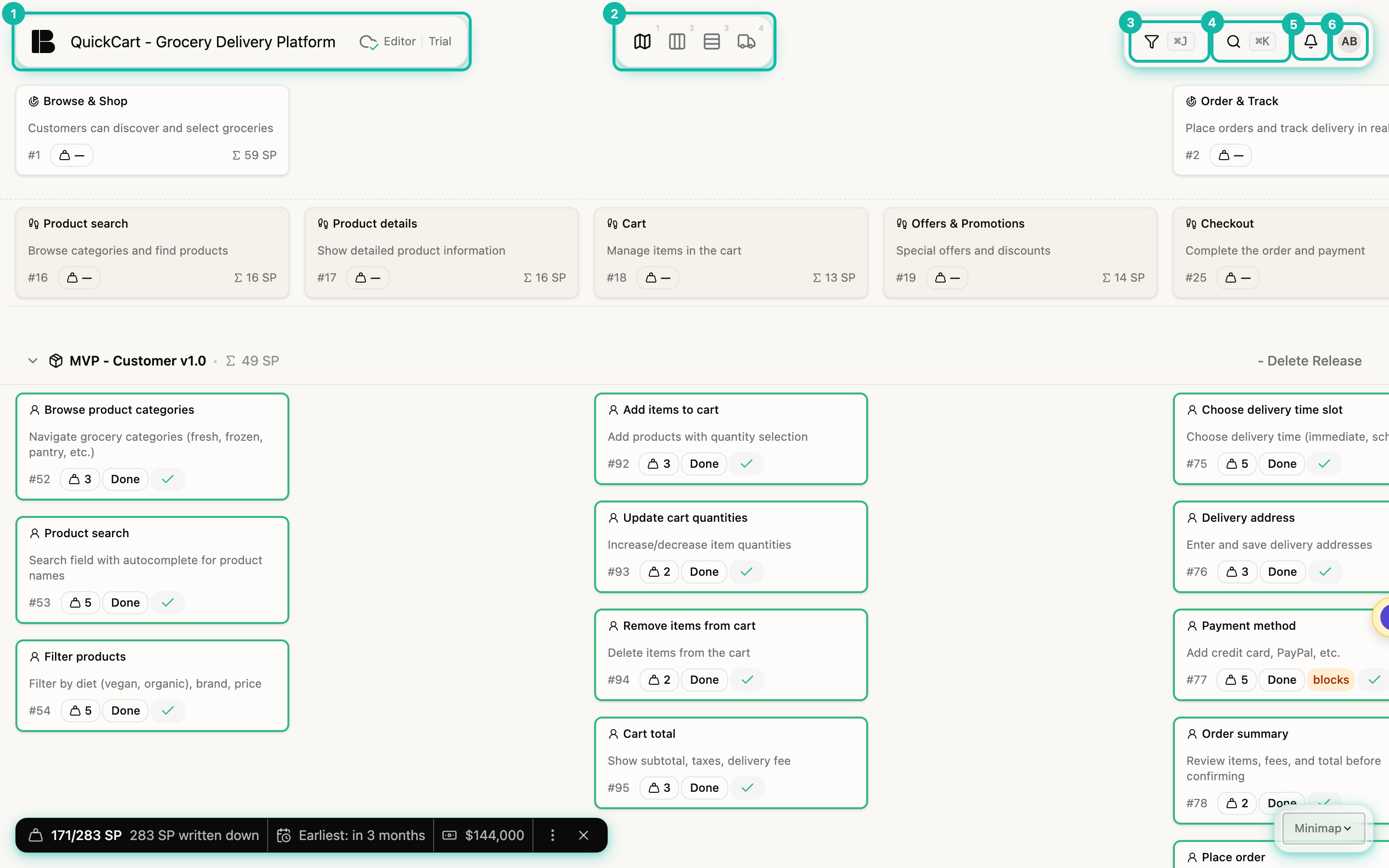
- Project header: The logo takes you back to the workspace (Go to workspace). Next to it are the project name, save status, your role in the project and, during the trial, a Trial label.
- Phase navigation: One icon per phase: Scope, Prepare, Build and Insights. A click switches to the phase. Rest the mouse on it for a moment and the phase's views unfold, for example Storyboard in Scope or Kanban in Prepare.
- Filter: Opens the filters (shortcut
⌘JorCtrl+J). If your filters differ from the project default, Betterplan marks it. - Search and commands: Opens the command palette (
⌘KorCtrl+K). - Inbox: Shows mentions, open discussions and tasks assigned to you.
- Profile menu: Profile settings, theme, language, legal information and log out.
Switching phases
The phases follow the flow you know from What is Betterplan?. Some views are rolled out gradually, so the navigation in your workspace may show fewer views than this documentation.
Opening a story
In the storyboard, click a story card, for example Product search. The detail view opens at the side. There you edit title, description, state and everything else. Use the close icon to return to the storyboard.
Settings and commands
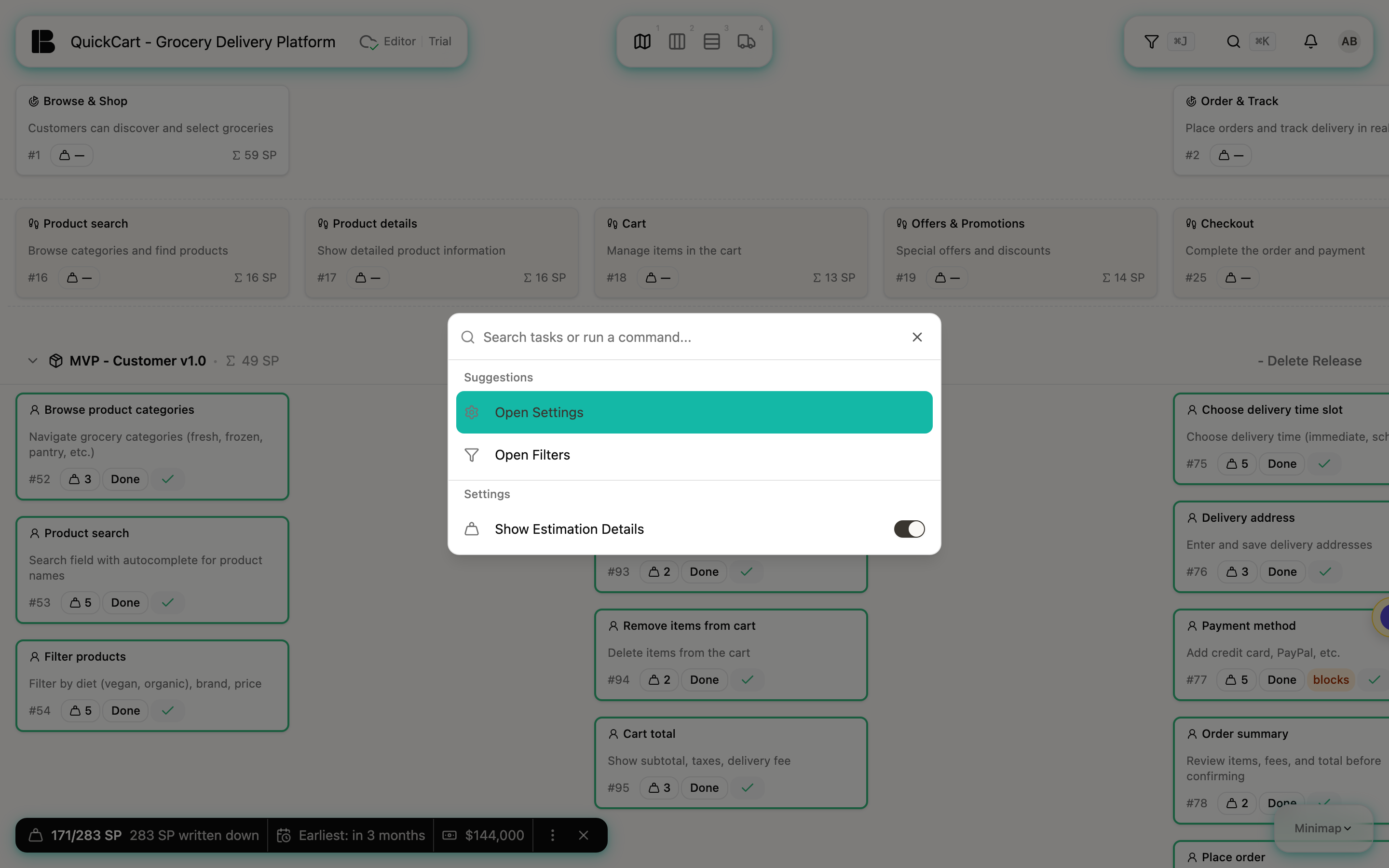
The project settings are not a button in the header. You usually reach them through the command palette: open it with Search and commands and choose Open Settings. The estimation readout at the bottom left also links to them in its pop-up. Open Filters is there as well. The search finds tasks by title.
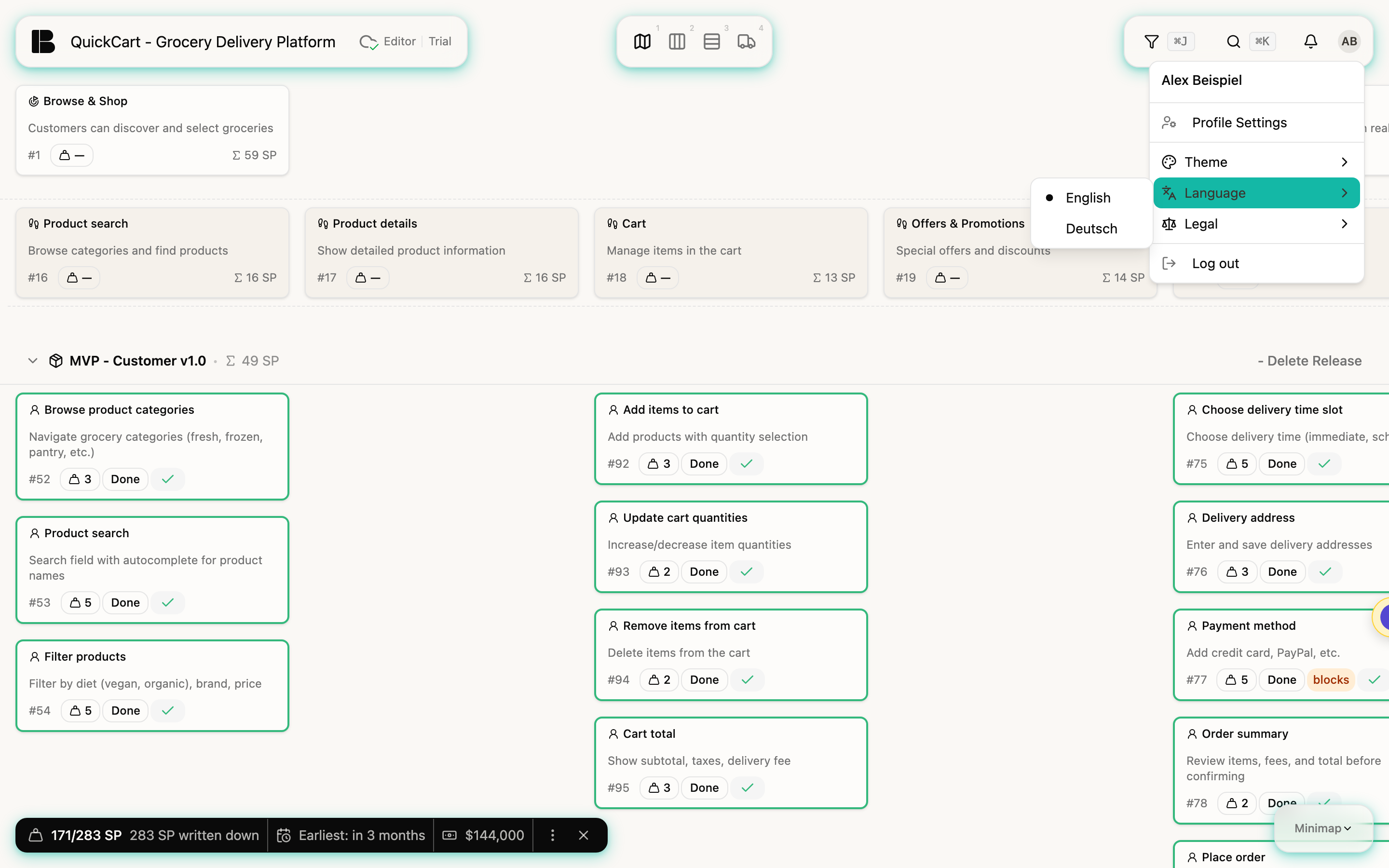
Profile menu: language and theme
Click your avatar at the top right. Under Language choose English or Deutsch, under Theme choose Light, Dark or System. Your browser remembers the setting.
You will get to know the phases in detail in the following sections of this documentation.