Involving stakeholders
This feature is being rolled out gradually. If you don't see it yet, it hasn't been enabled for your workspace.
Someone who looks at the story map every other week shouldn't have to create an account or take up a seat on the team. With a share link you give a person or a group outside your organisation access to a single project, without an account and without signing in.
How the principle works
- A guest is an entry in your organisation with no login behind it, only a name such as "Acme stakeholder". You create it in the workspace's member administration (section Guests, button Add guest). A guest takes up a seat in your organisation.
- The guest must be a member of the team that owns the project. Guests cannot be added to a personal workspace; create a team of its own for shared projects.
- For each project you then create a share link for the guest. The link carries the permissions: Read-only, Commenter or Editor. One guest can be sent into several projects with several links.
Links are managed in the project settings (Sharing tab, see Sharing). There you also decide what the guest is called and whether they may change their own name.
| Level | Read | Comment | Change tickets |
|---|---|---|---|
| Read-only | yes | no | no |
| Commenter | yes | yes | no |
| Editor | yes | yes | yes |
Per organisation, at most 5 links of level Read-only, 3 of level Commenter and 1 of level Editor can be active at the same time.
What the guest sees
The guest opens the link, confirms their name and lands in the project. That name appears on everything they write. The entry page currently has English labels only (Continue).
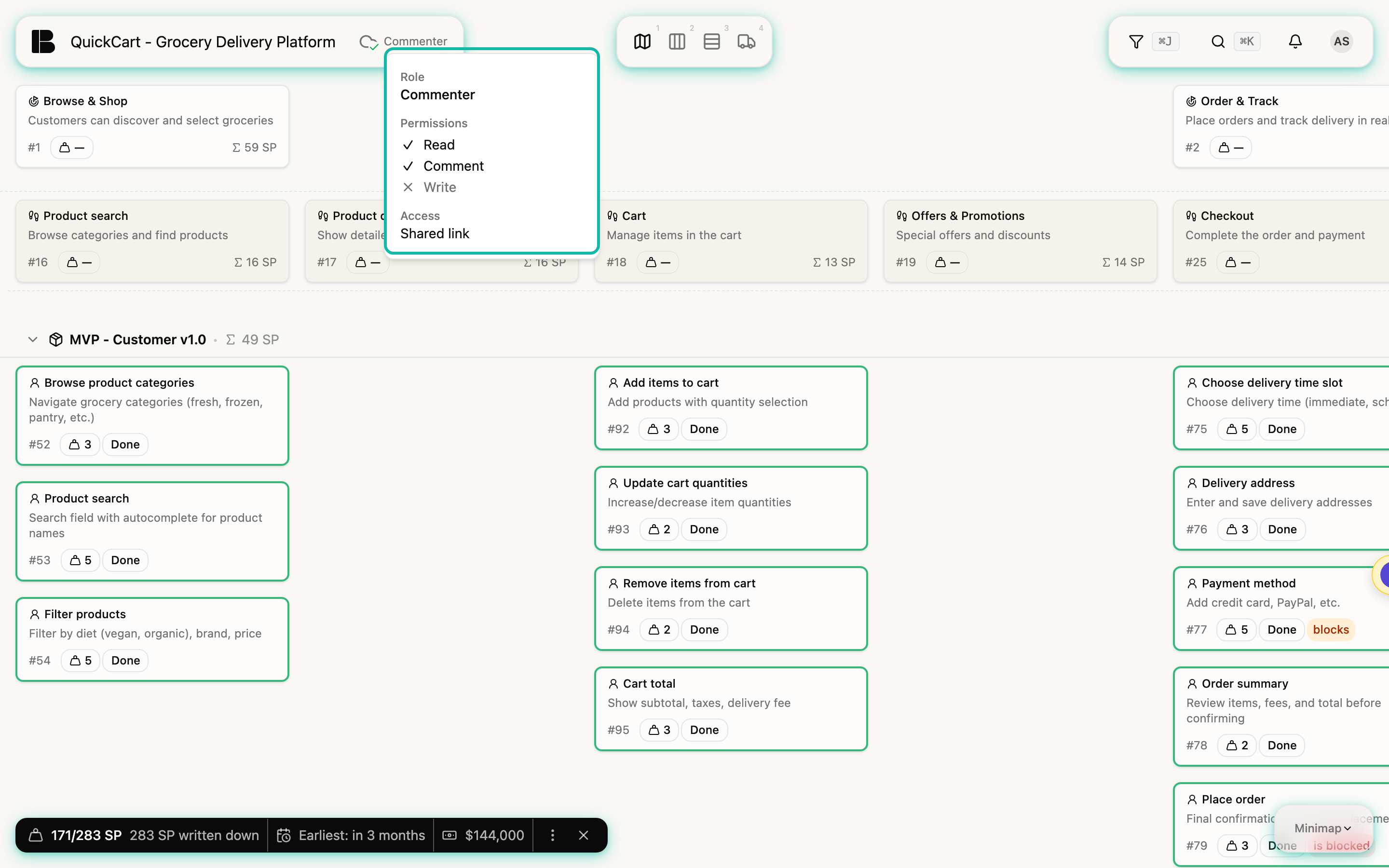
- The guest sees only the project: no workspace navigation, no organisation settings, no profile. The project's views (Storyboard, Backlog, Board and so on) are available.
- The link's permissions decide what is possible. A Commenter can write discussions and comments but cannot change tickets or upload files. An Editor may also change tickets. Anyone who can only read gets no input fields.
- The menu at the top right (the guest's avatar) shows the name with the note via shared link and contains Design, Legal and Log out.
- The guest's session lasts one hour; after that they simply open the link again.
Revoking a link
A link can be revoked at any time. This takes effect immediately: on the guest's next access they no longer get into the project, not even within a running session. Expired links (if you set an expiry date) stop working as well.
Anyone who knows the link gets into the project. Share it only through channels you trust, and revoke it as soon as it's no longer needed.
Guests appear in the team's mention list (@), so you can address them directly in comments.