Discussions and comments
A ticket almost always raises several topics: a business question, a technical clarification, a prioritisation question. If everything ended up in one single thread, open questions would get lost. That is why Betterplan offers two ways to write on a ticket:
- Discussions are separate threads with a title and a status (Open or Closed). A ticket can have as many as you like; every question gets its own thread.
- Activity is the ticket's comment log: short notes and status messages, in chronological order, without a title.
You find both in the ticket detail view (see Ticket detail view).
Starting a discussion
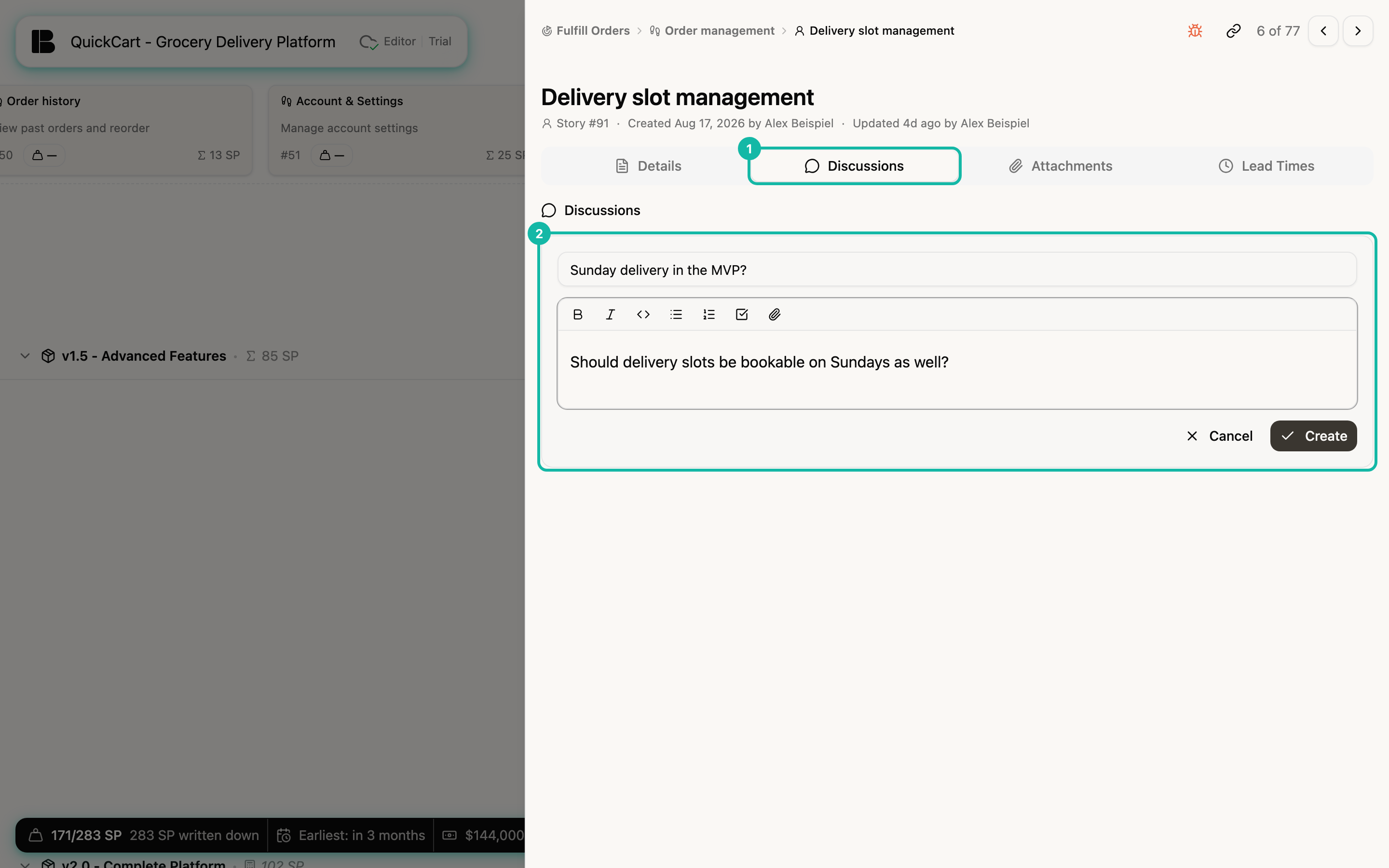
The example is the story Delivery slot management in QuickCart.
- Open the story and switch to the Discussions tab. If there are none yet, it shows No discussions yet with the link Start a new discussion.
- Click New (or the link).
- Enter a Discussion title... (at most 100 characters) and write the First comment.... Both are required; only then does Create become active.
- Click Create.
When you hover a card in the Storyboard, Backlog or Iteration Board, the C key opens the Discussions tab and starts a new discussion right away (for Epics and Stories in the Storyboard and in the Backlog only while the card is selected). All shortcuts are listed under Keyboard.
Reading and answering a discussion
The list in the tab puts open discussions first, newest first within each group. Each row shows the title, author, date and number of comments. Closed ones carry the Closed badge and are dimmed. Click a row to open the thread.
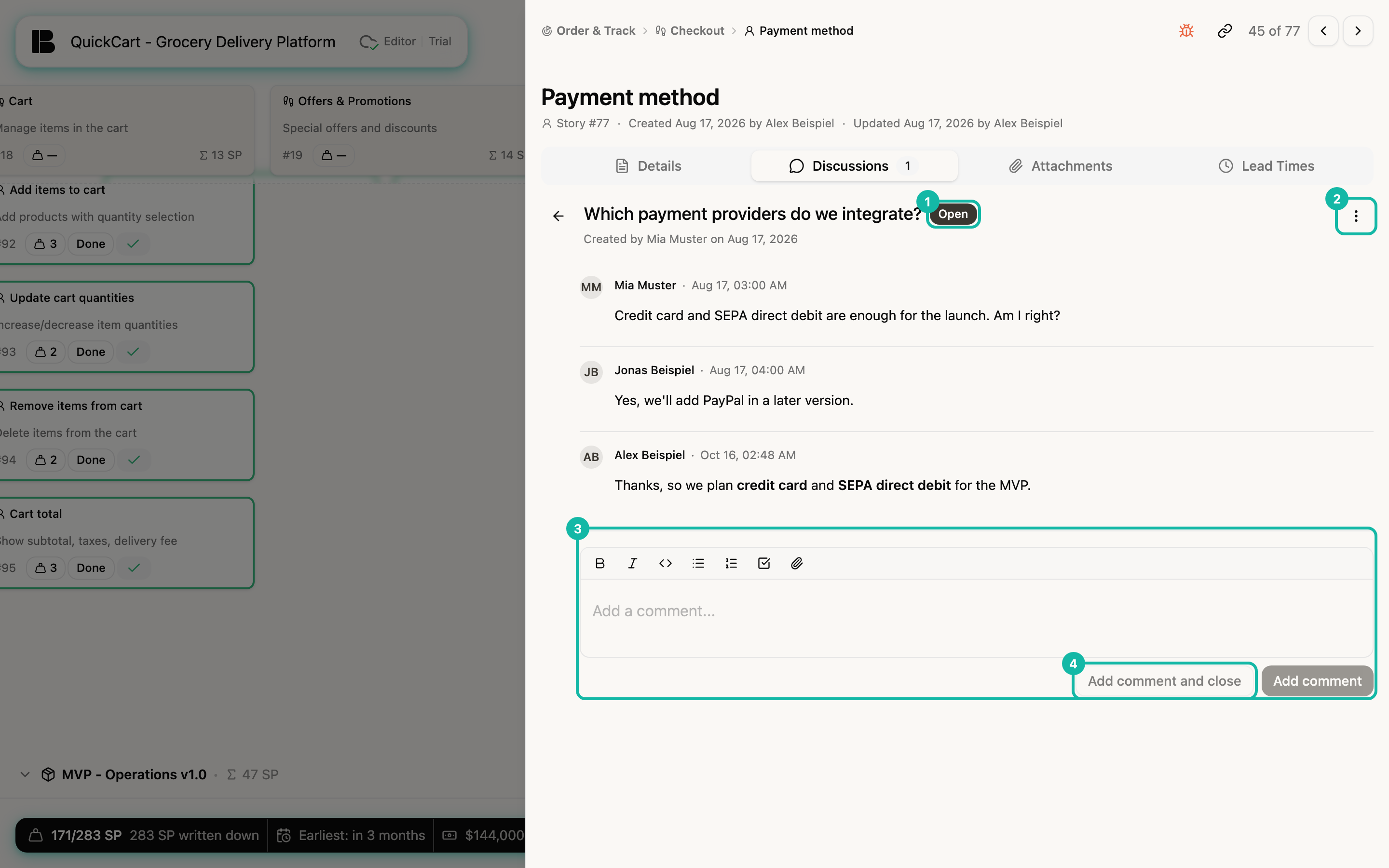
- The arrow at the top left takes you back to the list.
- Replying: write in the Add a comment... field and click Add comment. New comments appear at the bottom.
- Reply and wrap up: Add comment and close saves your comment and sets the discussion to Closed. The button is only there while the discussion is open.
- Changing the status: clicking the Open or Closed badge next to the title toggles the status, as do the menu items Close discussion and Reopen discussion in the menu at the top right. Anyone on the team may do this.
- Renaming: click the title, change it and confirm with the check mark.
- Deleting a discussion: Delete discussion in the same menu removes the whole thread with all its comments, after a confirmation.
Editing, deleting and branching comments
When you hover a comment, a three-dot menu appears on the right:
- Edit and Delete exist for your own comments only. Edited comments carry the note (edited). If you delete the last comment, the discussion disappears too; the confirmation says so.
- Start new discussion branches off: the comment is quoted in the first comment of a new discussion. This splits off a side topic without overloading the original thread.
Writing in the editor
Every comment field is a small Markdown editor with a toolbar for bold, italic, code, bullet lists, numbered lists and checklists. The paperclip inserts a file into the comment (see Attachments). Two characters open suggestion lists:
@and the start of a name: you mention a team member. The mention lands in that person's inbox (see below).#and a search term: you reference another ticket (see Dependencies and references).
A comment can be up to 10,000 characters long.
Keeping an eye on open discussions
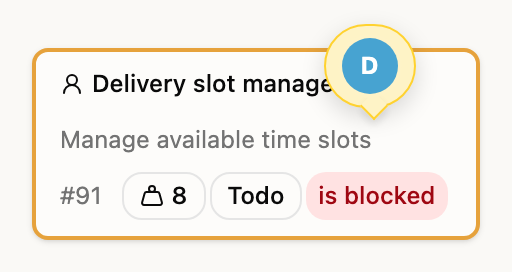
On the card: if a ticket has open discussions, a yellow speech bubble with the authors' avatars sits on the card's top edge (at most three, plus +2 and so on). Clicking it opens the ticket directly on the Discussions tab.
In the inbox: the bell icon in the project header opens the inbox with three tabs: Mentions, Discussions and Assigned. The Discussions tab lists every ticket with open discussions, and the number on the bell and on the tabs counts along. Click an entry to open the ticket. If nothing is open, it says No open discussions.
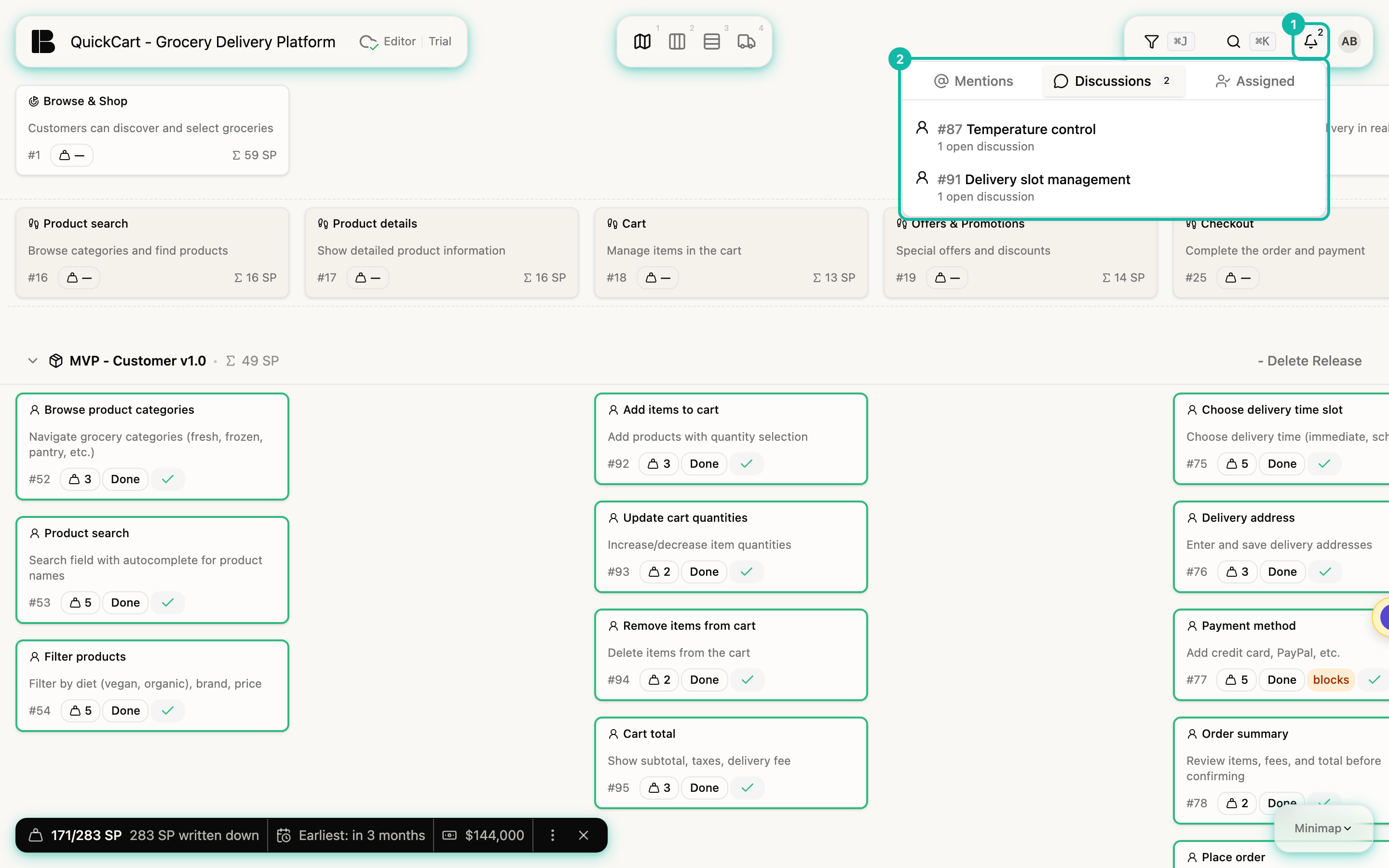
The Discussions tab in the inbox only shows tickets that are not done yet. An open discussion on a finished story is still visible in the ticket itself, but not in this list.
The Mentions tab collects the places where someone named you with @, in a description, in the activity or in a discussion. From there you can mark them as read (Mark as read) or look at read ones again with Show read mentions. Assigned shows your open tickets.
Activity: comments on the ticket
The Activity section sits at the bottom of the Details tab. Use it for short notes that belong to the ticket but don't need a thread of their own: a status update, a confirmation, a hint for the team.
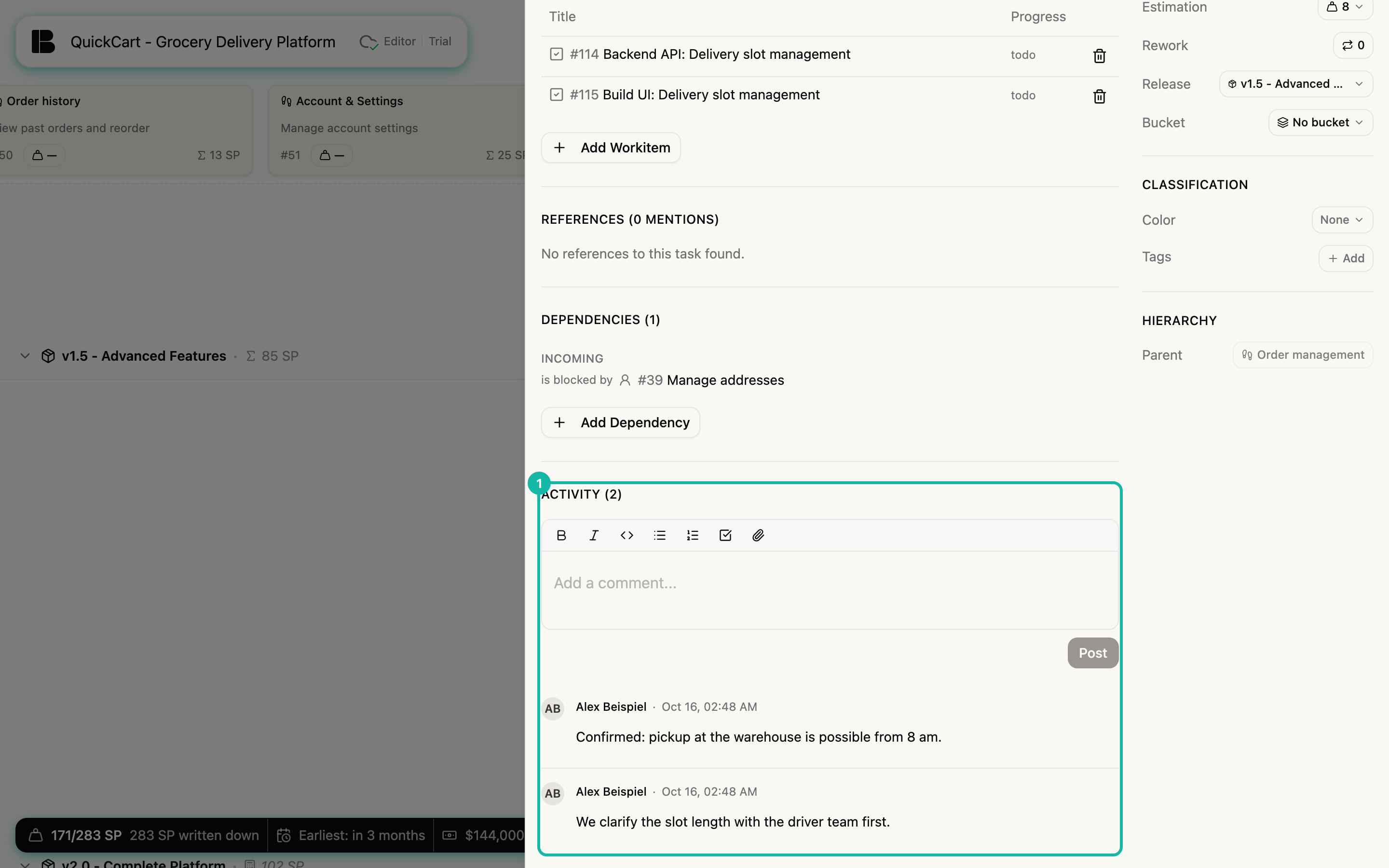
Write your text and click Post. Clear discards the draft. The newest comment comes first; you can edit or delete your own comments through the three-dot menu. Unlike discussions, there is no title, no status and no reply to individual comments.
If you need an answer or a decision, start a discussion: it has a status, shows up in the inbox and can be closed. For notes without a question, Activity is enough.
Permissions
Who may write comments depends on the role. Guests with a share link of the level Read-only see discussions and activity but cannot write. With the level Commenter, guests can start discussions and write comments, but cannot change a status (no closing, reopening or renaming), delete a discussion, or edit or delete comments afterwards. That requires the level Editor. More under Involving stakeholders.