Your first project
All work in Betterplan happens in projects. After onboarding you land in the project list of your workspace. From there you create new projects, open existing ones or import a project from a file.
The project list
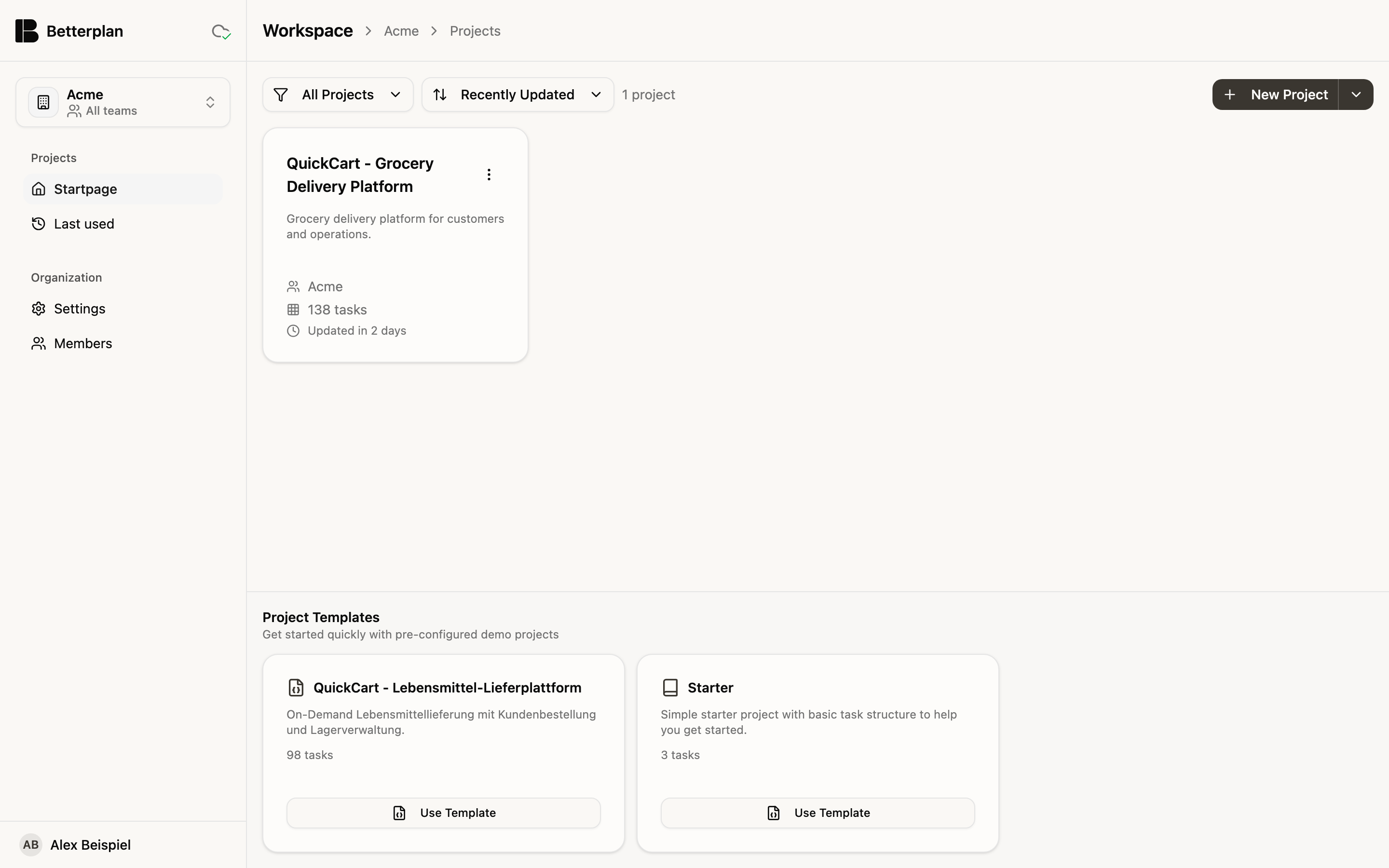
Each project appears as a card with description, team, number of tasks and the time of the last update. Use All Projects to filter (for example by Recent, With Tasks or Empty) and Recently Updated to sort (also by Name A-Z or Task Count). The menu on a card lets you Export..., Transfer to Team or Delete a project.
Create an empty project
- Click New Project at the top right.
- Enter a Project Name and choose the Team.
- Confirm with Create Project.
You land directly in the new project.
Start from a template
Below the project list you find the Project Templates, preconfigured demo projects for a quick start. There is the QuickCart example project and a small starter project with a basic structure.
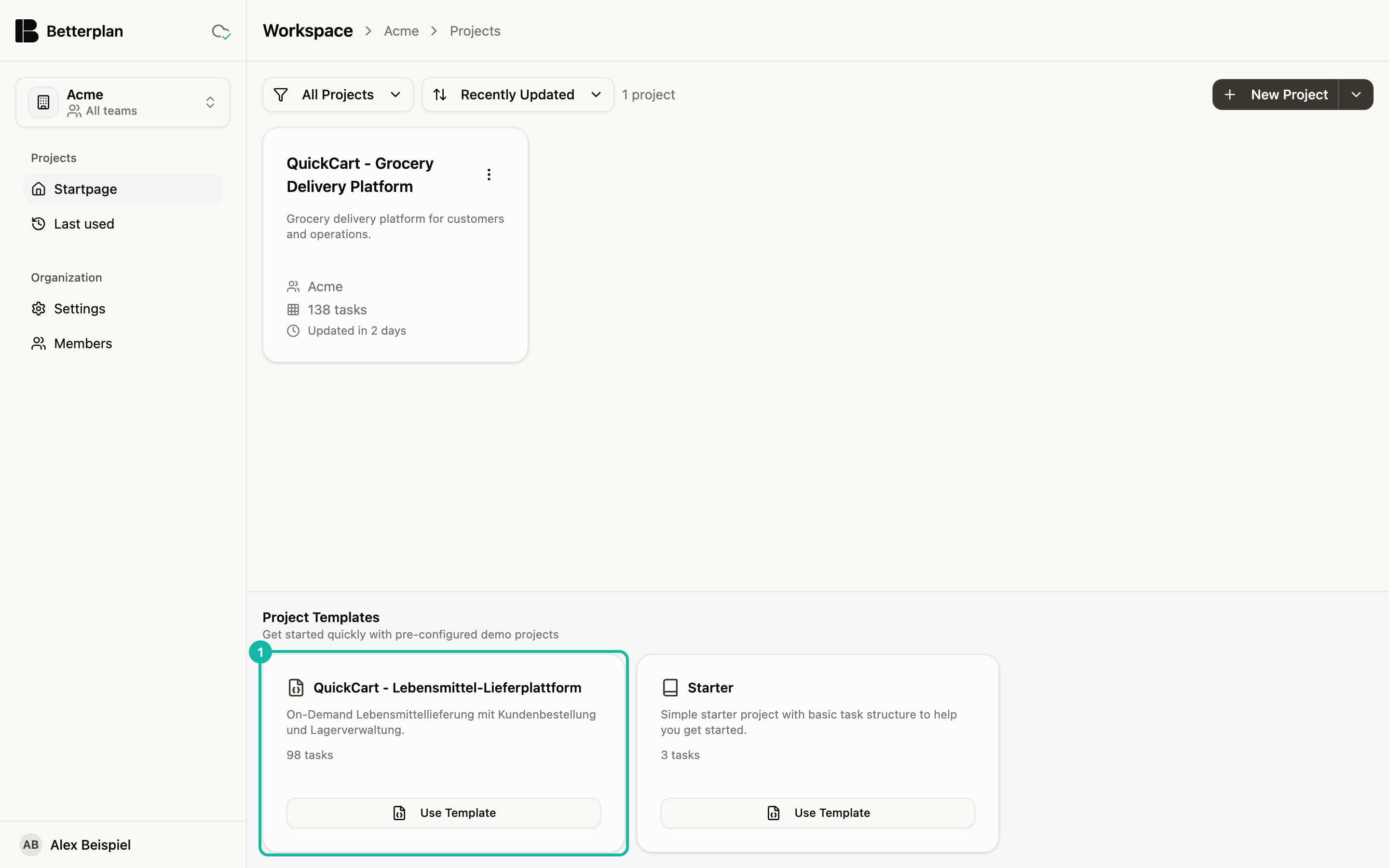
- Click Use Template on the template you want.
- In the dialog, adjust the Project Name and the Team.
- Click Create Project.
Betterplan creates a copy of the template and opens it. The template itself stays unchanged.
The templates are sample data and not fully translated yet. Descriptions may therefore appear in German even in the English interface.
Import a project
If you have exported a project (or downloaded a ZIP file such as the QuickCart package), import it like this:
- Next to New Project, open the menu (More options).
- Choose Import Project, then pick the ZIP or JSON file.
- In the dialog, confirm name and team with Create Project.
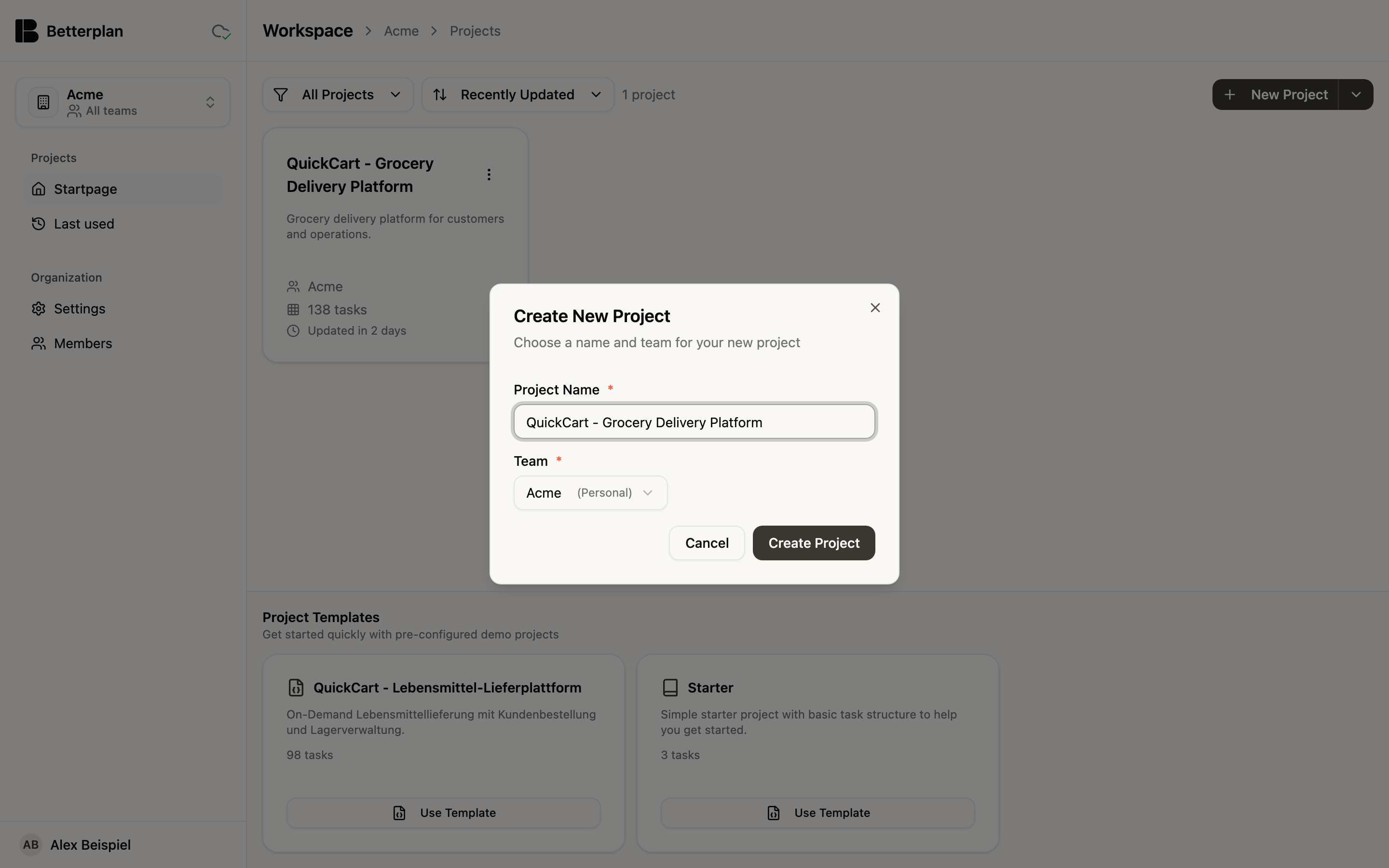
A ZIP import brings in everything that was part of the export: tasks, releases, iterations, discussions and attachments.