Search and command palette
In a project with hundreds of tickets you don't want to scroll. The command palette finds any ticket by title or number and jumps straight to it, whatever view you are in. It also opens the project settings and the filter panel.
Open the command palette
Press ⌘+K (Windows and Linux: Ctrl+K) or click the magnifier icon at the top right of the project. The same shortcut closes the palette again, and so does Esc.
| macOS | Windows / Linux | Action |
|---|---|---|
| ⌘+K | Ctrl+K | Open search (command palette) |
| ⌘+J | Ctrl+J | Open the filter panel |
More about keyboard shortcuts in Keyboard and shortcuts.
Find tickets
Type part of a title or the ticket number (for example #39) into the search field Search tasks or run a command.... Hits appear immediately under the heading Tasks.
In the QuickCart example, search for address:
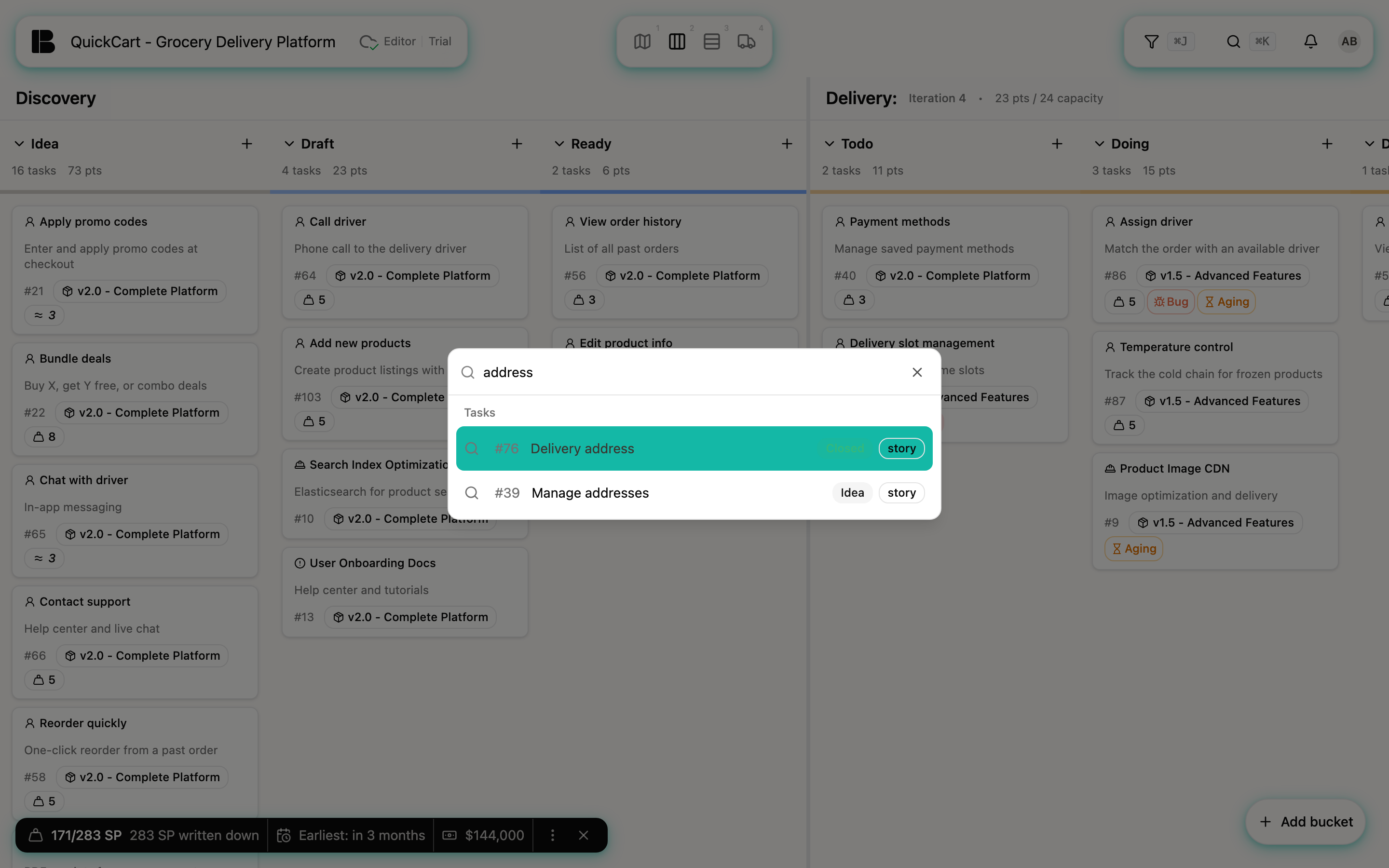
Good to know:
- All ticket titles are searched, including Initiatives, Epics, Stories and Workitems. Descriptions are not searched.
- Upper and lower case don't matter.
- At most ten hits are shown. If the list is too long, type more of the title.
- If nothing matches, you see No results found.
Jump to the ticket
Pick a hit with the mouse, or move to it with the arrow keys and press Enter. Betterplan then makes sure you actually see the ticket:
- If your current filter hides the ticket, the filters are cleared.
- If the current view cannot show this ticket type (Initiatives and Epics, for example, exist only in the Storyboard; Dev Stories and Project Stories only in the Backlog), Betterplan switches to a suitable view.
- If the ticket is tucked away under a collapsed Initiative or a collapsed row, it is expanded.
- The view scrolls to the ticket and highlights it.
Search is the fastest way to reach a ticket whose number you know from a conversation or a reference.
Actions
Without a search term the palette shows two commands under Suggestions:
- Open Settings opens the project settings. This is the main route, since there is no button for it in the page header. A second door is the estimation readout at the bottom left, which appears in every view including Insights: hover over its figures and the pop-up offers a link to the velocity settings. The entry is missing in projects you view through a share link.
- Open Filters opens the filter panel. If filters are active, their number is shown next to it.
If cost estimation is enabled for your project, there is also a switch Show Estimation Details under Settings, which shows or hides the estimation details on cards.