Keyboard and shortcuts
Almost everything in Betterplan also works without a mouse. The shortcuts save you the most time when switching views and working with cards. On macOS you use ⌘, on Windows and Linux Ctrl. In text fields the digit and letter shortcuts are inactive, so you can type undisturbed.
Switching phases and views
The digits 1 to 4 jump to a phase: 1 Scope, 2 Prepare, 3 Build, 4 Insights. You land in the view you used last in that phase (see Phases and views).
To go straight to a specific view, press two digits in a row: first the phase, then the view. 2 then 1 takes you to Kanban, 3 then 2 to Iterations. The digits must follow each other quickly (within about 300 milliseconds); if you press the second digit later, it counts as a new key press. If the view doesn't exist, for example 2 then 9, you only switch to the phase.
| macOS | Windows / Linux | Action |
|---|---|---|
| 1–4 | 1–4 | Switch phase (1 Scope, 2 Prepare, 3 Build, 4 Insights) |
| 1–4 then 1–3 | 1–4 then 1–3 | Two digits in a row (phase, then sub-view), e.g. 2 then 1 for Prepare > Kanban |
The numbering follows the visible phases and views. If a view isn't enabled in your workspace yet, the numbers shift. The expanded navigation always shows you the current numbers.
Available everywhere
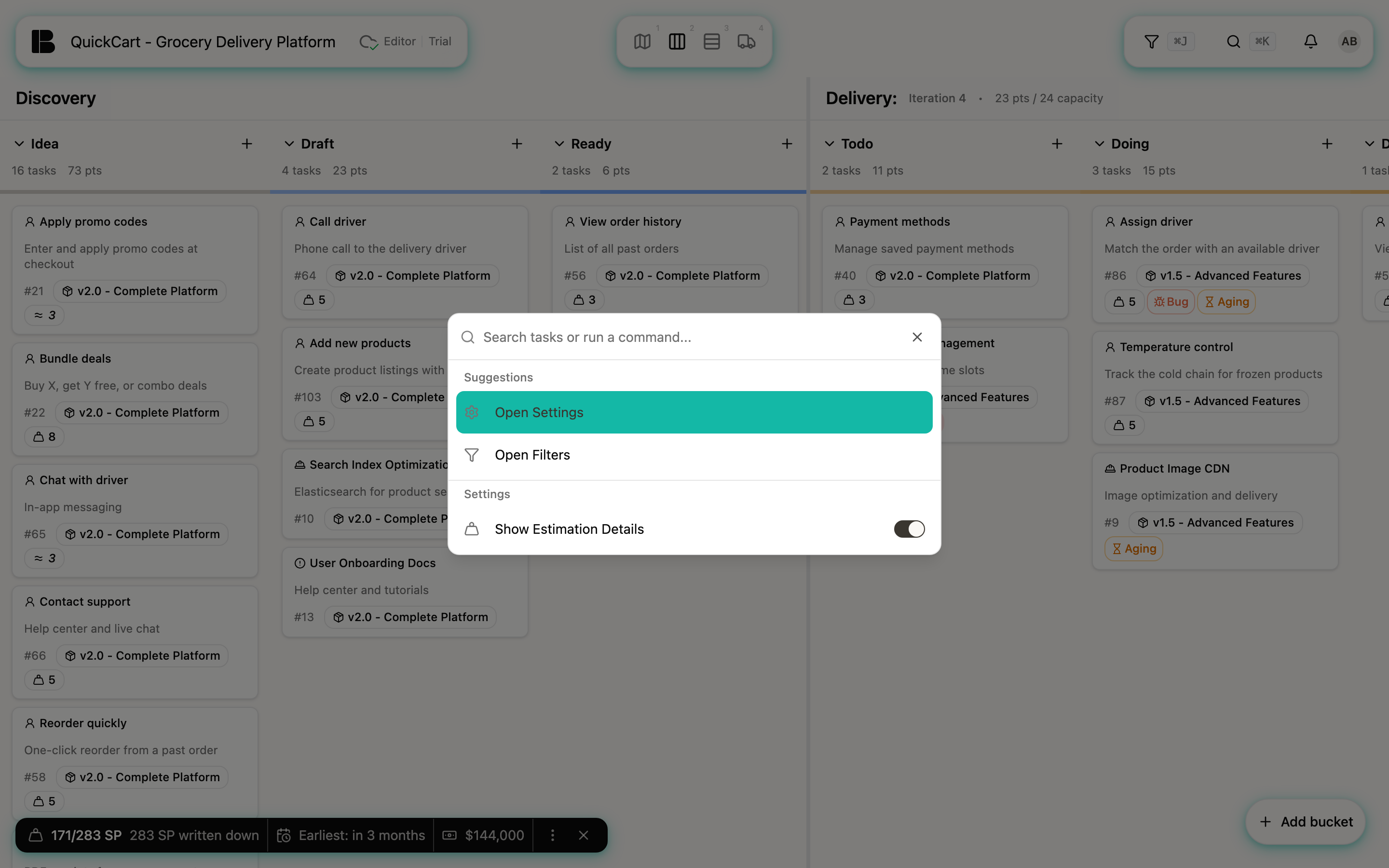
These shortcuts work in all project views. The search shortcut opens the command palette, where you find tickets and run commands (see Search and command palette); the filter shortcut opens the filter panel:
| macOS | Windows / Linux | Action |
|---|---|---|
| ⌘+K | Ctrl+K | Open search (command palette) |
| ⌘+J | Ctrl+J | Open the filter panel |
Only in certain views
Holding D shows dependencies as cables between cards for as long as you keep the key down. This works only in the Storyboard and the Timeline; see Dependencies and references for more.
| macOS | Windows / Linux | Action |
|---|---|---|
| D | D | Hold: show dependencies |
On cards
You select a card with a click, which also opens the detail view. Esc closes it and the card stays selected. A second Esc clears the selection. C and N act on the card under the pointer. Enter and Backspace act on the selected card.
| macOS | Windows / Linux | Action |
|---|---|---|
| Enter | Enter | Open the selected card (Storyboard, Backlog, List, Estimation, Iteration Board, Timeline) |
| Esc | Esc | Clear the selection |
| C | C | Pointer over a card: open the Discussions tab and start a new comment (for Epics and Stories in the Storyboard and in the Backlog only while the card is selected) |
| N | N | Pointer over an Initiative, Epic or Story: create a new sibling ticket on the same level and open it |
| ⌫ | Backspace | Delete the selected card (after a confirmation; on the Iteration Board only Workitems) |
Backspace never deletes by accident: Betterplan always asks for confirmation before removing the card.
The C shortcut (comment) only works for Epics and Stories in the Storyboard and in the Backlog if the card is also selected: click it first and close the detail view with Esc. This is observed behaviour of the current version. For Initiatives and on the Iteration Board, having the pointer over the card is enough.