Profile, language and privacy
Your profile applies to you personally, in every organization and team. You reach it through your avatar: click it (bottom left in the sidebar) and choose Profile Settings.
Editing your profile
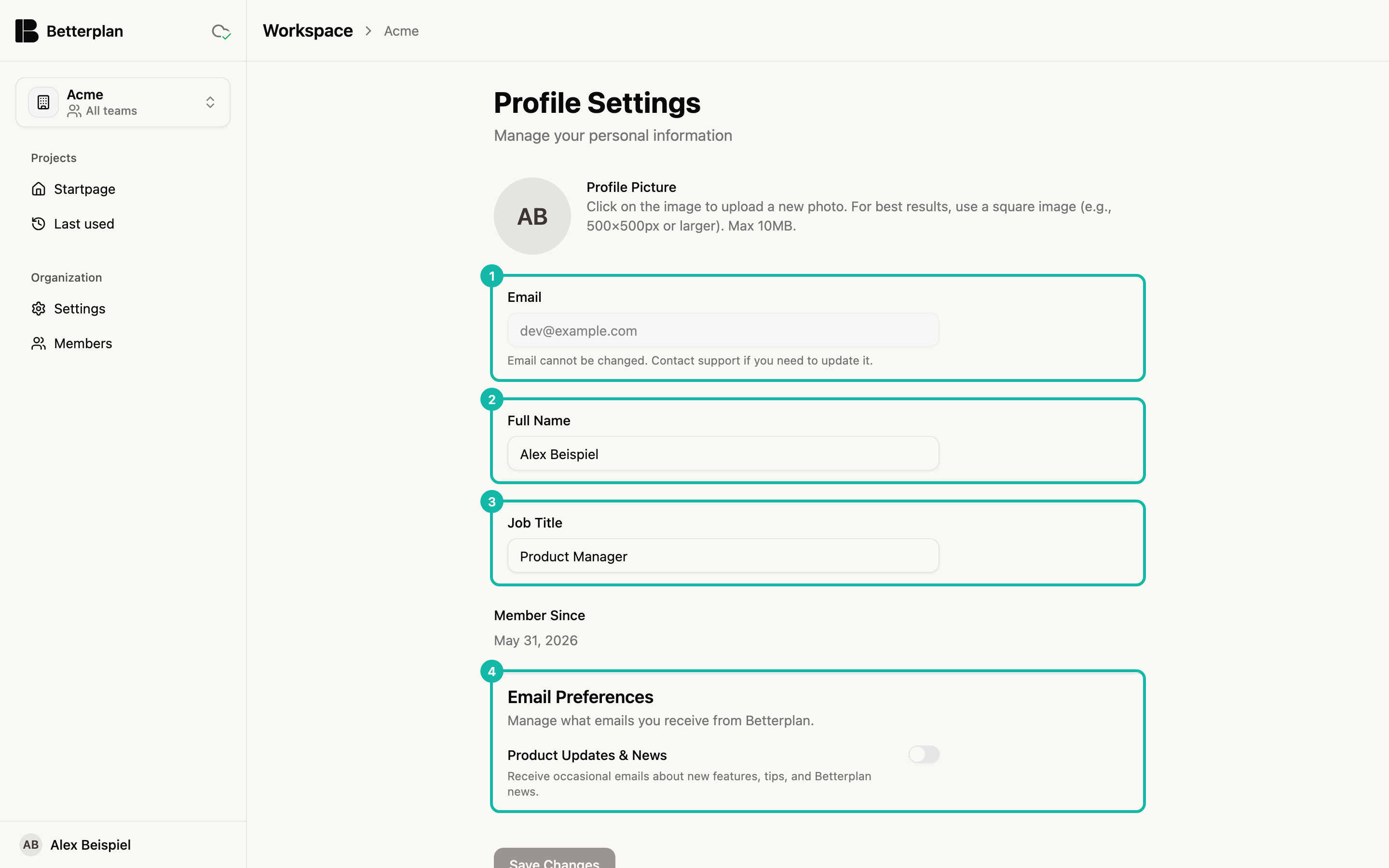
- Profile picture: Click the picture to upload a photo. Ideally square, at least 500×500 pixels, at most 10 MB.
- Email (1): The address is locked. If you need to change it, contact support.
- Full Name (2) and Job Title (3): Your team sees them, for example in member lists. Save with Save Changes; afterwards "Profile updated successfully!" appears.
- Member Since: The date you registered.
- Email Preferences (4): The Product Updates & News switch controls occasional emails about new features. It saves immediately, without the button.
Deleting your account
At the very bottom, the Danger Zone holds the Delete account button. Betterplan blocks it while something is in the way and names the reason: an active subscription, an organization you own, or shared teams you own that still have members or projects. Then transfer ownership first, see Teams and roles.
Language and theme
You set both in the profile menu, not on the profile page: Language (German or English) and Theme (Light, Dark or System). The browser remembers your choice. The steps are in the interface tour.
Privacy settings
Betterplan asks on first start which data collection you allow, see Account and onboarding. You can change your choice any time later: avatar → Legal → Tracking Settings.
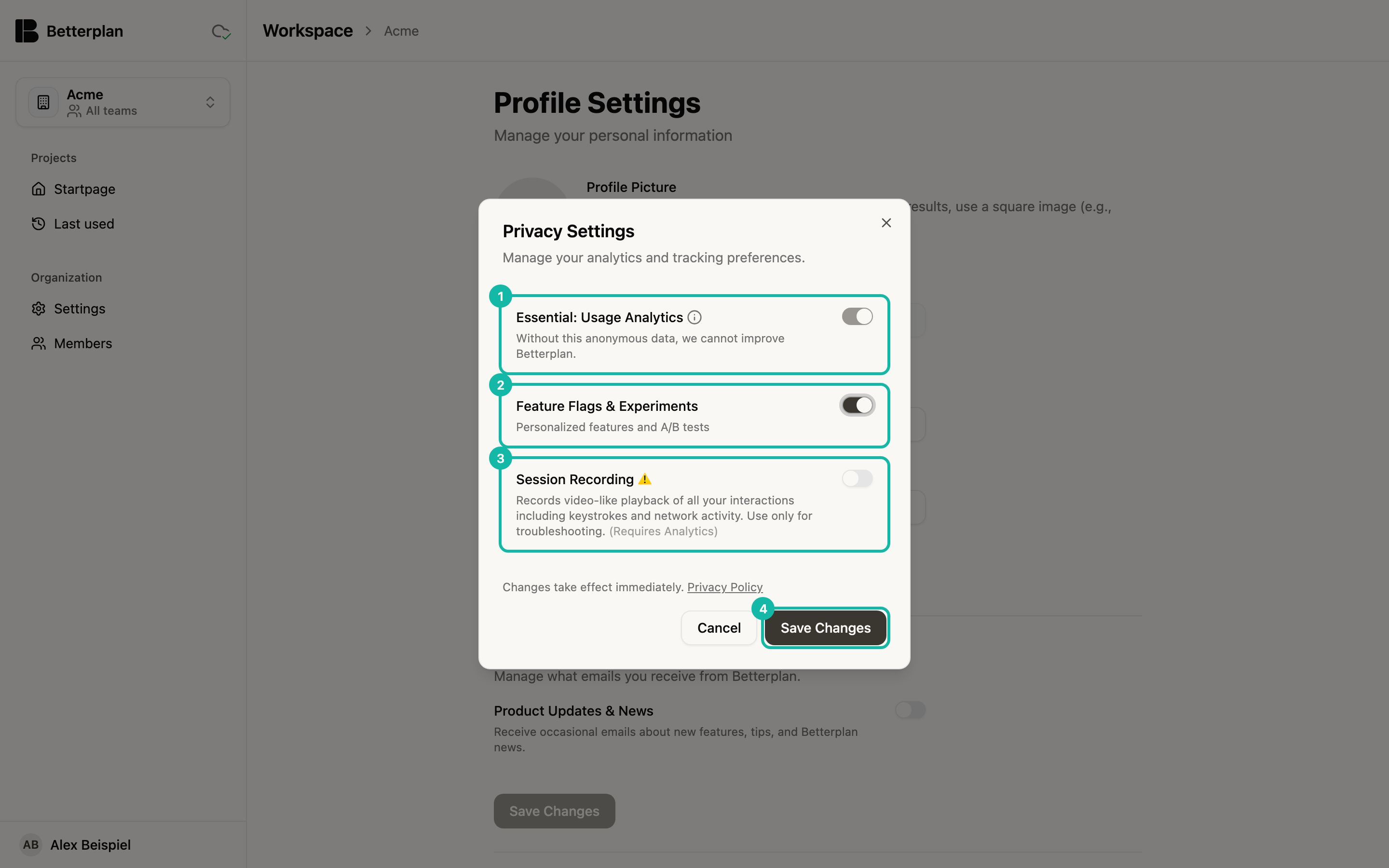
- Essential: Usage Analytics (1) is always on. It is anonymous usage data used to improve Betterplan. The info icon explains why.
- Feature Flags & Experiments (2): personalized features and A/B tests. If you turn it off, views that are rolled out gradually disappear immediately, see the Early access notes in this documentation.
- Session Recording (3) records your interactions as a video-like playback, including keystrokes and network activity. It is meant for troubleshooting only and requires analytics.
- Save Changes (4) takes effect immediately. The choice is stored in your browser; on another device you set it again. In the dialog, the Privacy Policy link opens the full statement.