Teams, roles and settings
Projects always belong to a team. A team decides who sees and edits a project. An organization can have any number of teams, and a person can be in several teams.
There are two kinds:
- Personal: Betterplan creates a personal team for everyone automatically. It has no other members, its name cannot be changed, and you cannot delete it.
- Shared: A team you create yourself and share with colleagues.
Choosing and creating a team
At the top of the sidebar is the selector for organization and team. Clicking it opens the menu with All Teams, your personal team and your shared teams. When you pick a team, the start page shows only its projects, and the sidebar gains a Team section with Settings and Members.
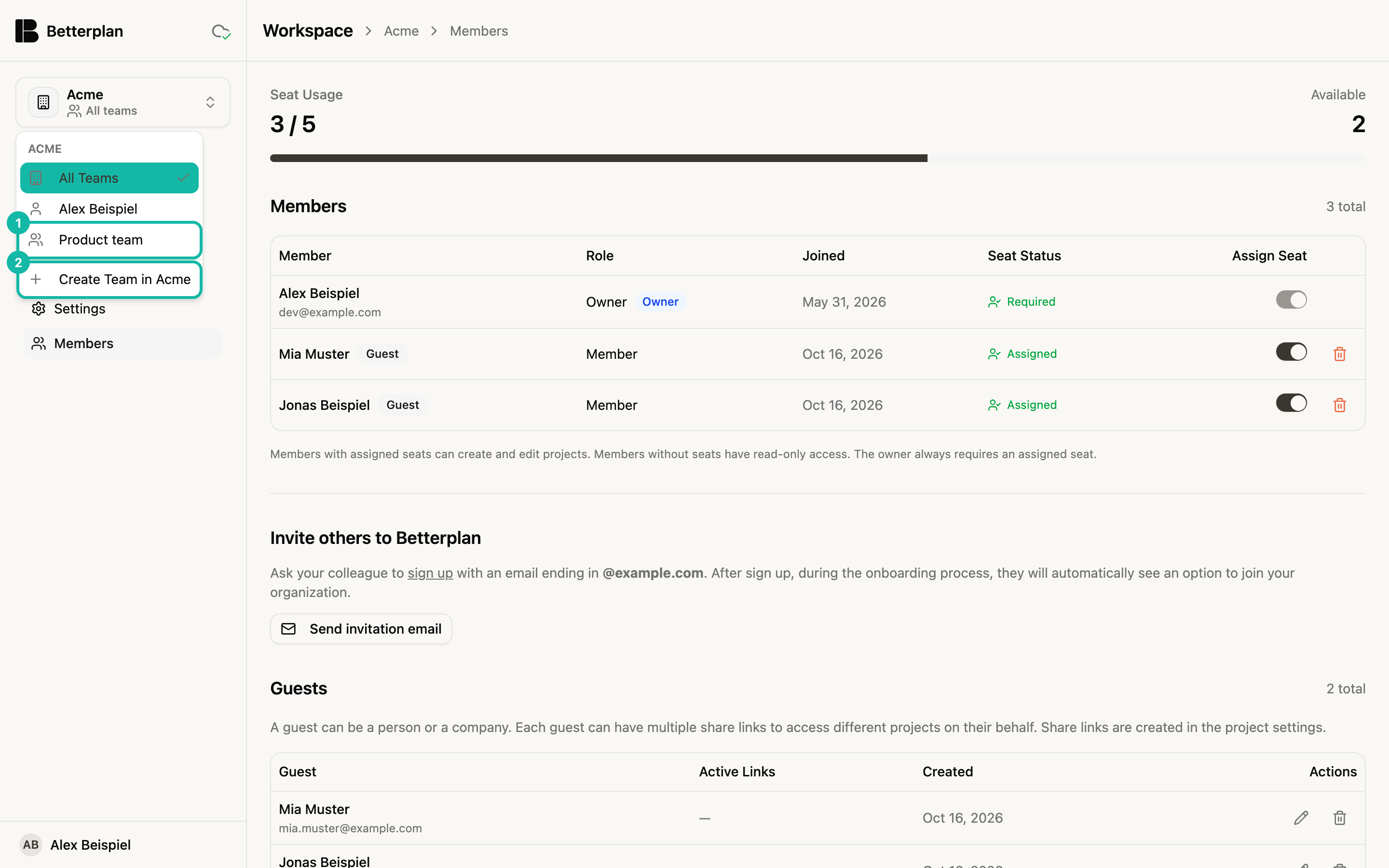
To create one, choose Create Team in <organization> (2). Betterplan asks for the team name in a small browser dialog; afterwards you are the owner of the new team. The entry only appears while your organization is in its trial or has an active subscription, see Subscription and trial.
The three roles
Each team member has a role: Owner, Admin or Member. The role only applies in that team.
| Action | Owner | Admin | Member |
|---|---|---|---|
| View team and members | yes | yes | yes |
| Change the team name | yes | yes | no |
| Add members (as Member or Admin) | yes | yes | no |
| Remove members | yes | yes, except the owner | no |
| Transfer ownership | yes | no | no |
| Delete the team | yes | no | no |
A team has exactly one owner: the person who created it, or whoever took over ownership. When adding people you only choose Member or Admin.
The organization's owner is not automatically the owner of every team. They can, however, transfer a team's ownership even without being its owner. Otherwise they cannot manage teams in the interface where they are only a member.
Managing team members
Under Team → Members you see all members with email, role and join date.
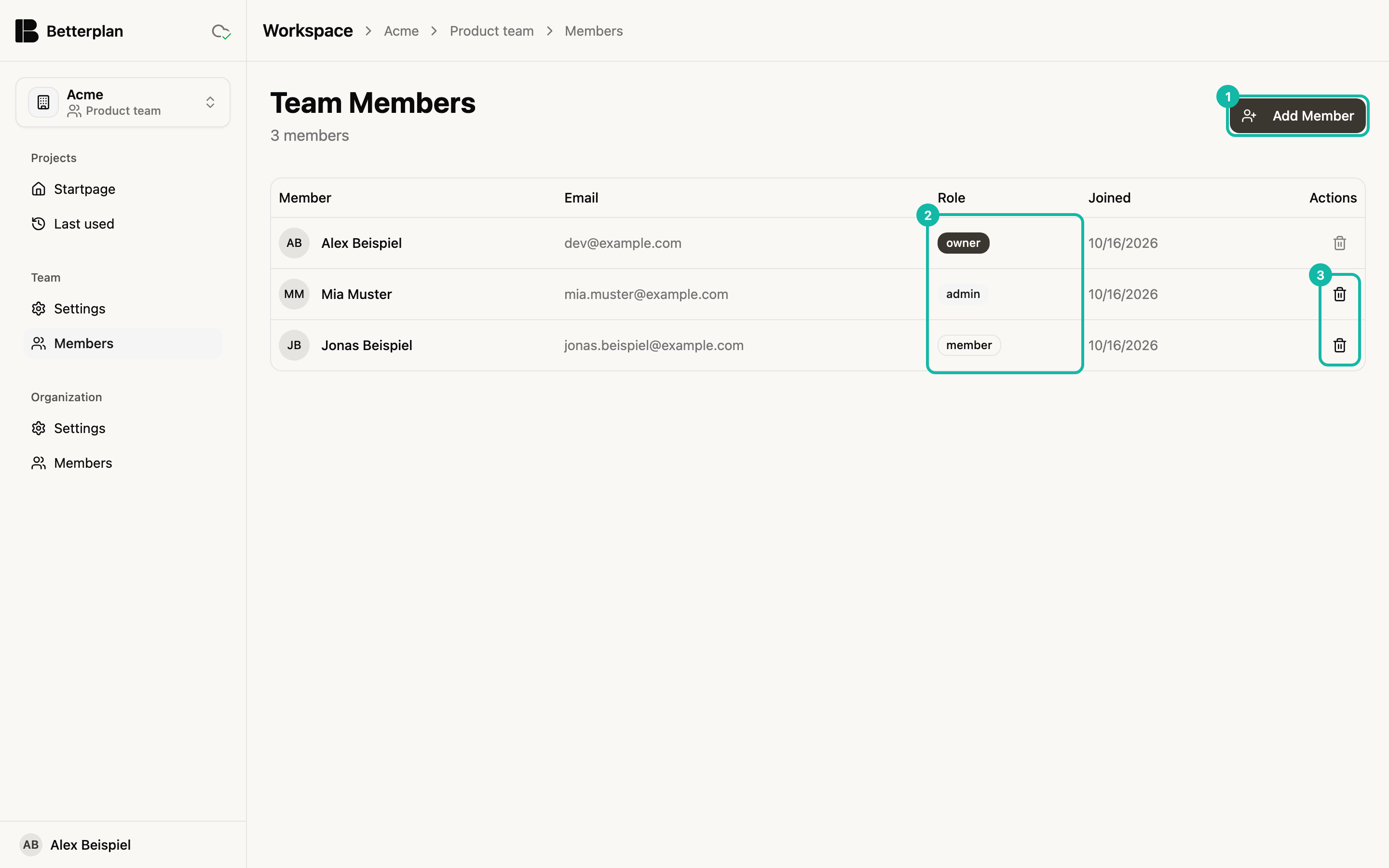
The remove icon (3) takes effect immediately without confirmation; for the owner it is disabled. Only team owners and admins see the buttons.
Adding a member
Click Add Member (1). In the Add Team Member dialog you pick a person from your organization under User and Member or Admin under Role.
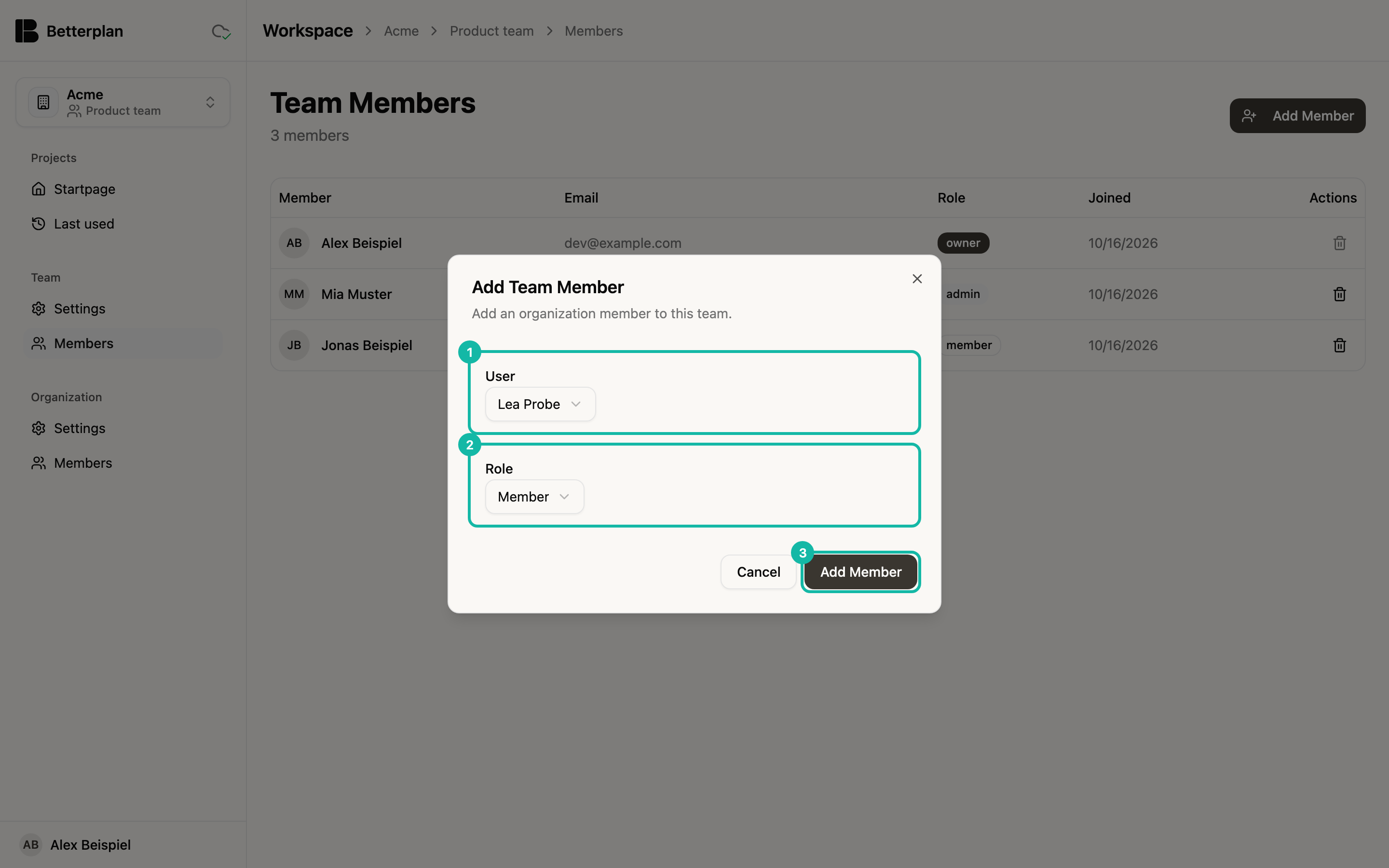
Only members of the organization appear in the list. If someone is missing, they must join the organization first, see Members.
Team settings
Under Team → Settings you find the Team Name, the number of Members, Your Role, the Type (Personal or Shared) and the number of Projects.
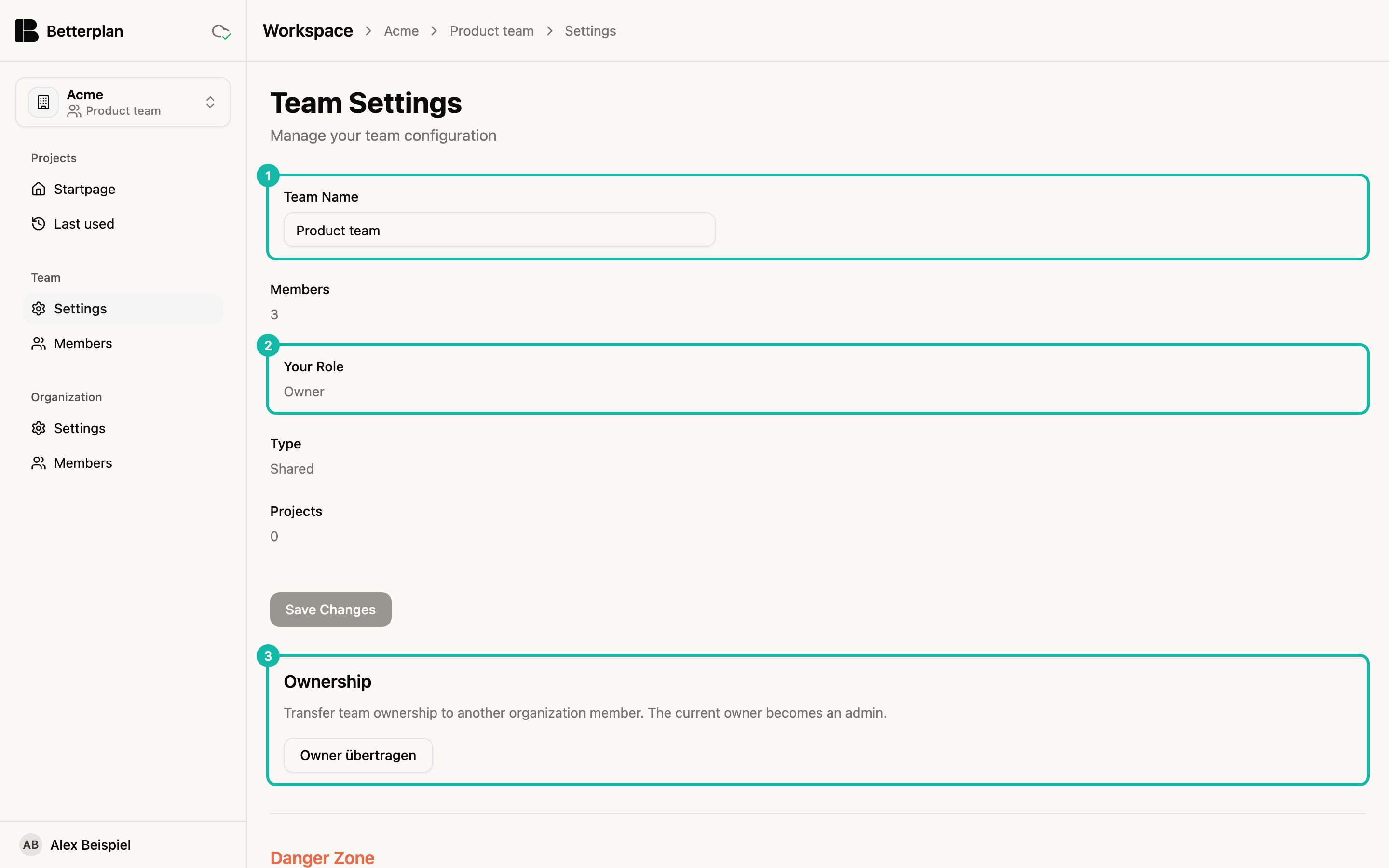
Change the name and click Save Changes; only owners and admins can do that. For a personal team the field is locked.
Transferring ownership
In the Ownership section (3) you hand ownership to another organization member. The previous owner becomes an admin. The team owner and the organization owner can do this.
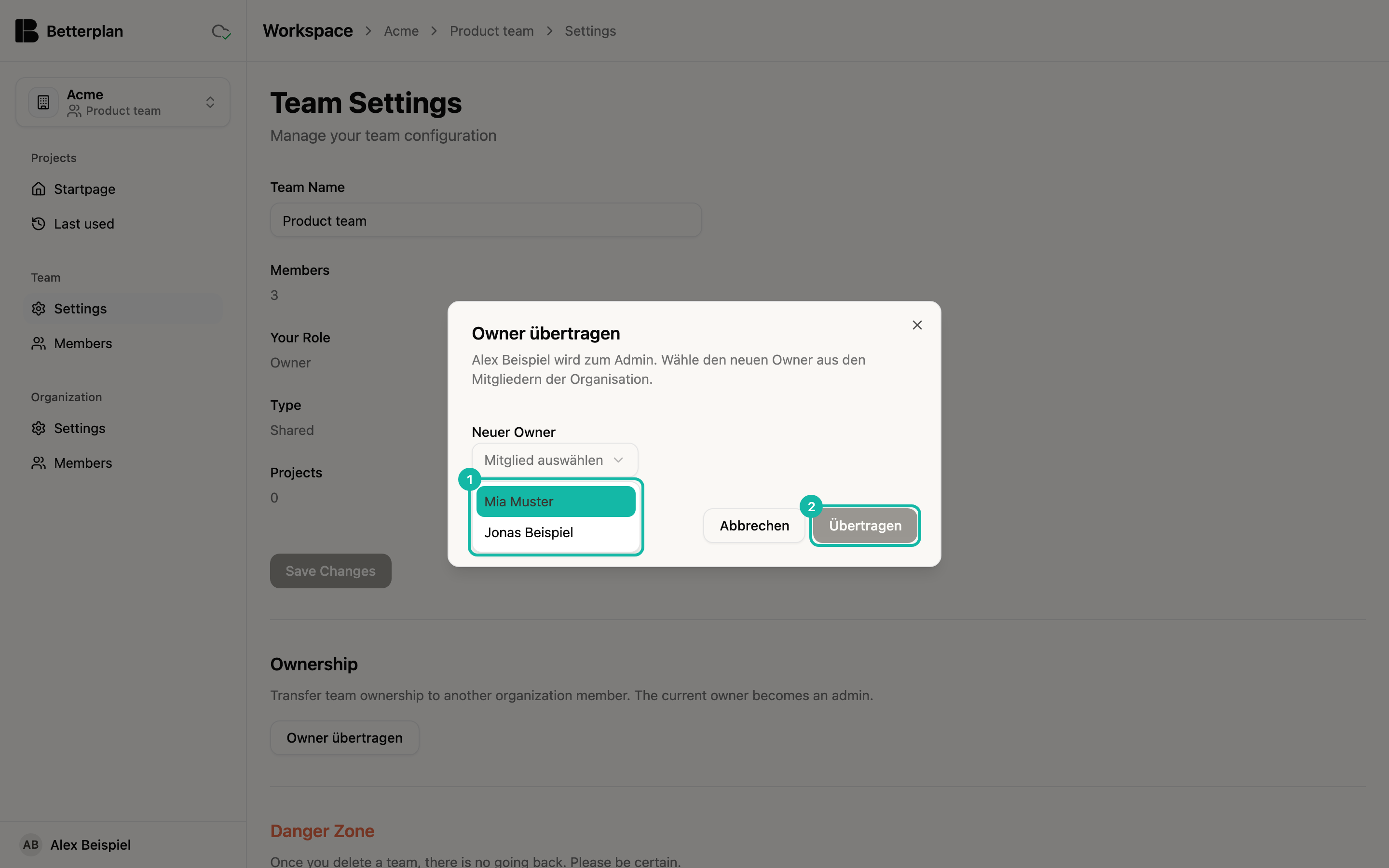
Pick a person under the owner selection and confirm. If the person is not yet in the team, they are added.
Deleting a team
The Danger Zone with Delete Team is only visible to team owners. If the team still has projects, the button is disabled: delete or move all projects first.
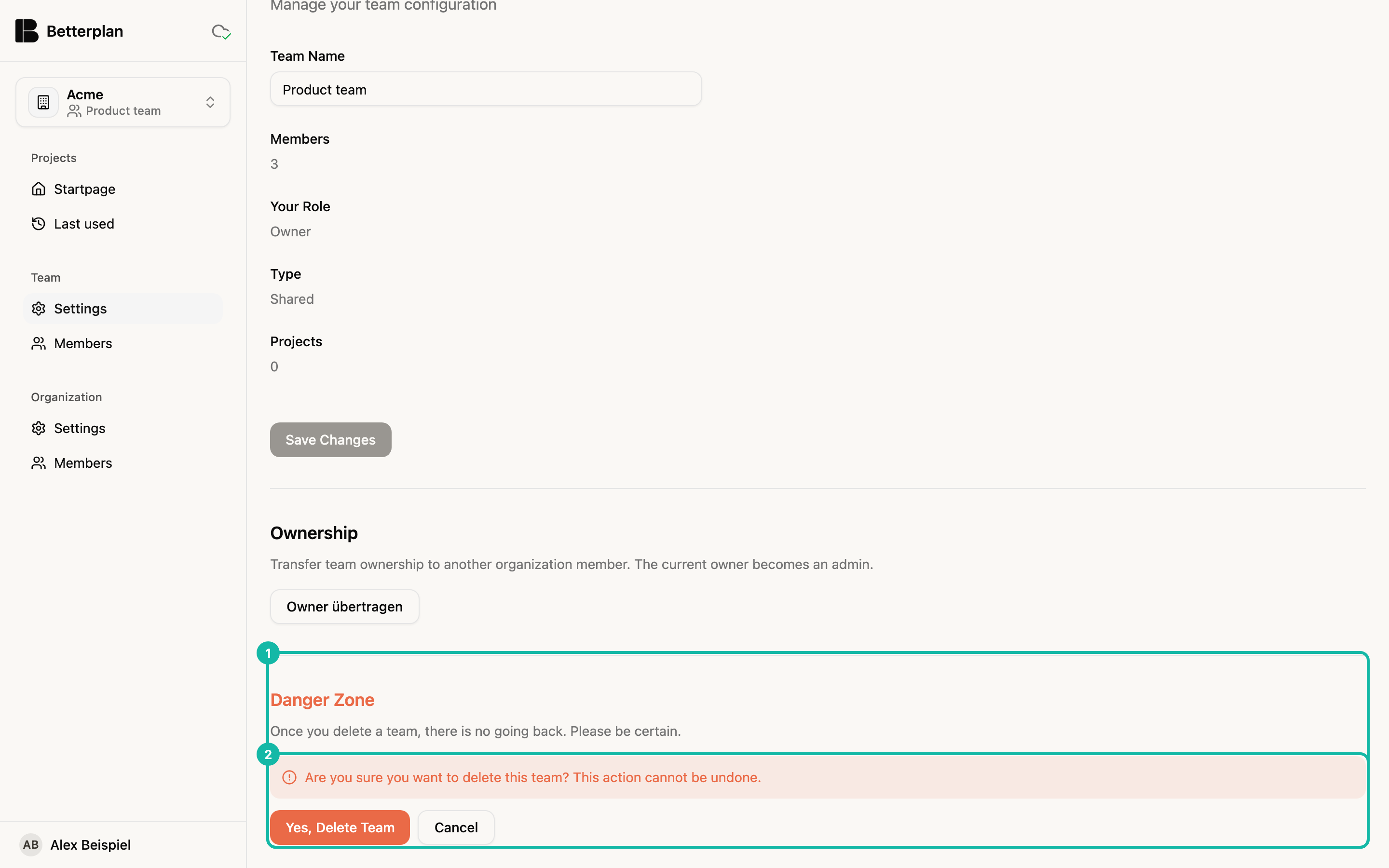
Yes, Delete Team cannot be undone.
Organization settings
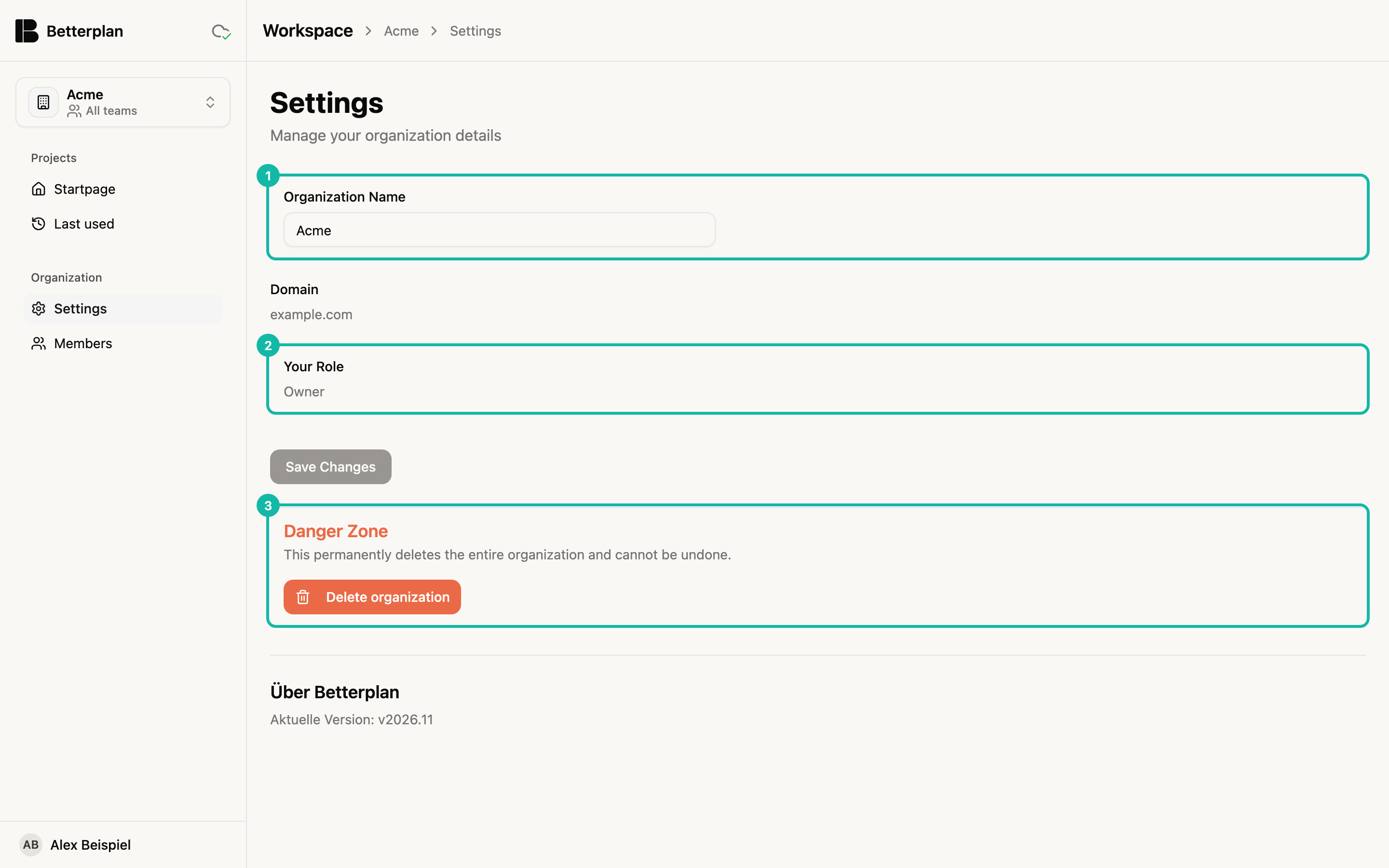
Under Organization → Settings you find Organization Name, Domain and Your Role. Only owners change the name; they confirm with Save Changes. Below is the Danger Zone with Delete organization: it deletes the entire organization with all data and members. To confirm you type the organization name, and with an active subscription you must cancel it first, see Subscription. At the very bottom, About Betterplan shows the current version (the app currently shows this heading in German).