Project settings: Sharing
This view is being rolled out gradually. If you don't see it yet, it hasn't been enabled for your workspace. In that case the Sharing tab is missing in the settings.
In the Sharing tab you manage the project's share links. A share link gives a person outside your organisation access to exactly this project, without an account and without signing in. How the principle works and what guests see is covered in Involving stakeholders. This page is about managing the links.
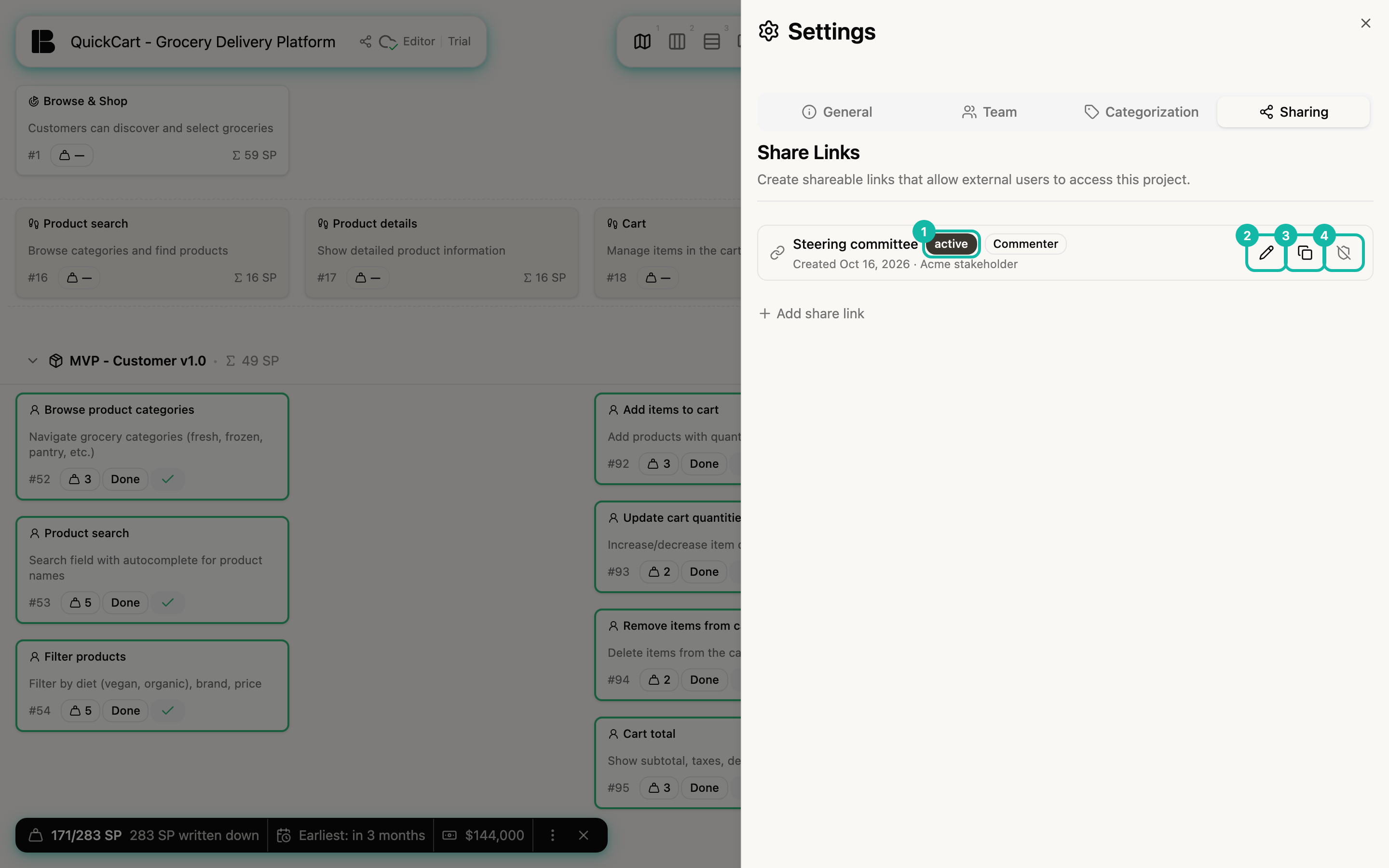
Each row shows the Label, the status (active, revoked or expired), the access level, the creation date, the expiry date if there is one, and the name the guest appears under. As long as you haven't created a link, the tab starts with "No share links yet".
Prerequisite: a guest in the team
A link is attached to a guest. You create the guest in your workspace's member management and add them to the team that owns the project. If nobody is in the team, the selection shows No guests in this project's team. You can't add guests in the personal workspace; create a team of its own for shared projects.
Creating a link
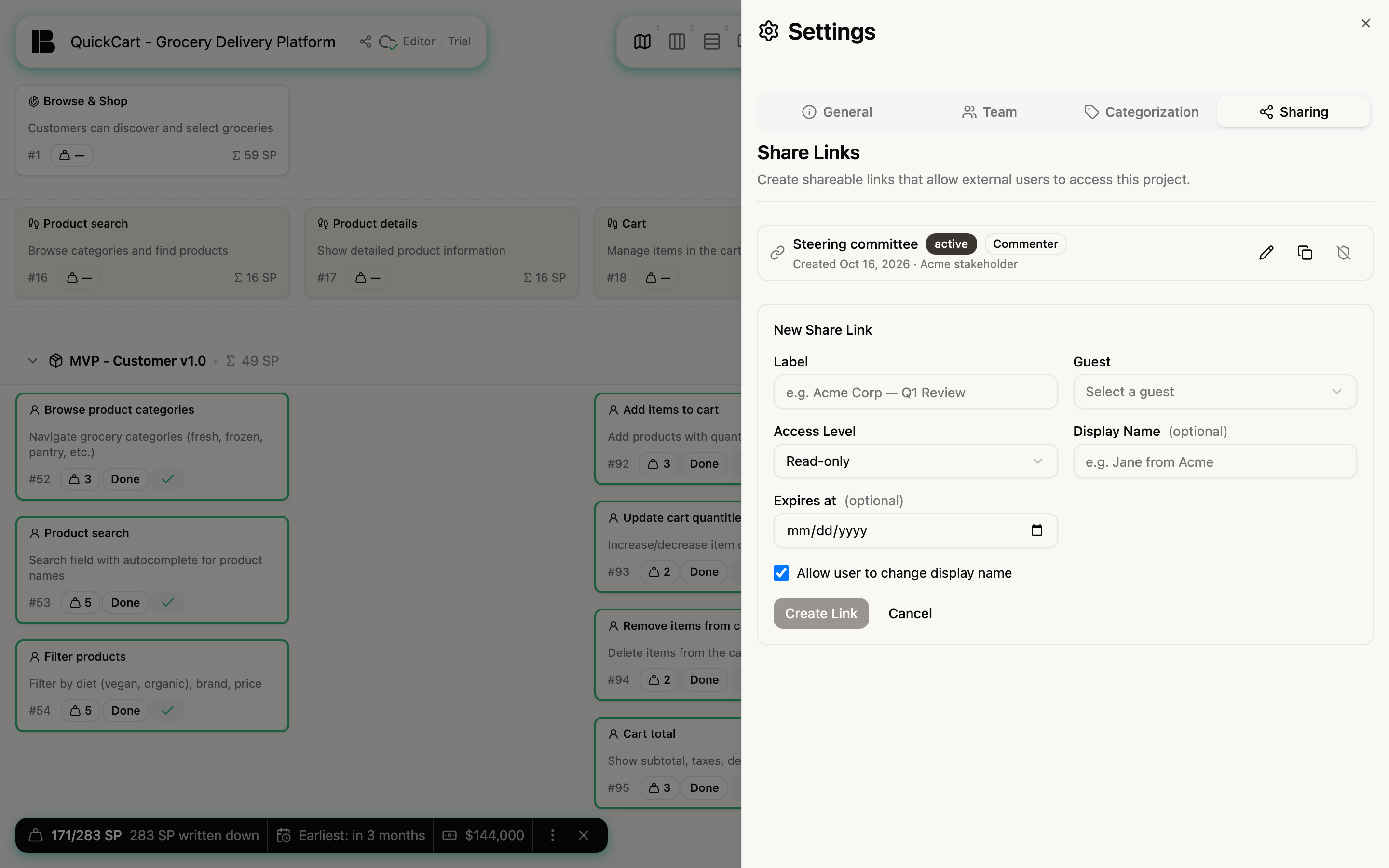
- Click Add share link.
- Enter a Label that only you see, for example "Steering committee".
- Choose the Guest.
- Choose the Access Level: Read-only, Commenter or Editor. The default is Read-only.
- Optional: enter a Display Name the guest appears under for everything they write, and a date under Expires at.
- Leave Allow user to change display name on if the guest may adjust their name.
- Click Create Link.
Per organisation, at most 5 links of level Read-only, 3 of level Commenter and 1 of level Editor can be active at the same time. The rights of each level are in the table on the stakeholders page.
Passing a link on
Betterplan doesn't show the link in the list, because the address is the secret that grants access. You fetch it on demand instead:
- Click the copy icon (two overlapping sheets) in the row. The address (
…/shared/…) lands on your clipboard and Copied! appears briefly. - Paste it into the message to your guest.
If your browser blocks the clipboard, Betterplan shows the address in a field below the link so you can copy it by hand.
Anyone who knows the address gets into the project. Share it only through channels you trust, and revoke the link as soon as it is no longer needed.
Editing a link
The pencil icon lets you change Label, Access Level, Display Name, Expires at and the name option of an active link. Save with Save Changes. The new level applies immediately, even to guests who are in the project right now. You can't change the guest or the address; create a new link for that.
Revoking and deleting a link
- In the row of an active link, click the icon at the far right (crossed-out shield).
- Confirm the question Revoke share link? with Revoke.
The link is invalid immediately; anyone using it loses access. It stays in the list with the status revoked. You can't reactivate a revoked link. Betterplan treats expired links the same way.
You remove a link from the list with the trash can icon, which only exists on revoked and expired links. Confirm the question Delete share link? with Delete. This can't be undone. An active link must therefore be revoked first.
Create a separate link for each group, for example one for the steering committee and one for the client. That way you can revoke one without disturbing the other, and the label tells you who has which access.