Releases
A Release is a milestone that defines what gets delivered at a certain point in time. In the Storyboard every Release is a horizontal row (swimlane): the Stories in it belong to that milestone. That way you see at a glance what is in the first Release and what only comes later.
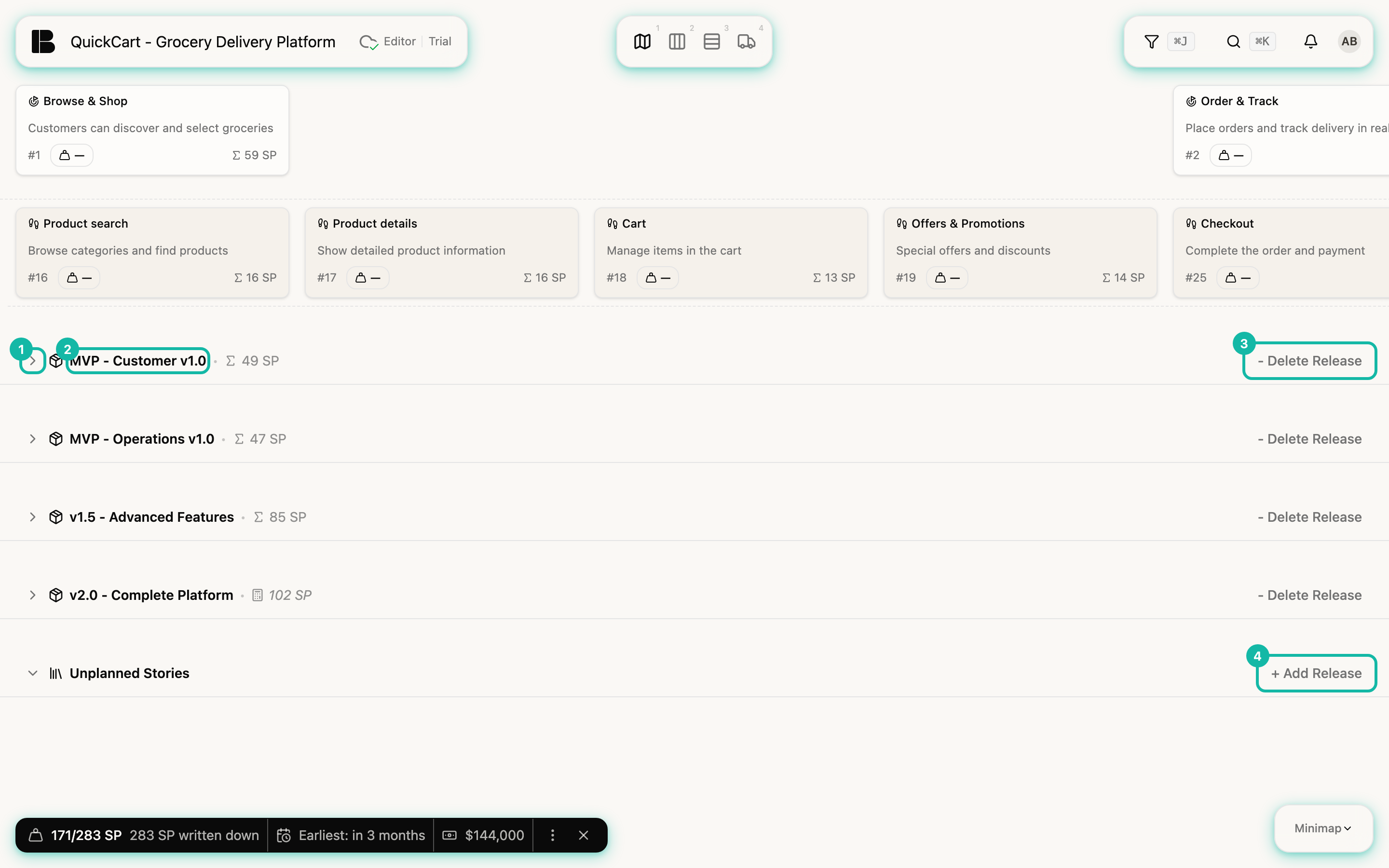
QuickCart has four Releases, from MVP - Customer v1.0 to v2.0 - Complete Platform, plus the row Unplanned Stories for everything not yet assigned to a Release.
Reading the rows
Every row starts with a label. It shows the name, optionally the date and the status, and the sum of the estimates (Σ) of all Stories in the row. If a Release is Active or Completed, a coloured marker follows (for Planned it is omitted).
Collapse and expand rows
The arrow in front of the name closes the row. Its cards disappear, the label stays as the way back. This also applies to Unplanned Stories.
- Collapsed only means hidden: the Stories keep their Release, nothing changes in the project. That is why even someone with read-only access can do it.
- Betterplan remembers this per project in your browser. After a reload or a switch to another view, a row stays closed. On other devices or in a private window you see everything expanded again.
- New Releases are always expanded.
On a long board you close the rows you don't need right now and see all Releases with their sums one below the other.
Create a Release
Click + Add Release in the row Unplanned Stories. The panel New Release opens on the right. Enter a Name, best short and telling like “MVP - Customer v1.0”, and fill in the other fields if you like (see below). The Release is created as soon as you close the panel, provided the name is not empty.
Edit a Release
Click the name of a row. The panel Edit Release opens.
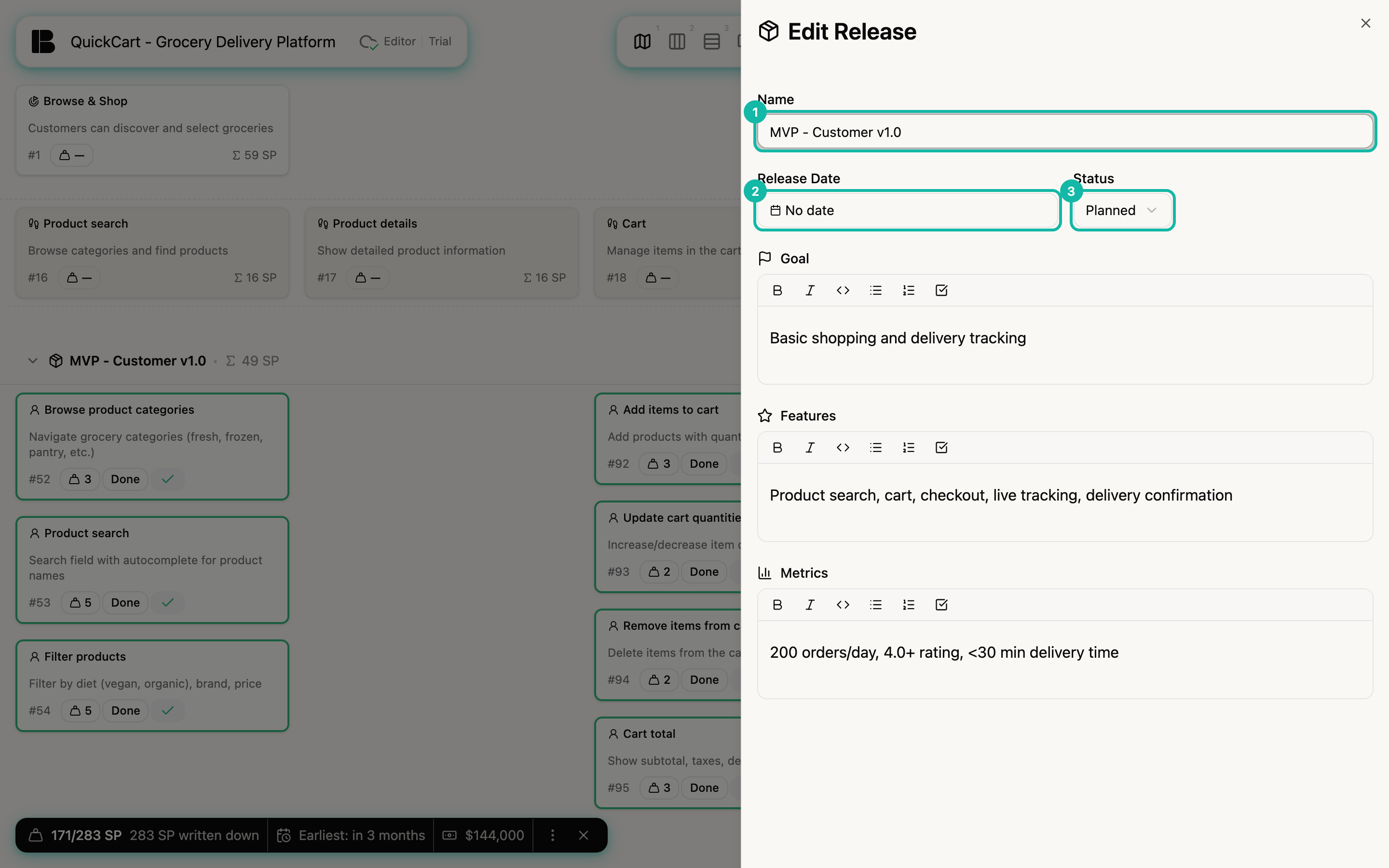
| Field | What for |
|---|---|
| Name | The title shown in the Storyboard and everywhere else. |
| Release Date | When the Release should roughly arrive (see below). |
| Status | Planned, Active or Completed. |
| Goal | Which outcome the Release should achieve. |
| Features | Key capabilities needed for it. You can note them long before there are Stories for them. |
| Metrics | How you measure success. With the checkbox in the toolbar you create checklists. |
Goal, Features and Metrics are free-text fields with simple formatting. They are the basis of the Roadmap, where they appear as a card for every Release.
You save changes by leaving the field or closing the panel; there is no separate save button. If you open a Release just to look, nothing is changed.
Set a date
The field Release Date opens a menu with two kinds of dates:
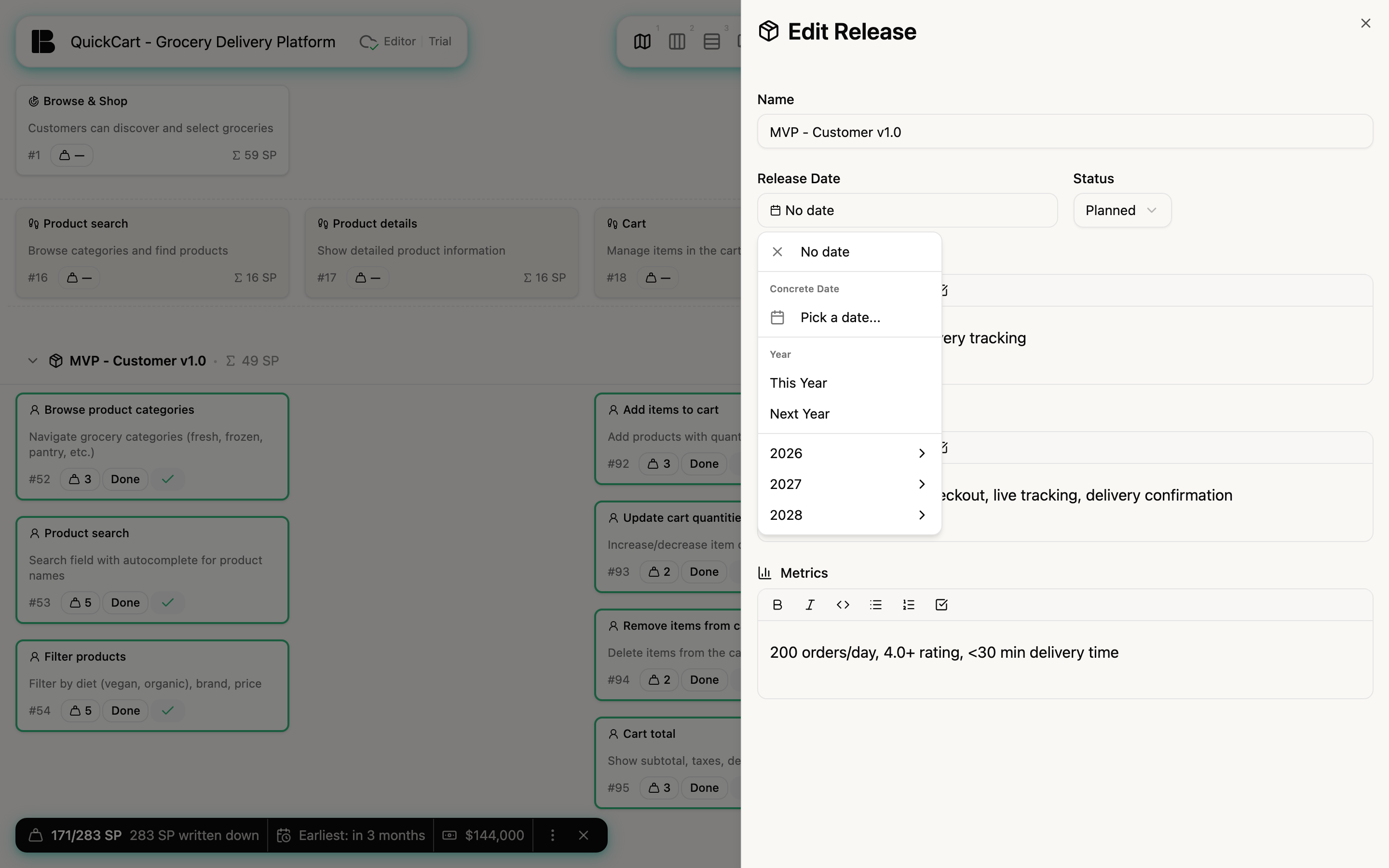
- Rough dates: This Year, Next Year, and a half year or quarter of one of the next years, for example
H1 2027orQ3 2027. They sit in a submenu per year. Staying rough is intentional: a Release date is a direction, not a promise. - Concrete date: Pick a date... opens a date field for an exact day.
Half years and quarters like H1 2027 as well as This Year and Next Year are stored exactly as they appear in the menu. They are not translated.
With No date you remove the date again.
Order of the Releases
The rows in the Storyboard are sorted by a fixed rule:
- Releases with a date come first, the earliest on top. A concrete date counts here.
- Releases without a date follow in their fixed order, which you change in the Roadmap with drag and drop.
You cannot drag the rows in the Storyboard. To put a Release further up, give it an earlier date or move its card in the Roadmap. Note: dates given as a half year or quarter do not count as a date for sorting, only a concrete day does.
Assign Stories to a Release
Drag a Story in the Storyboard into the row you want, or choose the Release in the Release field of the detail view. The Releases filter shows only the Stories of certain Releases.
Delete a Release
Click - Delete Release in the row. For safety Betterplan asks: Delete release “…”? Stories will be moved to unplanned. The Stories are kept and end up in Unplanned Stories.