The detail view of a ticket
In Betterplan, a ticket is any card, whether Initiative, Epic, Story or Workitem (see Building blocks). Everything you want to know about a ticket, or change on it, lives in one place: the detail view. It opens as a panel on the right edge and leaves the view behind it in place, so you keep your context.
Open and close
- In the Storyboard, the Backlog or the Iteration Board, click a card, for example the story Delivery slot management in the sample project QuickCart.
- The detail view slides in from the right.
- To close it, press Esc or click the dimmed area next to it.
Changes are saved right away: selection fields immediately, Title and Description as soon as you leave the field. Closing with Esc loses nothing either. In the Title, the Enter key closes the panel.
Layout at a glance
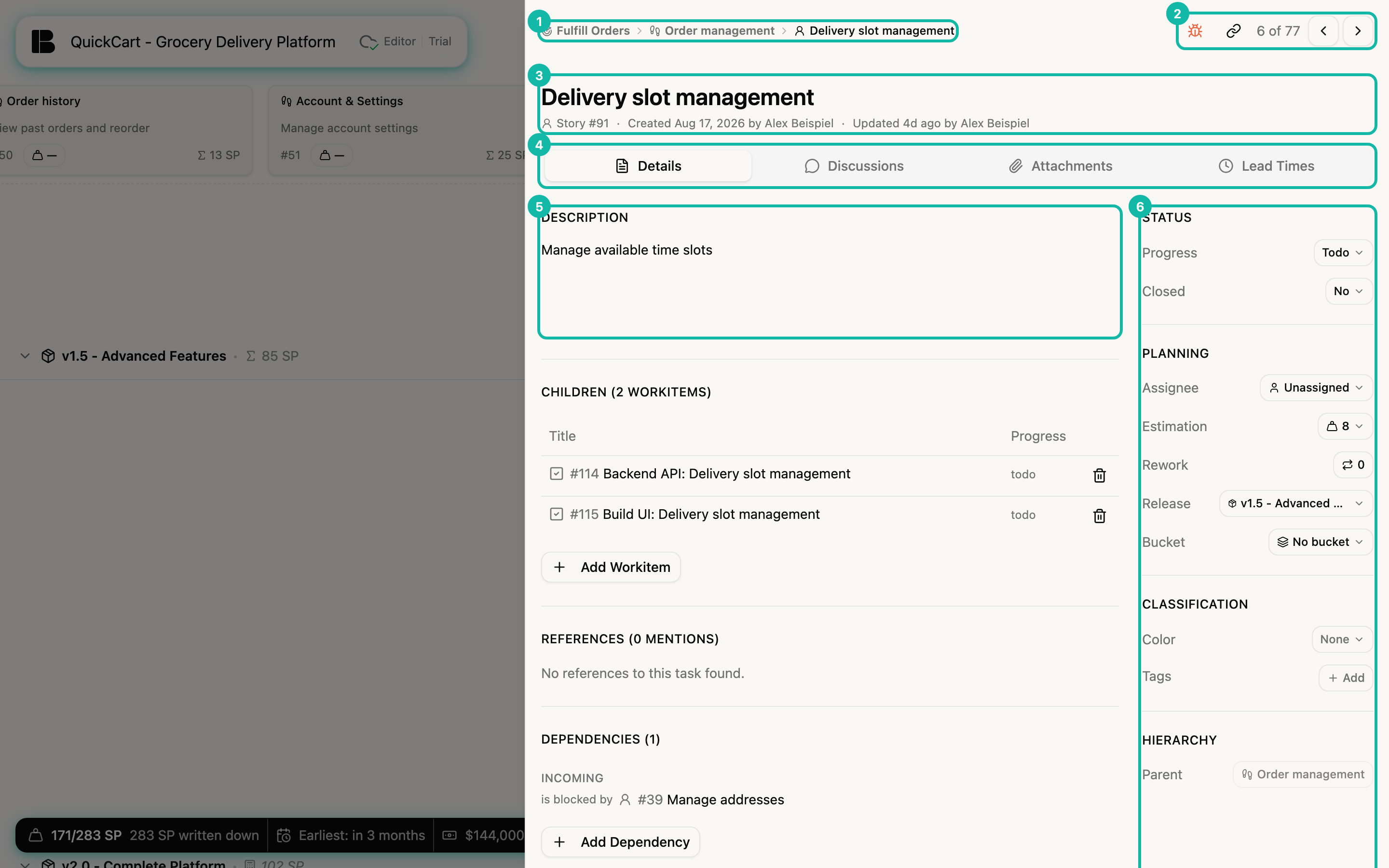
- Breadcrumb: It shows the path from the initiative through the epic to the current ticket, here Fulfill Orders, Order management, Delivery slot management. Clicking a higher level opens that ticket. Initiatives as well as Dev and Project stories have no breadcrumb.
- Header actions: For stories you find a red bug icon for reporting a defect and a link icon that copies the link to the story (Copy link to story). Next to them is the counter, for example 6 of 77, with arrows to the previous and next ticket in the list, so you can page through stories without closing the panel. If the story has unresolved bugs, a Bug badge also appears to the left.
- Title and metadata: The title is editable in place. Below it you see type and number (Story #91), who created the ticket and when, and when it was last changed.
- Tabs: Details, Discussions and Attachments, plus Lead Times when the feature is enabled (see Lead times). Numbers on the tabs show open discussions and existing attachments.
- Description, followed by the sections Children, References, Dependencies and Activity (comments).
- Sidebar: The properties of the ticket, grouped into Status, Planning, Classification and Hierarchy. Which fields you see depends on the type: an epic has no Progress, a workitem has no Estimation.
The pages in this section
- Basic fields: title, description, progress, estimation, release, tags and more
- Hierarchy: add children, move and convert a ticket
- Dependencies and references
- Lead times
- Bugs
Attachments, comments and discussions
The Attachments and Discussions tabs and the Activity section belong to team collaboration. They are described in the collaboration section: Discussions and comments and Attachments and images.