Storyboard
The Storyboard is Betterplan's User Story Map: you see your whole undertaking on one surface, from the big goals down to the single Story. This is where you plan the Scope: what should be built, and how the story of it is structured. Unlike a wall poster, the map stays alive: every card is a real ticket, and whatever you change here applies in every other view.
You reach the Storyboard through the Scope phase (key 1, then 1), see Phases and views.
How the map is built
The columns carry the structure of your undertaking, the rows the planning in time.
- Initiatives on top: They stand side by side and set the big goals.
- Epics below them: Each Epic stands under its Initiative and describes a step on the way to the goal. Read the Epics from left to right like a script.
- Stories below the Epics: They form a stack under their Epic and describe variants and stages of that step.
- The rows are Releases: The Stories are spread over horizontal rows (swimlanes), one per Release. At the bottom, the row Unplanned Stories holds everything without a Release.
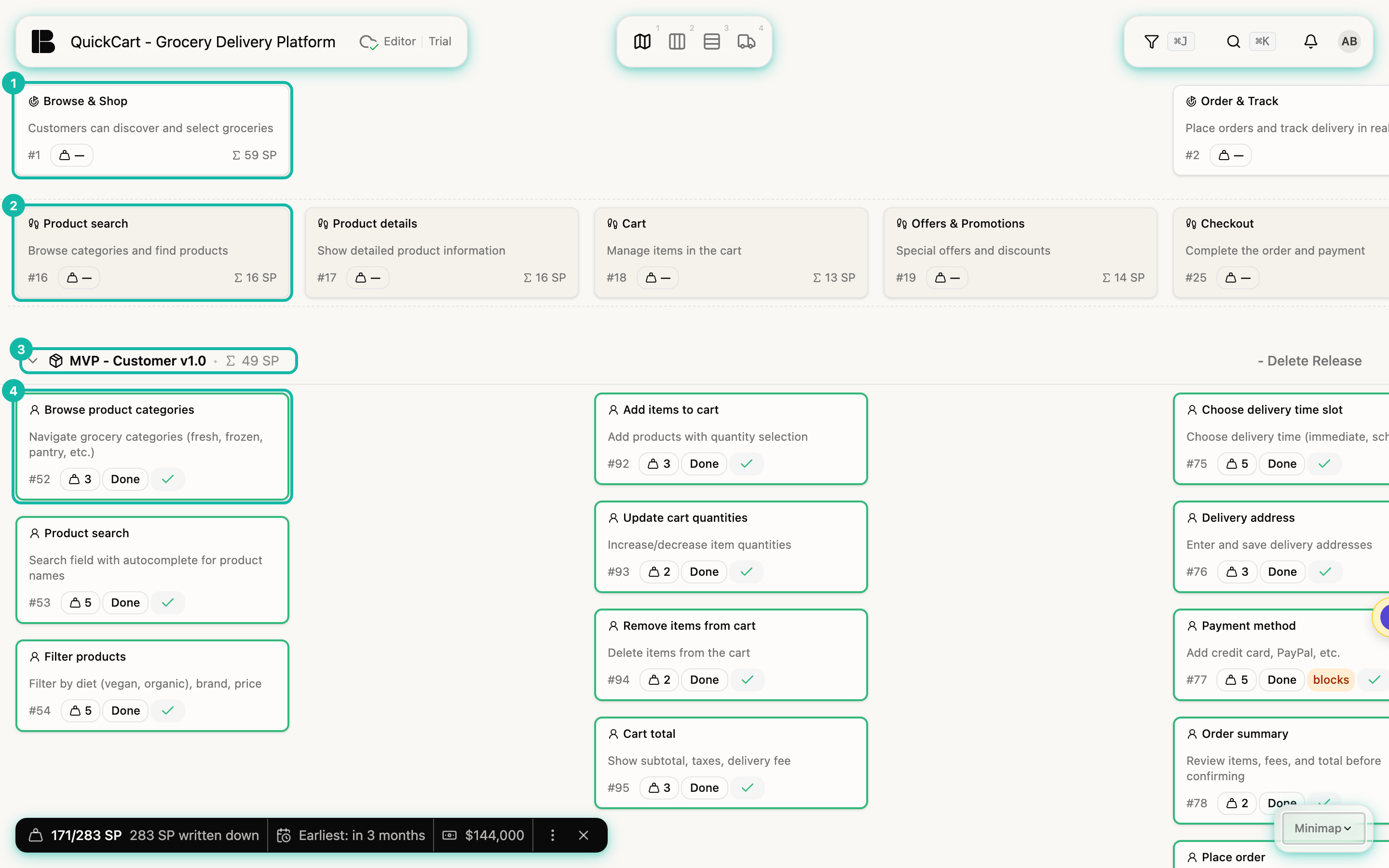
When you scroll, the rows with Initiatives and Epics stay at the top, so even far down in the Releases you know which column you are in. The cards show what you know from the other views: number, estimate, state and markers for dependencies, for example blocks. The sums Σ on Initiatives, Epics and Release rows add up the estimates below them.
Hold D and the Storyboard draws the cables between dependent Stories. More in Dependencies and references.
Create cards
Every card has two invisible plus areas that appear as soon as you move the mouse over the card:
- To the right of the card you create a ticket of the same level: an Initiative next to an Initiative, an Epic next to an Epic, a Story next to a Story.
- Below an Initiative or an Epic you create a child ticket: a New Epic below the Initiative, a New Story below the Epic.
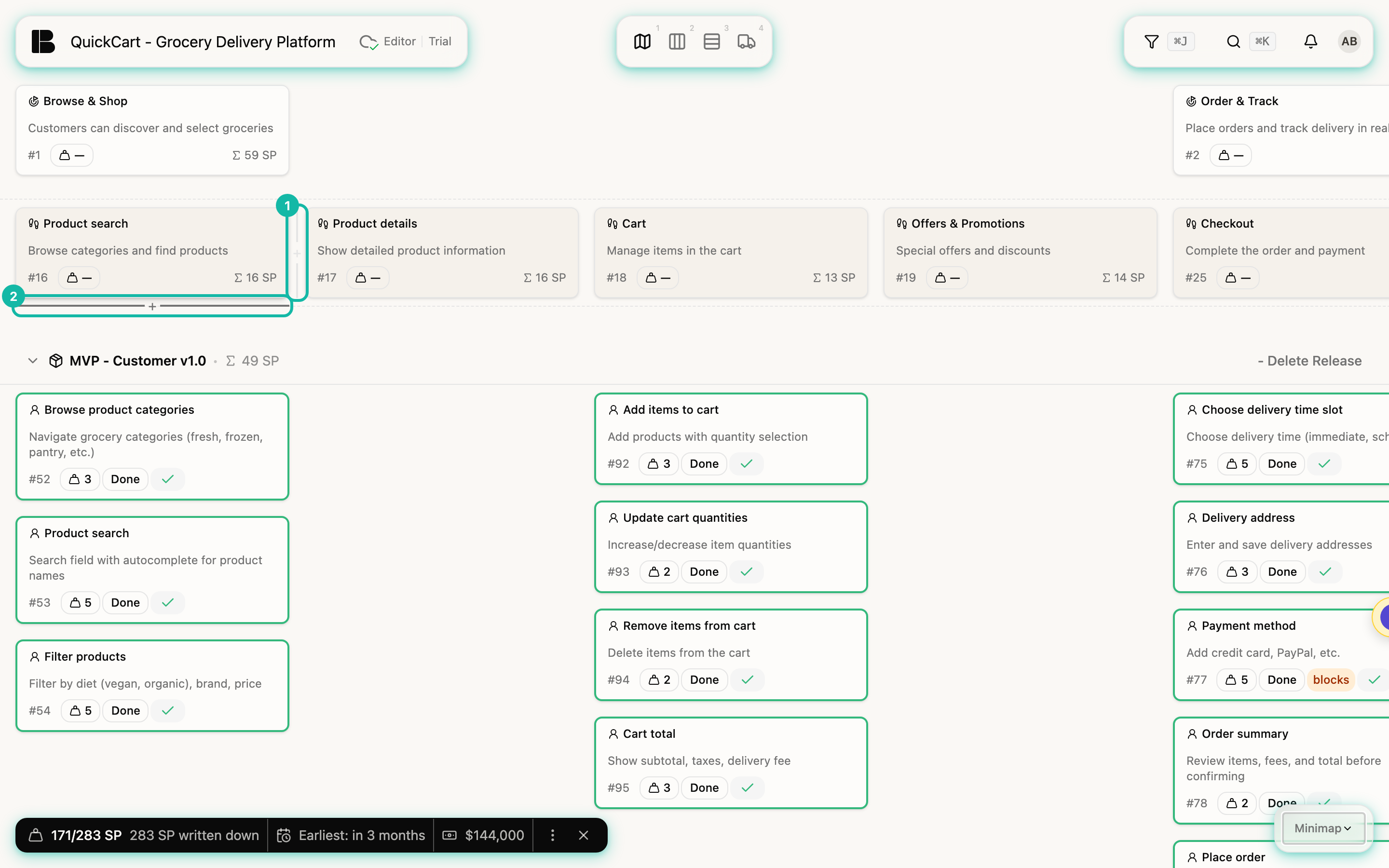
The new ticket appears immediately and opens in the detail view so you can type the title. At first it only has the title New Story, New Epic or New Initiative.
- A Story you create below an Epic belongs to that Epic and has no Release yet. You will find it in the row Unplanned Stories.
- A Story you create next to another Story takes over its Epic and its Release. That way you quickly fill a Release row with more Stories.
- While the Storyboard is still empty, it offers the button Add initiative, which asks for the title of the first Initiative.
With the mouse over a card, these shortcuts also work (see also Keyboard):
| macOS | Windows / Linux | Action |
|---|---|---|
| Enter | Enter | Open the selected card (Storyboard, Backlog, List, Estimation, Iteration Board, Timeline) |
| Esc | Esc | Clear the selection |
| C | C | Pointer over a card: open the Discussions tab and start a new comment (for Epics and Stories in the Storyboard and in the Backlog only while the card is selected) |
| N | N | Pointer over an Initiative, Epic or Story: create a new sibling ticket on the same level and open it |
| ⌫ | Backspace | Delete the selected card (after a confirmation; on the Iteration Board only Workitems) |
Move cards
Drag a card to a new place with the mouse:
- Initiatives are reordered side by side. Their Epics and Stories move along.
- Epics are moved within an Initiative or into another Initiative. Their Stories move along.
- Stories are dragged into another Epic (another column), into another Release (another row), or both in one move. Epic and Release are independent of each other.
The order in the Storyboard tells the structure of your undertaking: Epics from left to right are the steps, Stories in a stack the options. It helps with the first prioritization but is not the priority itself. Global priority follows a Story's maturity and, after that, the order in the Backlog, see Prioritizing.
If you delete an Initiative, you also delete its Epics and their Stories; an Epic takes its Stories with it. Betterplan asks first, but read the prompt carefully. You delete through the card's menu (Delete) or with Backspace while the card is selected.
Collapse and focus
With many Initiatives the board no longer fits on one screen. Collapse what you don't need right now.
Collapse Initiatives: Move over the Initiative's card, open its menu with the three dots and choose Collapse. The Epics and Stories of the column disappear and are replaced by a card stack with their numbers, for example 4 epics and 16 stories. The same number also counts Stories lying in collapsed Release rows. Expand opens the column again.
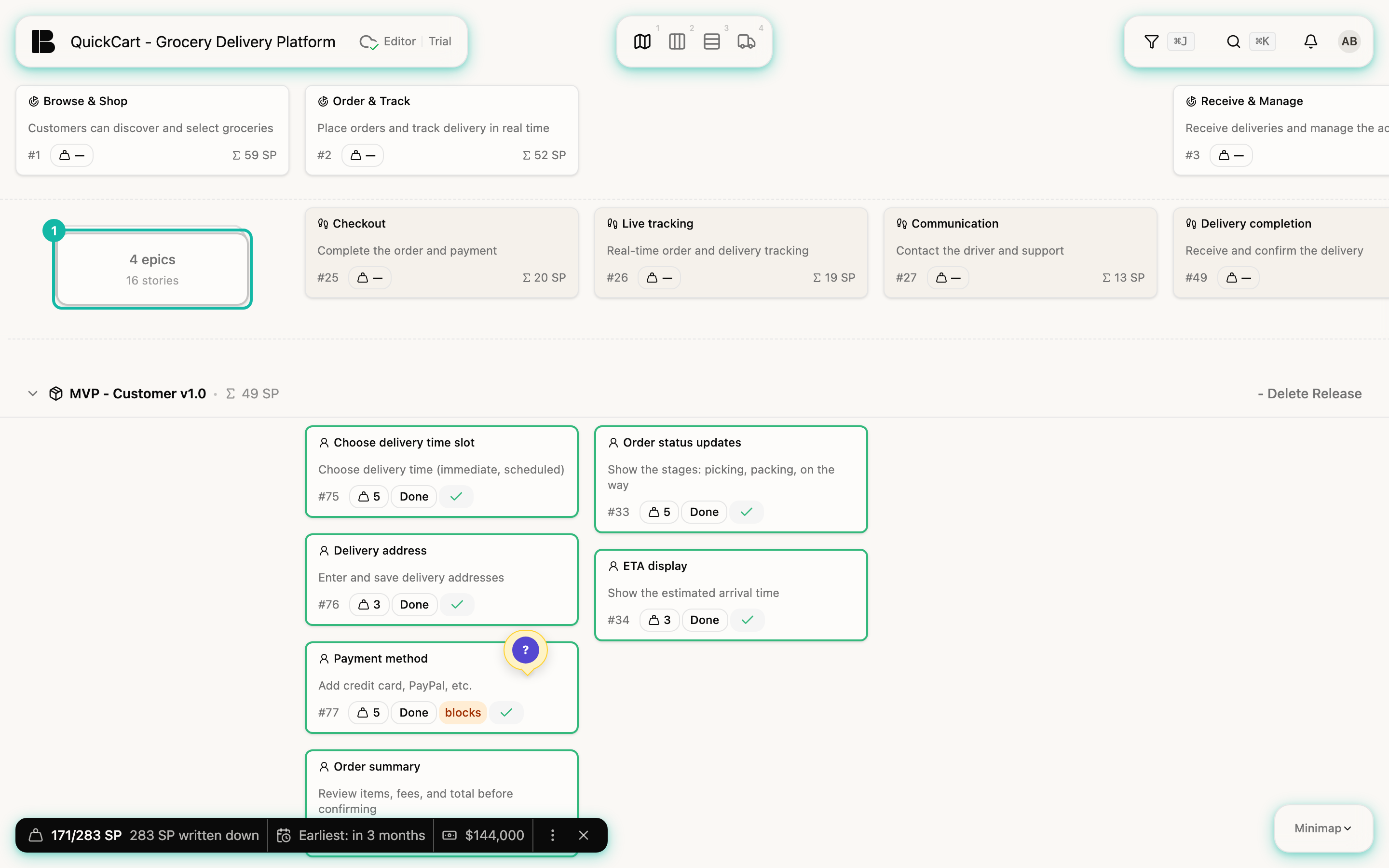
The Initiative's menu has two more entries as soon as you have more than one Initiative:
- Focus this collapses all other Initiatives and shows only this one.
- Show all initiatives (for a focused Initiative: Unfocus (show all initiatives)) opens everything again.
Collapsing Initiatives only applies to your current session. If you leave the Storyboard and come back, everything is expanded again.
Collapse Release rows: The arrow in front of a row's name closes the whole row. Betterplan remembers this per project in your browser. What that looks like is shown in Releases.
Collapsing is not a filter: it changes nothing in your project and only hides. If you find a ticket through the search, Betterplan opens the row it lies in so that you can see it.
Filters in the Storyboard
The filter works here too: Stories that don't match are dimmed or hidden. Initiatives and Epics always stay visible.