Project settings: General
In the General tab you decide what your project is called and what it stands for, and how Betterplan shows information in the views. The settings apply to everyone working on the project.
Opening the settings
There is no settings button in the project header. Open them like this:
- Open the command palette with Search and commands (shortcut ⌘+K or Ctrl+K).
- Under Suggestions, choose Open Settings.
Alternatively, the link at the end of the tooltip of the estimation readout at the bottom left leads straight to the velocity settings in the Team tab. The settings open as a panel on the right with four tabs: General, Team, Categorization and Sharing. The Sharing tab only appears if share links are enabled for your workspace.
More on the palette: Search and command palette.
Project information
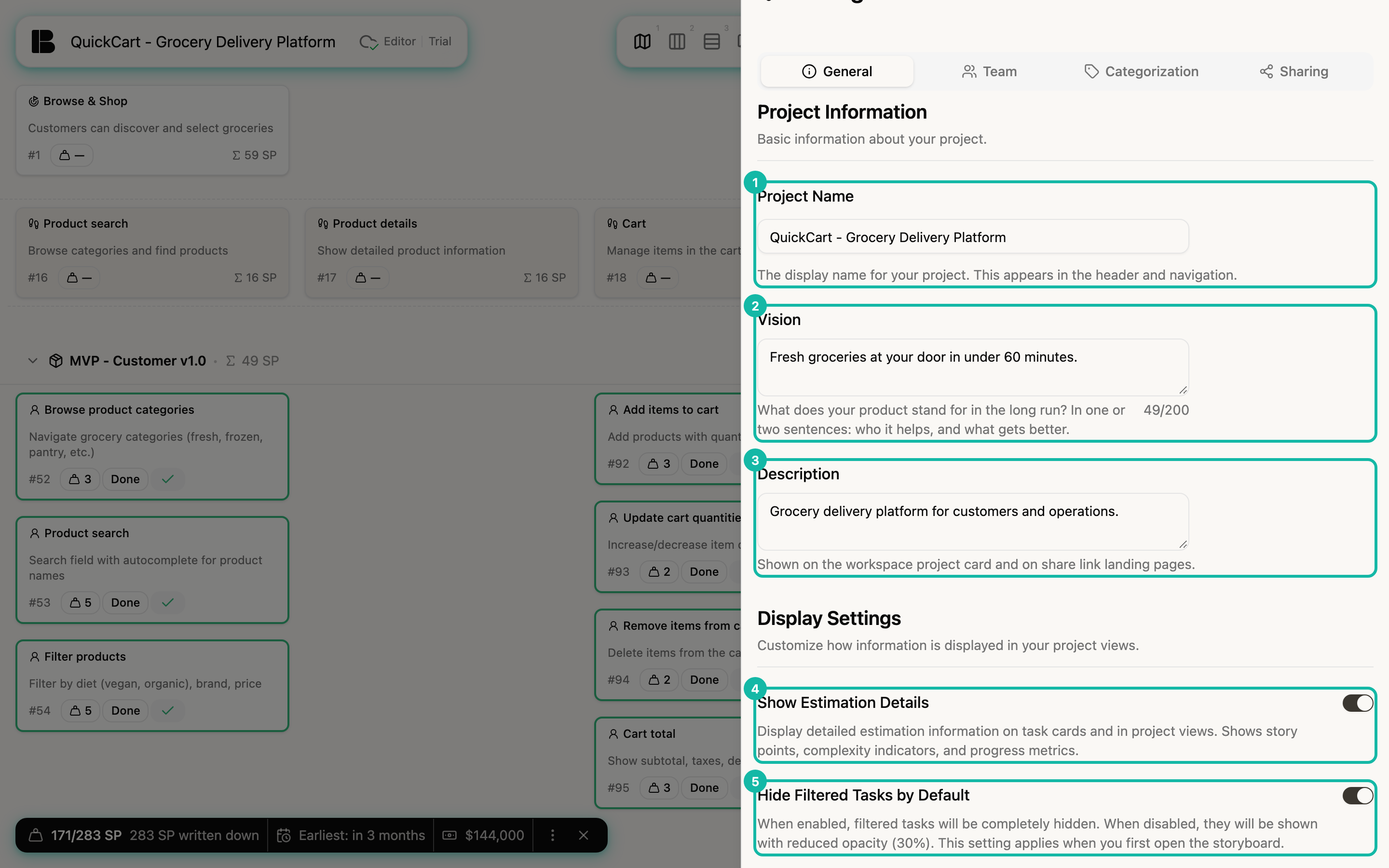
- Project Name: The display name of your project. It appears in the header, in the navigation and on the project card. The new name is saved as soon as you leave the field.
- Vision: One or two sentences on what your product stands for in the long run, who it helps and what gets better. The vision is at most 200 characters; the counter on the right below the field shows where you stand. For QuickCart it reads "Fresh groceries at your door in under 60 minutes." You see it again in the centre of the Orbit view.
- Description: A short description. It appears on the project card in the workspace and on the landing pages of share links.
Betterplan saves vision and description when you leave the field.
Display settings
Two toggles decide how the views show information. Both take effect immediately; there is nothing to confirm.
- Show Estimation Details: Shows estimation information on the cards and in the views, including story points and progress metrics, as well as the estimation readout at the bottom left. More in Estimating. The toggle only appears if cost estimation is enabled for your workspace.
- Hide Filtered Tasks by Default: When on, filtered tickets disappear completely. When off, they stay visible at reduced opacity (30%). The setting applies when you first open the Storyboard. How filters work is explained in Filters.
Cost estimation is being rolled out gradually. If you don't see Show Estimation Details yet (and, in the Team tab, Budget and Cost per Iteration), it hasn't been enabled for your workspace.
Betterplan saves when you leave a field and when you close the panel. You never need to click "Save" anywhere.