Exporting, importing and deleting a project
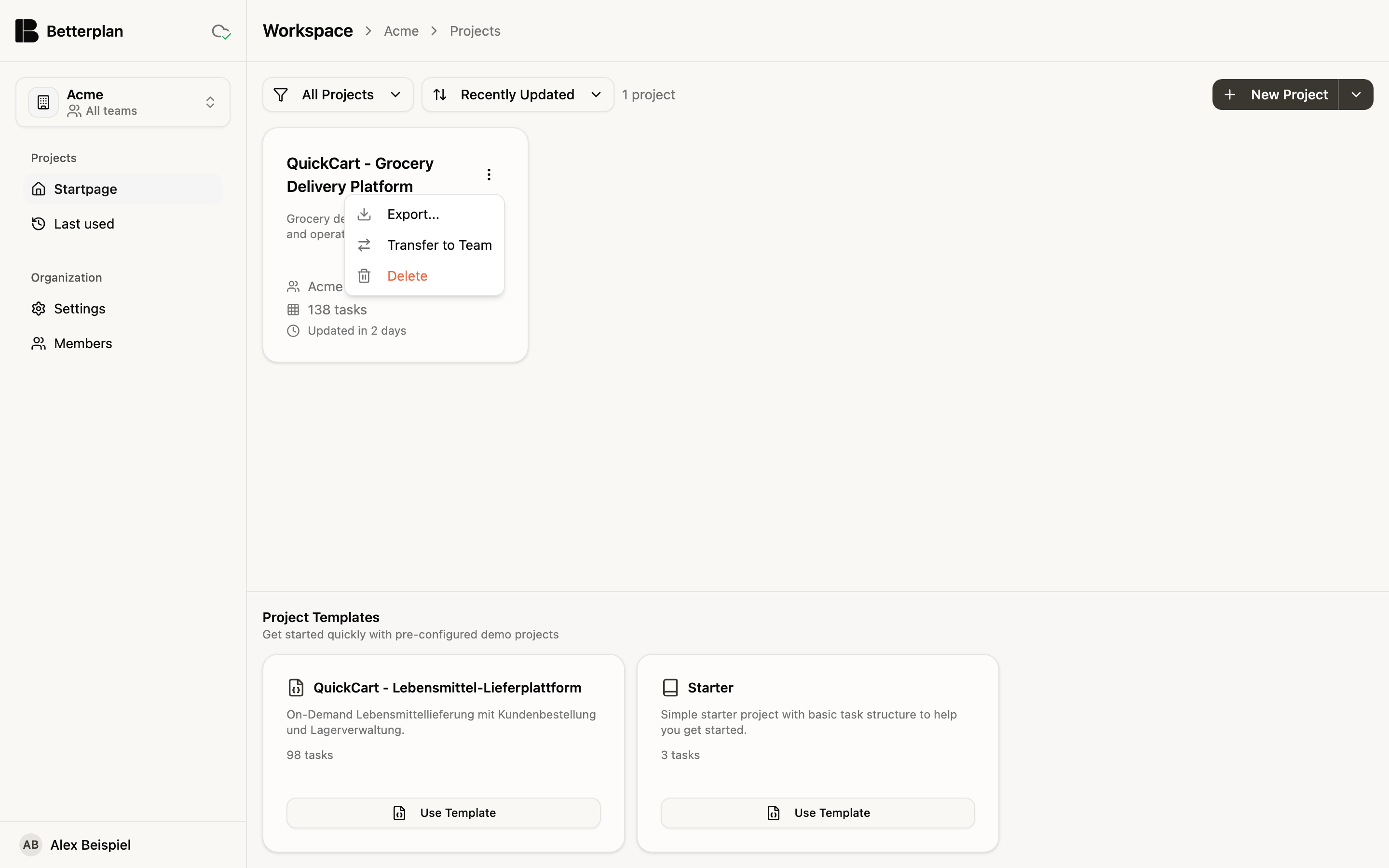
You back up a project as a file, turn it into a template, bring it back in another team, or delete it. You won't find these three actions in the project settings but in your workspace's project list.
Exporting
- Open the project list.
- On the project card, click the menu with the three dots and choose Export....
- In the Export Project dialog, check the options and click Export.
Betterplan downloads a ZIP file. Without any further setting, it is a full backup with all tasks, releases, iterations, discussions and attachments.
Custom export
Custom export unfolds the options.
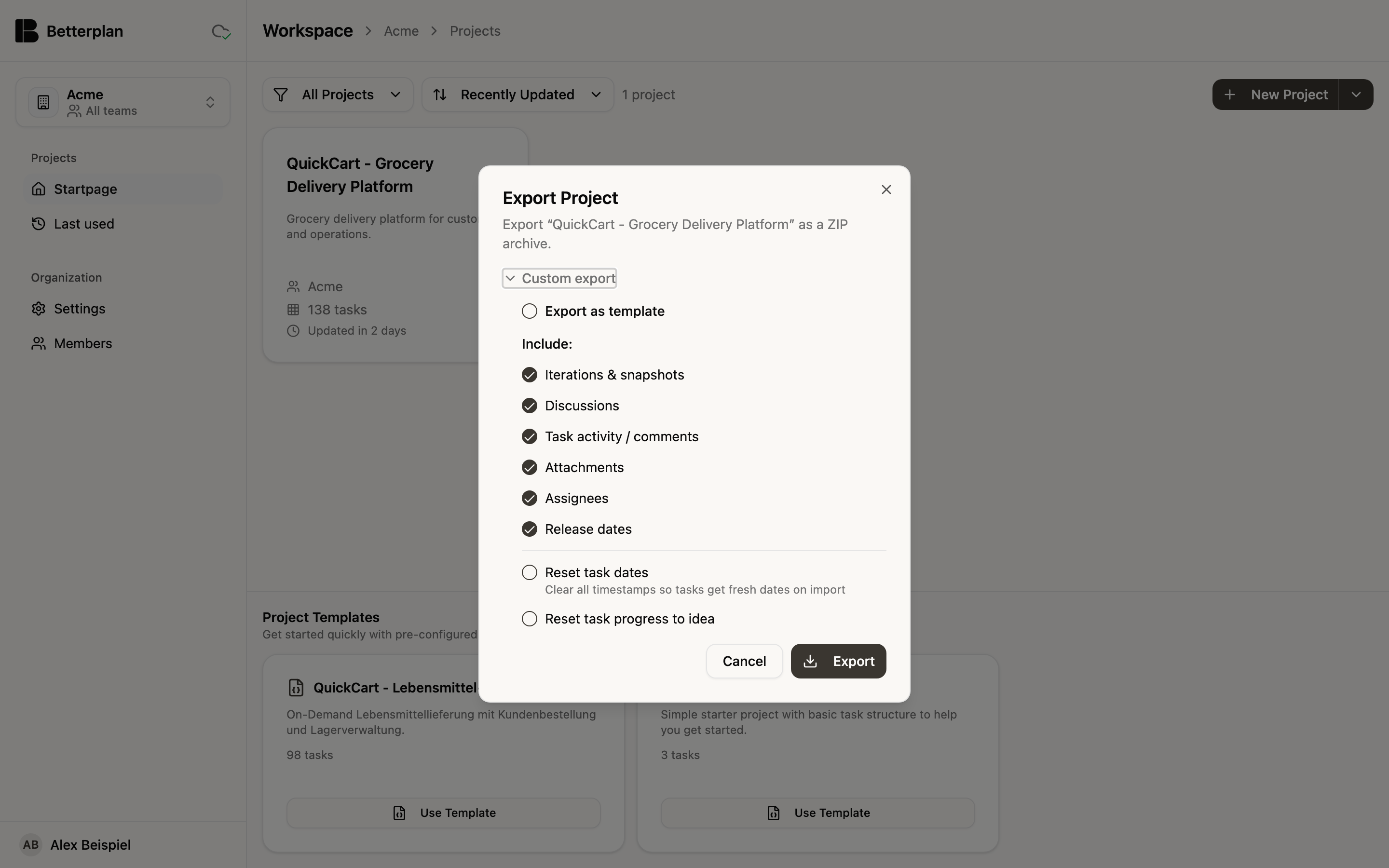
Under Include: you decide what ends up in the file. Everything is on by default.
| Option | What it does |
|---|---|
| Iterations & snapshots | Completed and running iterations including their snapshots, the history that Insights and velocity use |
| Discussions | The discussions on the tickets |
| Task activity / comments | The comments inside the discussions. Without Discussions there is nothing to comment on |
| Attachments | The files and images on the tickets |
| Assignees | Who works on a ticket |
| Release dates | The dates of the releases |
Below that are two options that change the content. Both are off:
- Reset task dates: Clears all timestamps so tasks get fresh dates on import.
- Reset task progress to idea: All tickets start again as Idea after the import.
Exporting as a template
Export as template pre-fills the options for use as a template: iterations, discussions, comments, attachments, assignees and release dates are off, Reset task dates is on. What remains is the structure of your project: initiatives, epics, stories and their links. You can still adjust the individual options afterwards.
If you need a project as a starting point for the next undertaking, export it as a template and import it as a new project.
Importing
You start the import in the project list through the menu next to New Project: Import Project, then choose the ZIP or JSON file and confirm name and team in the dialog. The procedure with a screenshot is under Importing a project; the QuickCart package is such an import. A ZIP import always creates a new project. Your existing project stays unchanged.
On import, Betterplan no longer knows the authors of the discussions from the source: imported discussions and comments appear with the author "Unknown". The content, the timestamps and the status of the discussion are kept.
Deleting a project
- In the project list, open the menu on the project card.
- Choose Delete.
- Confirm your browser's question: "Delete "project name"? This cannot be undone."
The question is a standard dialog of your browser and can't be captured here. The project is deleted permanently along with all its tickets.
Deleting can't be undone. Export the project first if you might need it later.