Inviting and managing members
A workspace belongs to an organization. Everyone who works in it is listed under Organization → Members. Here you decide who can edit, invite more people and remove members again.
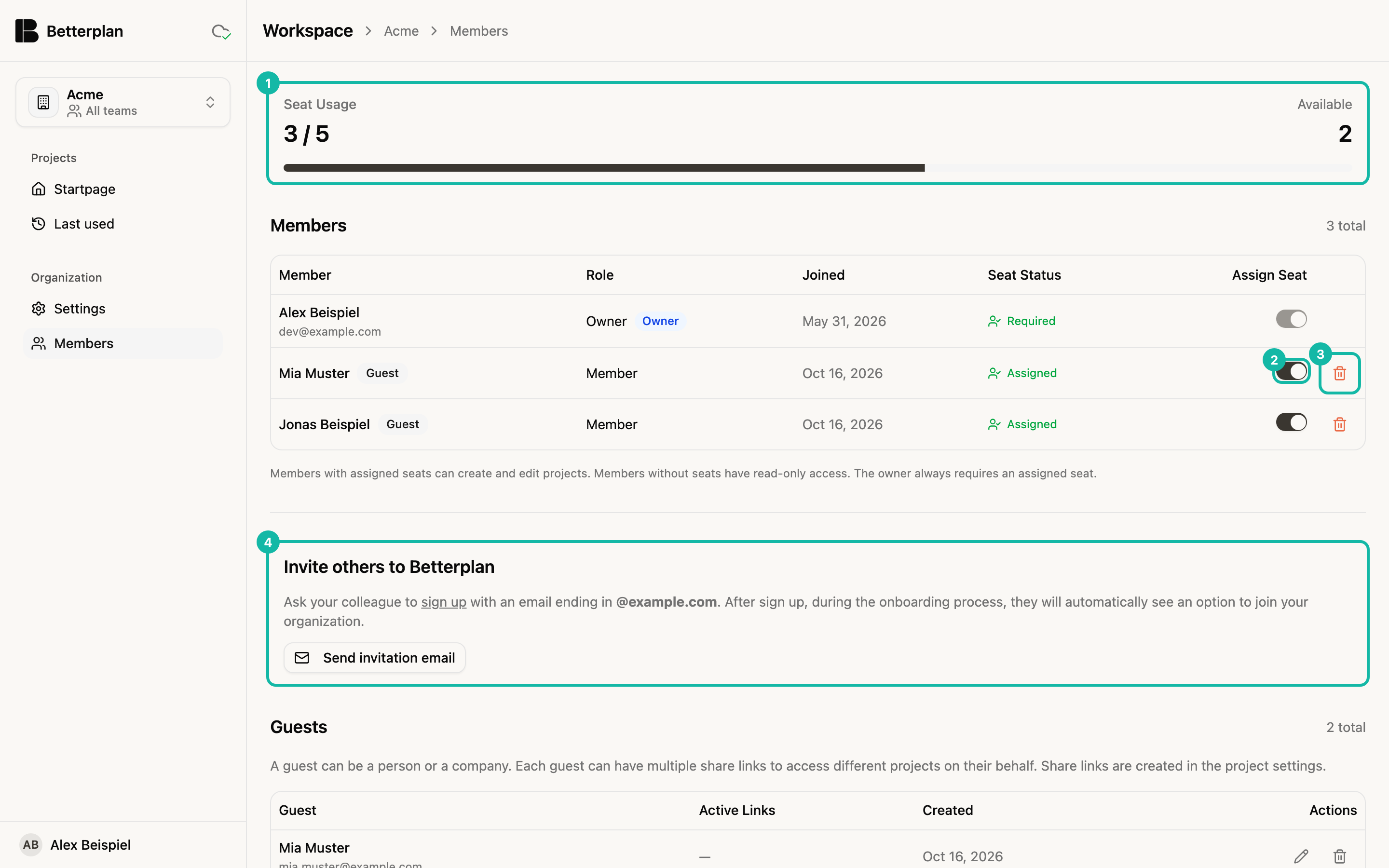
Seats: who can edit?
Betterplan bills by seats. Whoever has a seat can create and edit projects. Members without a seat have read-only access. The Owner always needs a seat.
- Seat Usage (1) shows at the top how many seats are assigned (here 3 of 5) and how many remain Available. If members without a seat exist, a note says they have read-only access.
- The Members table shows each person's Role, Joined date and Seat Status (Required, Assigned or No seat).
- In the Assign Seat column (2) you switch a person's seat on or off. When all seats are taken, no further one can be assigned. You book more seats in the subscription.
Only organization owners see the Assign Seat column and the trash icon. For everyone else the table is an overview.
Removing a member
The trash icon (3) removes a member from the organization, except yourself and other owners. The member is deleted permanently, including their personal projects, and can no longer sign in. For safety you type the person's email address in the Delete member dialog. If the person still owns shared teams, Betterplan stops you: transfer ownership first, see Teams and roles.
Removing cannot be undone. Check beforehand whether the person's personal projects are still needed.
Inviting more people
Betterplan does not send invitations from inside the app. Instead your organization's domain controls joining: whoever signs up with an email address of that domain (here @example.com) automatically sees the option to join your organization during onboarding. How onboarding works is described in Account and onboarding.
The Send invitation email button (4) only opens a prepared draft in your mail program; you send it yourself.
In a personal workspace without a domain this spot reads "Inviting more users is currently not possible with a personal workspace."
Guests
Below the members is the Guests section. A guest is a person or company without a login that accesses individual projects through share links. Guests also appear in the members table, marked Guest, and take up a seat.
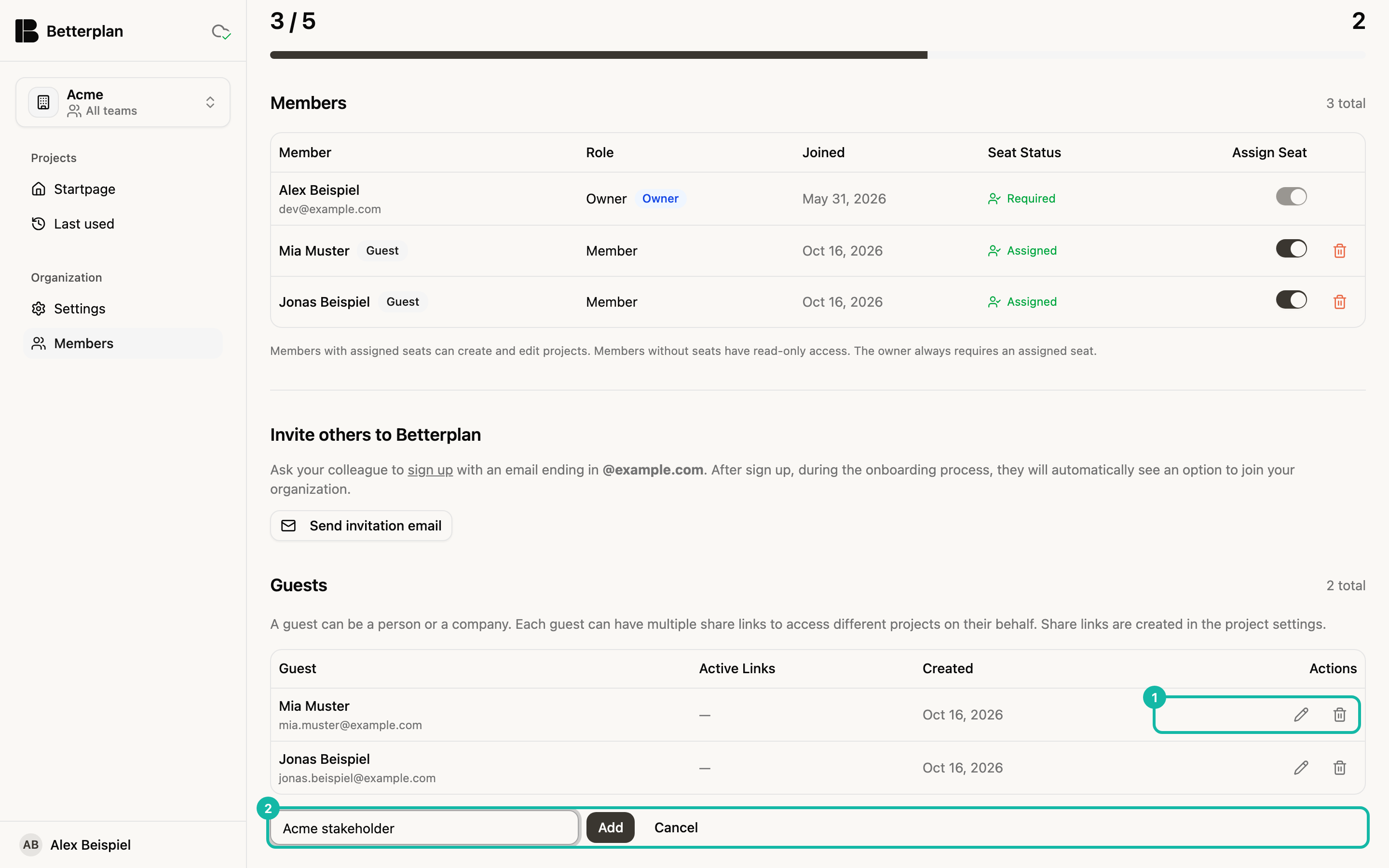
Click Add guest, enter a name such as "Acme Corp" and confirm with Add. The pencil renames a guest; the trash icon removes it and revokes all its share links. You create the links themselves in the project settings: Sharing; the principle is explained in Involving stakeholders.
The Guests section belongs to share links, which are being rolled out gradually. If you don't see it yet, it hasn't been enabled for your workspace.