Dependencies and references
Tickets rarely stand alone. Betterplan knows two kinds of relationships between tickets: dependencies, which enforce an order, and references, which merely point to another ticket. You see both in the detail view in sections of their own.
Dependencies
A dependency says: ticket A blocks ticket B. B can only sensibly be finished once A is done. In the sample project QuickCart, the story Manage addresses blocks the story Delivery slot management: without stored addresses, delivery slots cannot be managed.
In the Dependencies section of a story, Betterplan groups the relationships by direction:
- Outgoing: This ticket blocks others.
- Incoming: This ticket is blocked by others.
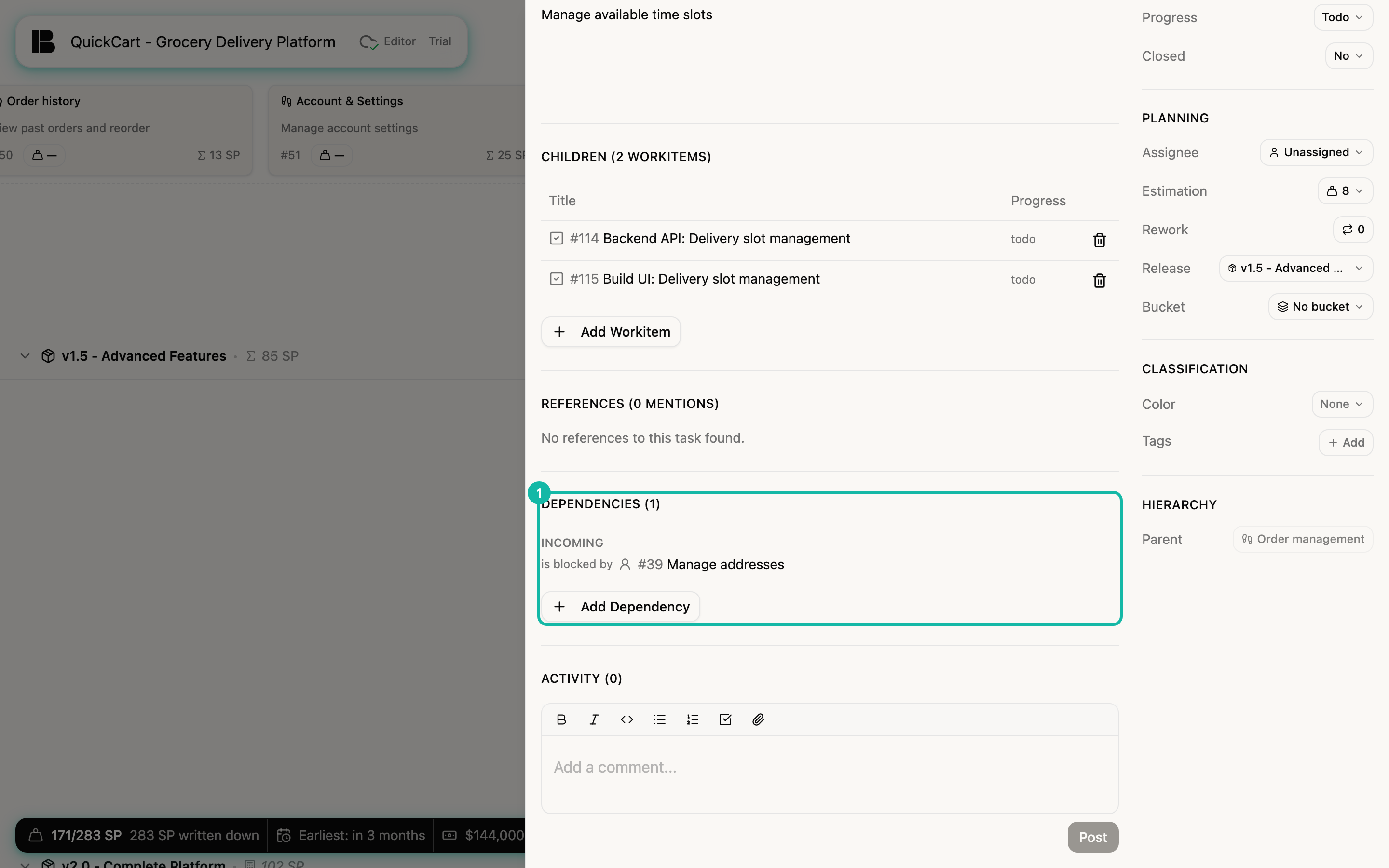
Add a dependency
- Open the ticket and scroll to the Dependencies section.
- Click Add Dependency.
- At the top, choose the direction. The sentence starts with This task and ends with either blocks or is blocked by.
- In the Search tasks... field, search by title or number and click the ticket you want.
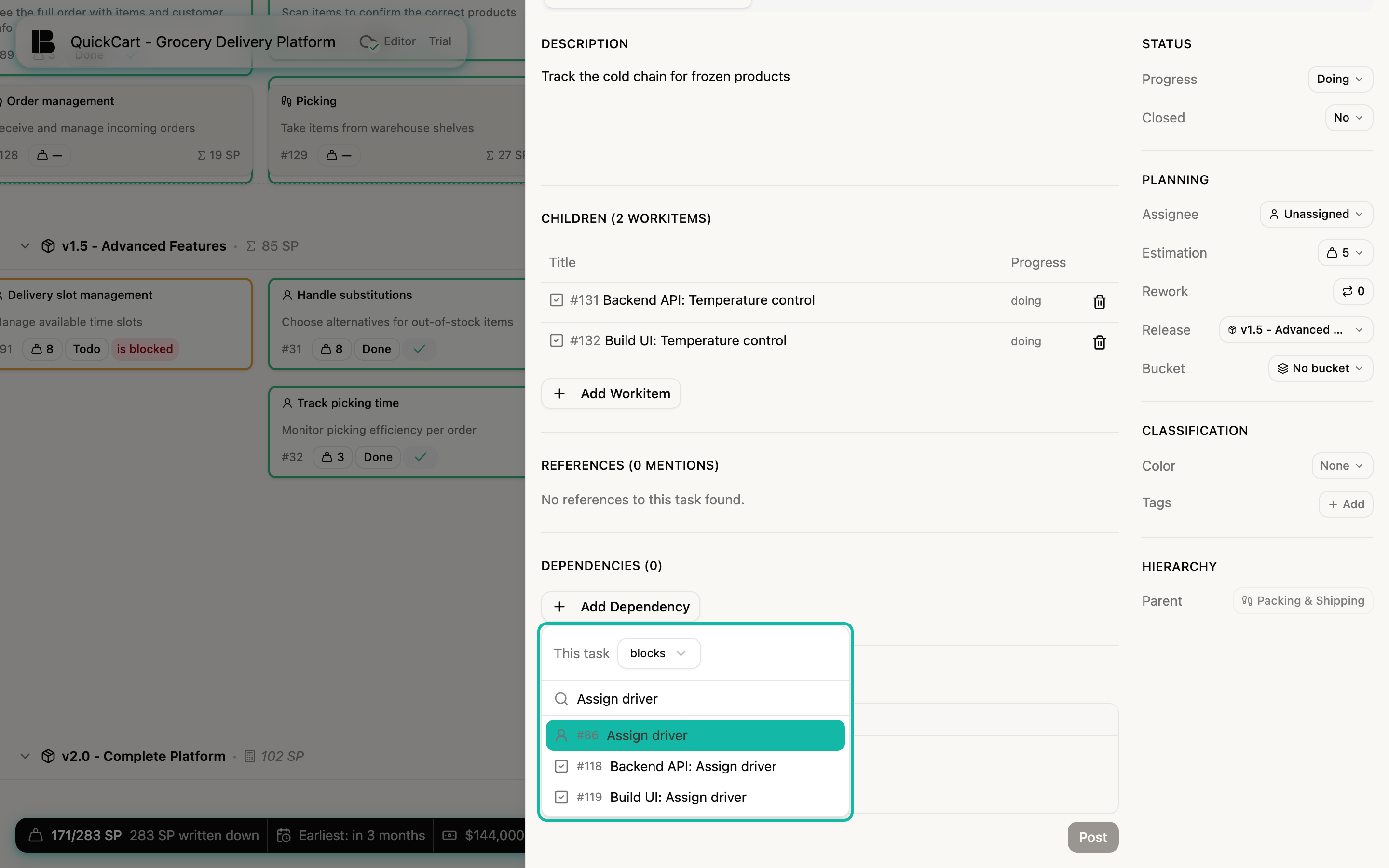
A ticket that is already linked no longer appears in the results. When you point at an entry, two icons appear: Invert direction swaps the blocking and the blocked ticket, the cross deletes the dependency. Clicking the title opens the linked ticket.
See dependencies in the Storyboard
In the Storyboard, stories with dependencies carry a marker: blocks on the ticket that holds others up, and is blocked on the one that waits. You show the connections themselves by holding down the D key. Betterplan then draws orange cables between the cards. The arrow points at the blocking ticket, the dot at the other end sits on the blocked one. When you release the key, the cables disappear again.
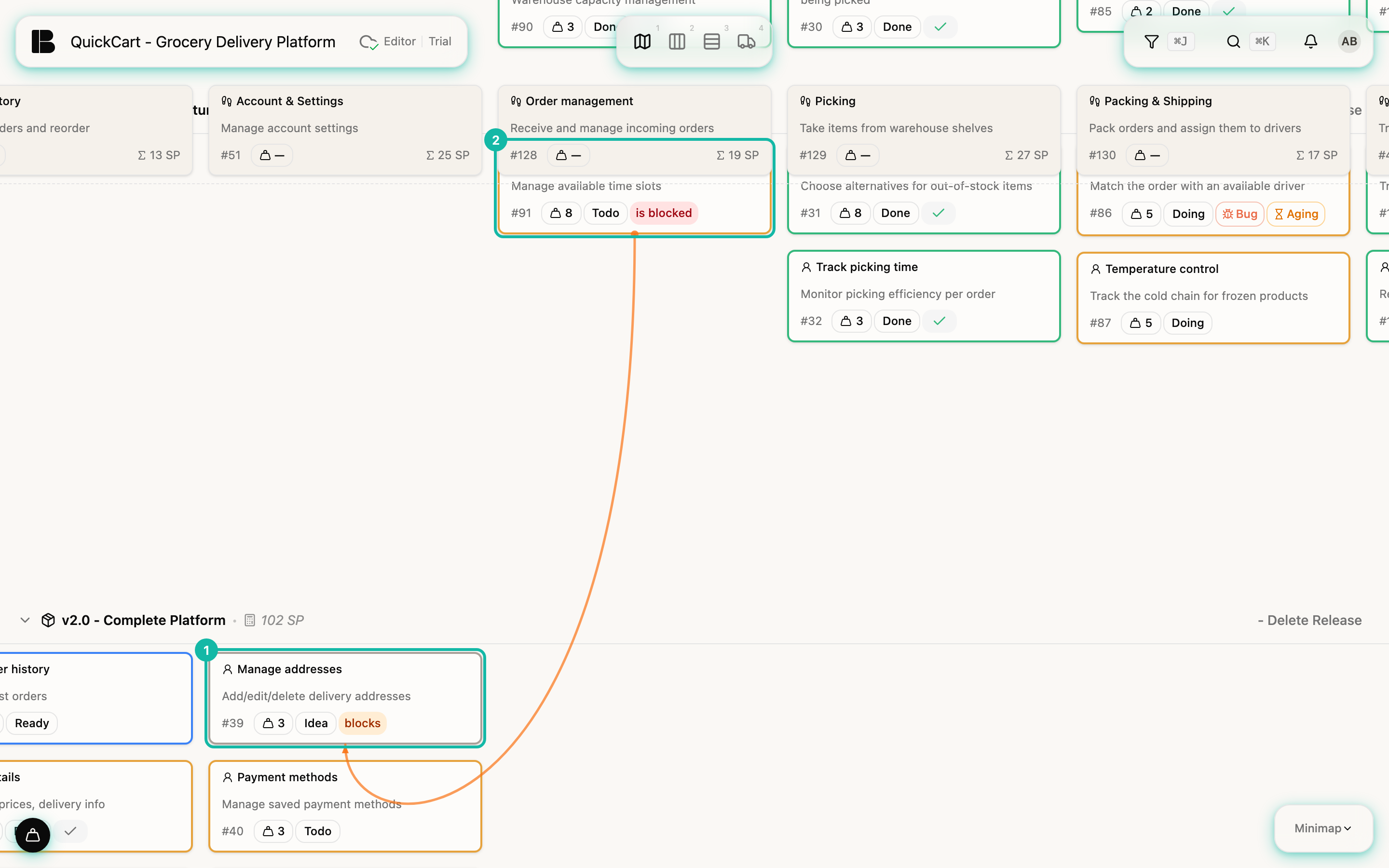
The D key only works when you are not typing in a text field. Click an empty spot in the Storyboard first.
References
A reference arises when one ticket is mentioned in another. You do not have to link anything: the References section automatically shows where the current ticket is mentioned.
This is how you create a reference:
- Open a ticket, here Manage addresses, and click into the Description.
- Type # and then part of the title. A list of matching tickets appears, showing the type, for example story or workitem.
- Select a ticket with the arrow keys and confirm with Enter.
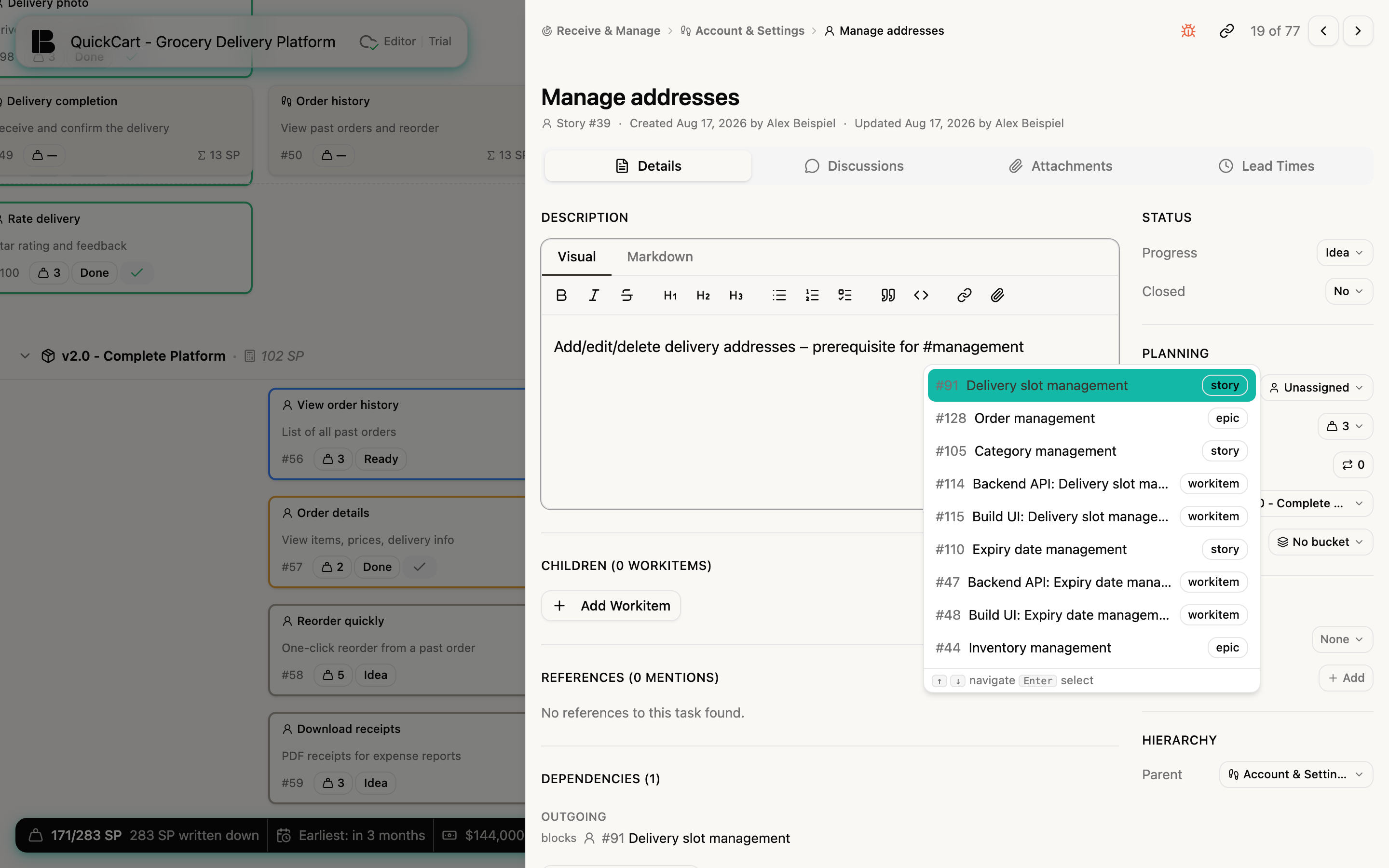
The ticket appears as a link in the text. If you now open the mentioned ticket, the References section contains an entry: title and number of the mentioning ticket, a text snippet and, in the Location column, where the mention is: in the Description or in the Activity; for mentions in discussions, with the title of the discussion.
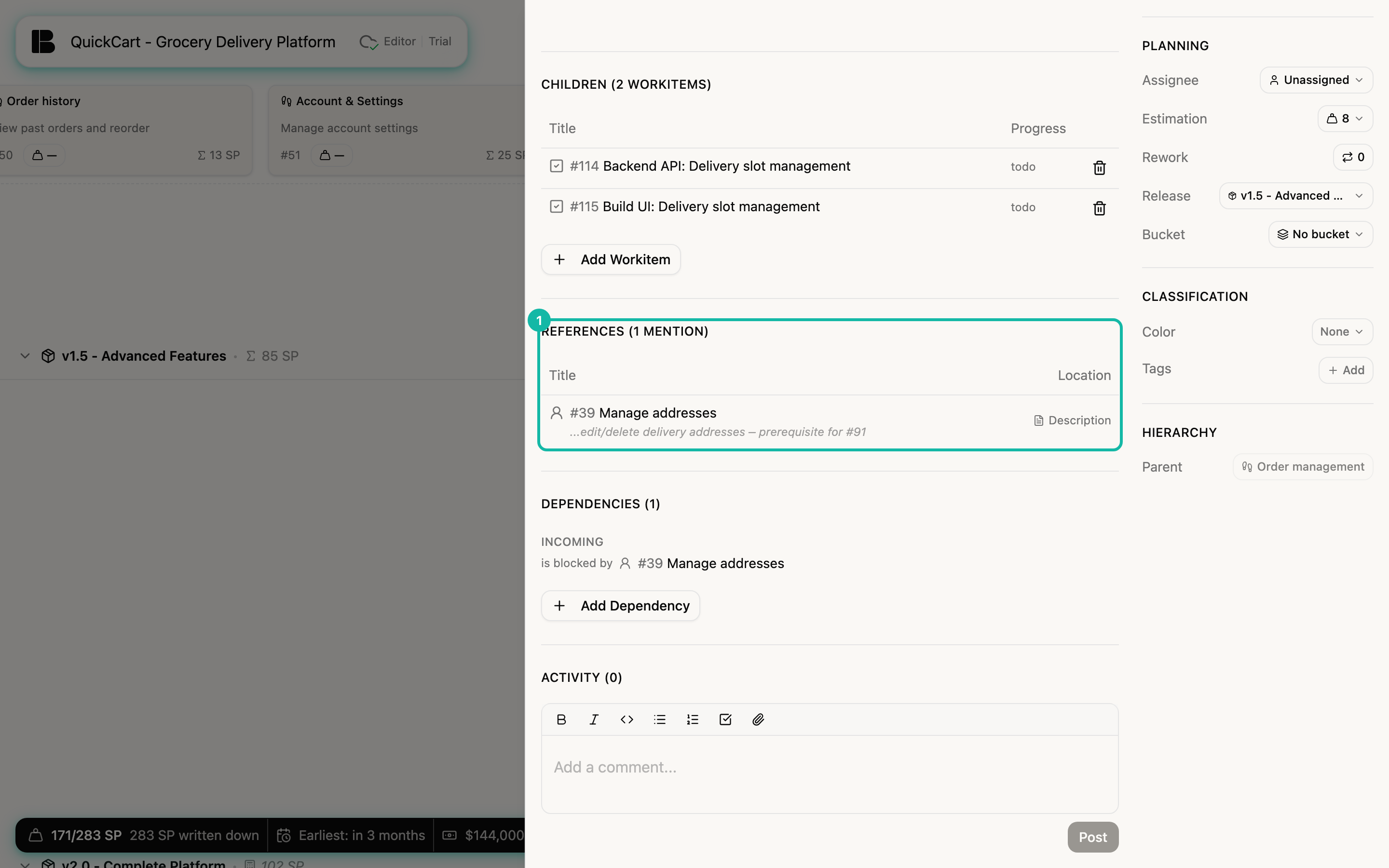
Clicking the title of an entry jumps to the mentioning ticket. If there is no mention, it says No references to this task found.
Use a dependency when order matters and one ticket holds up the other. Use a reference when you only want to point to background, decisions or related work.