The Iteration Board
The Iteration Board is the working view of the Build phase (key 3, then 1). It shows the active Iteration: every story has its own swimlane, and next to it its workitems move through three columns. The whole team sees who works on what and what is missing, without anyone asking for status.
Layout
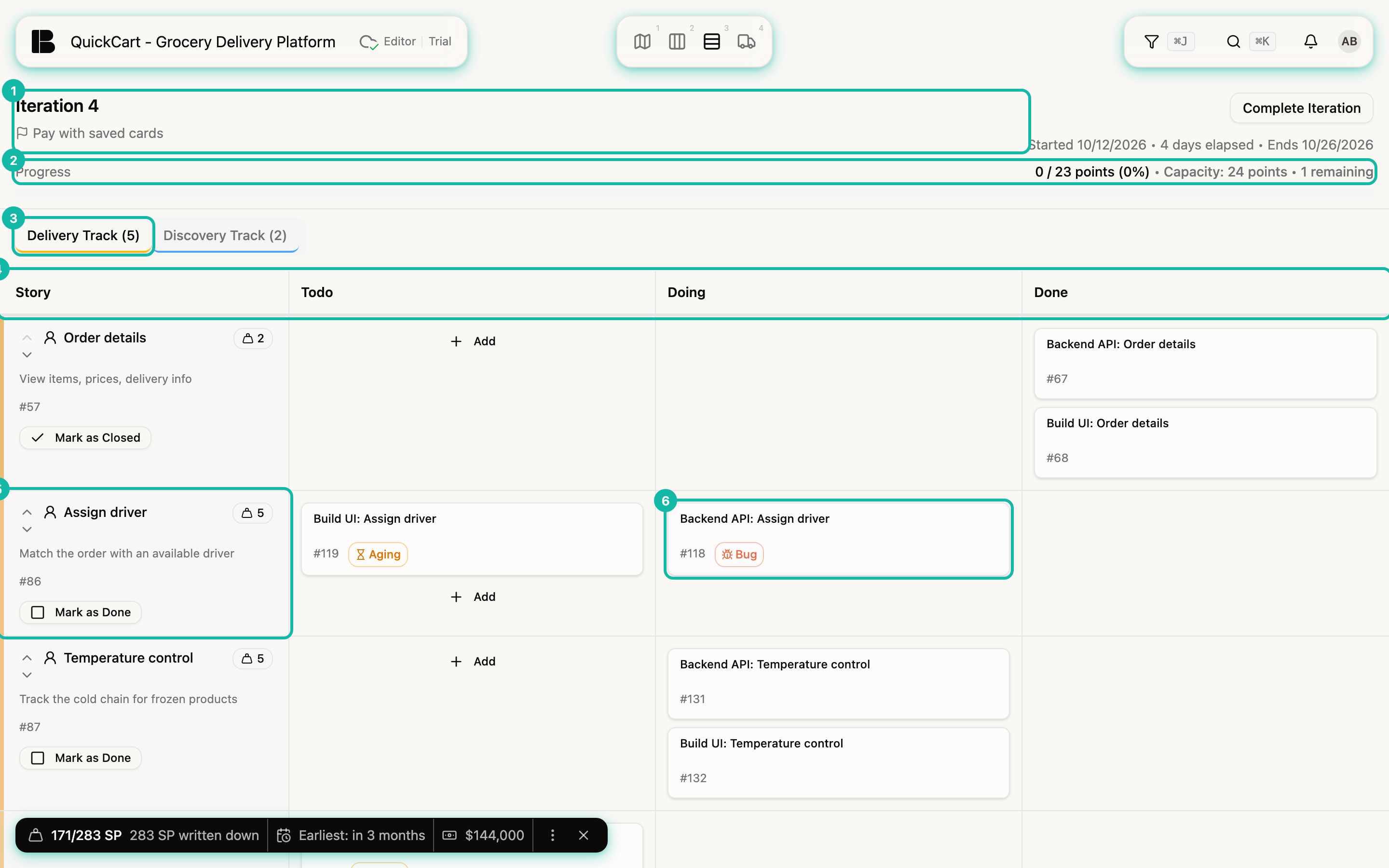
- Header (1): Title, goal, period with the elapsed time, and the Complete Iteration button. Clicking title, goal or date opens Edit Iteration.
- Progress (2): Shows the story points of the delivery stories, for example 0 / 23 points (0%), and the iteration's Capacity with what is left (remaining or over capacity). Only closed stories count as done. A story on Done that is still open adds no progress yet. Reopened stories are left out (points excluded (reopened)).
- Tabs (3): Delivery Track (count in brackets) and Discovery Track, see below.
- Columns (4): Story on the left, then Todo, Doing and Done for the workitems.
- Swimlanes: One row per story. The order follows the global priority: in the Delivery track whatever is further along first, within a state the order in the Backlog. In the Discovery track Ready sits below Draft, because nothing is left to clarify for Ready.
Delivery and Discovery track
The Delivery Track shows stories in Todo, Doing and Done. The Discovery Track shows stories that are still being clarified in this iteration: Draft and Ready (see Discovery and delivery).
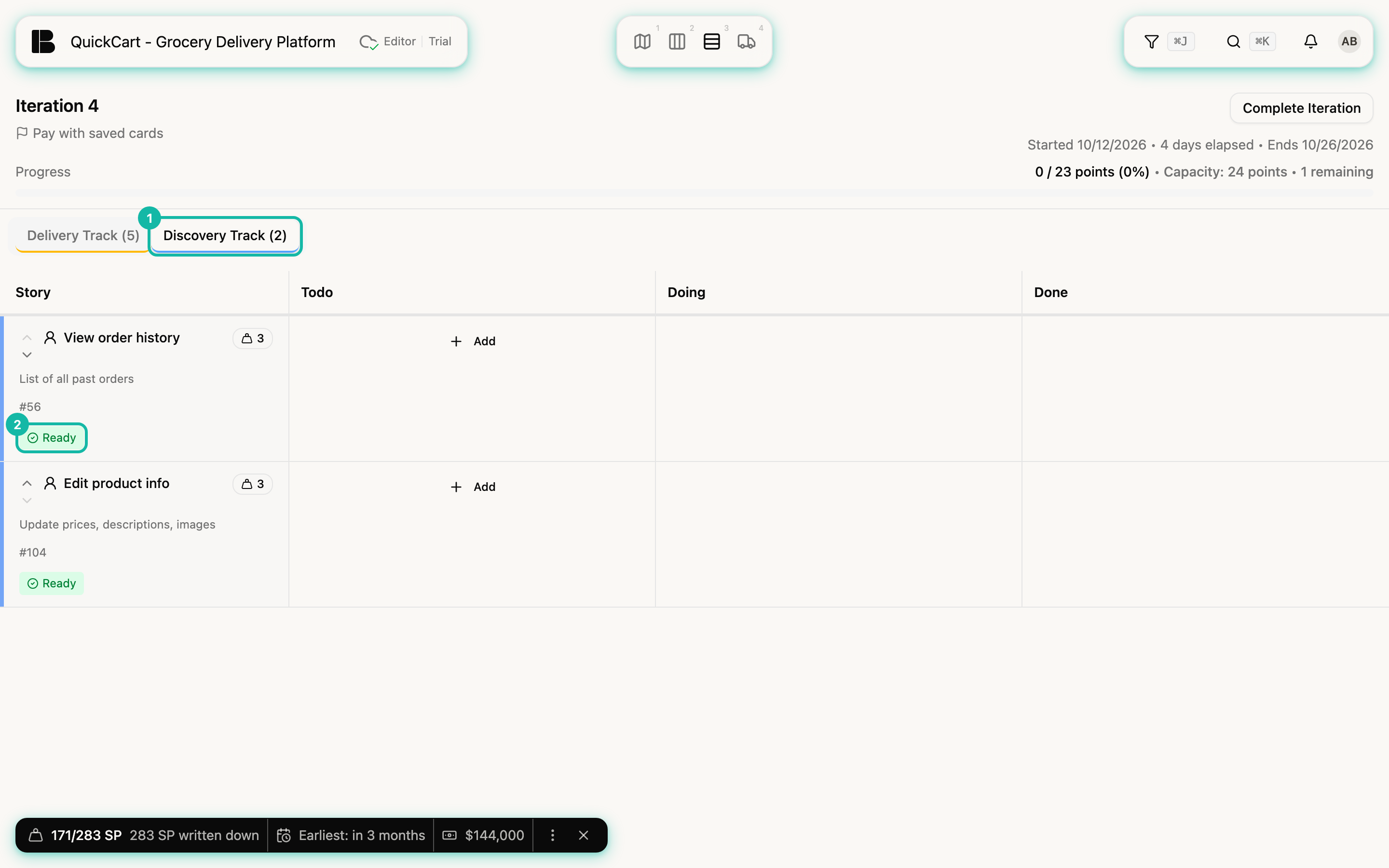
A discovery lane shows the button Mark as Ready instead of the progress action. Once the story is ready, the green Ready label replaces it. The board sorts ready stories below drafts, because nothing is left to clarify.
The story cell
On the left of each swimlane is the story with its title (a click opens the details), story points (editable here), description and number. The arrows Move up and Move down change the order of stories in the track.
Below sits exactly one action that fits the state:
| Story state | Button | Effect |
|---|---|---|
| Todo | Start Task | Sets the story to Doing |
| Doing | Mark as Done | Sets it to Done |
| Done, open | Mark as Closed | Closes the story; only now do its points count toward progress |
| Closed | Reopen Task | Reopens it and sets it to Todo |
The call on "finished" is always yours: workitems on Done never change the story's state by themselves. Open and closed explains why Done and Closed are separate steps.
Add workitems
A workitem is always created in a swimlane, because it belongs to exactly one story. In the Todo column of each lane there is the button Add:
- In the lane of the story, for example Temperature control, click Add. An input field with the placeholder Workitem title... opens in place of the button.
- Type the title and confirm with
Enteror the check mark.Escor the X cancels. - The workitem appears in Todo.
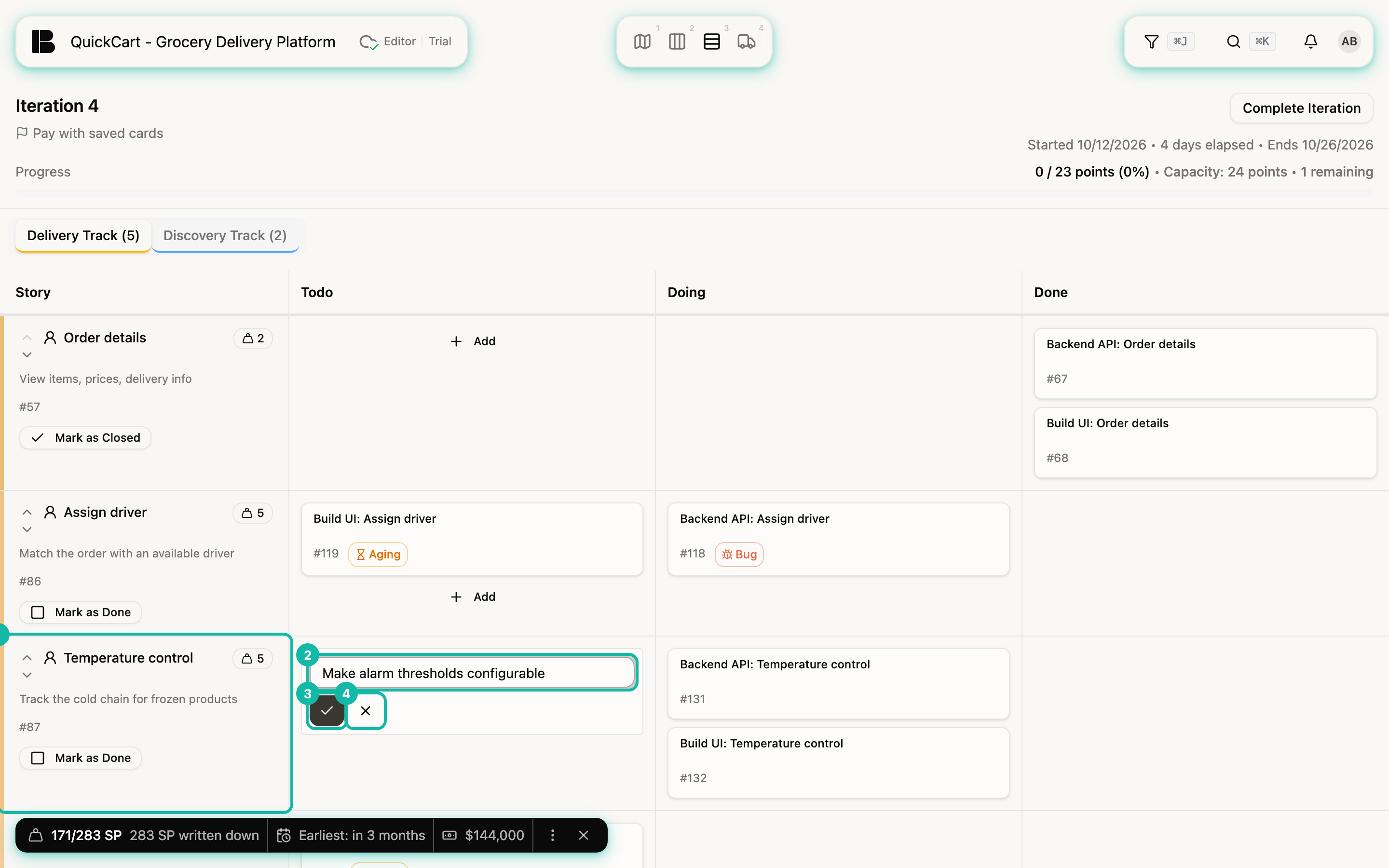
The field closes after creating; click Add again for the next workitem. You get workitems into Doing and Done by dragging them there from Todo.
Move workitems
- Drag between columns: Grab the card and drop it in Todo, Doing or Done. Betterplan saves the state immediately.
- Change the order: Drag the card up or down within the column.
- Stay in the lane: A workitem can't be dragged into another story's lane. To move it, change the parent in the details.
- The story starts automatically: If you drag a workitem to Doing or Done while its story is still on Todo (and open), Betterplan sets the story to Doing. Stories in the Discovery Track are left alone.
- Open details: A click on the card opens the workitem, where you change description, assignee and more.
- Delete: Hover over the card, open the menu with the three dots and choose Delete. The browser asks before the workitem goes away.
A card with the orange Aging label has been in the same state for a long time. Check whether it is blocked or can move on (see States).
Keyboard
Select a workitem with a click, then these shortcuts apply:
| macOS | Windows / Linux | Action |
|---|---|---|
| Enter | Enter | Open the selected card (Storyboard, Backlog, List, Estimation, Iteration Board, Timeline) |
| Esc | Esc | Clear the selection |
| C | C | Pointer over a card: open the Discussions tab and start a new comment (for Epics and Stories in the Storyboard and in the Backlog only while the card is selected) |
| ⌫ | Backspace | Delete the selected card (after a confirmation; on the Iteration Board only Workitems) |
On the Iteration Board, Backspace deletes workitems only, never stories. If the browser asks, confirm with OK.
Filter
The filter applies here too. Filter by assignee or with Has Bug, and your team sees only the matching lanes. For defects see Bugs in iterations.