Backlog as Kanban
In Prepare you get Stories ready so the team can build them. The Kanban view shows the whole Backlog by state: on the left an idea matures into a Story that is ready to build, on the right it gets built. You drag cards between columns, order them by priority and, if you like, group them in Buckets. Which states exist and what they mean is covered in States and Discovery and Delivery. This page shows the work in the Kanban itself.
Layout of the board
The columns follow the path of a Story. The Discovery header groups Idea, Draft and Ready. Under Delivery you find Todo, Doing and Done, followed by the Closed column. Next to Delivery, Betterplan shows the running Iteration with its points and capacity. Each column header names the number of tasks and their Story Points.
The Closed column holds finished and cancelled Stories. It starts collapsed. The arrow in front of a column name collapses or expands any column for as long as you keep the view open.
Step by step with QuickCart
- Drag a card to another state. Grab the card Apply promo codes in the Idea column and drop it into Draft. The Story is now in the state Draft, and Betterplan saves that right away. If you drag a card into Todo, Doing or Done, Betterplan adds it to the running Iteration. Dragging is unrestricted: you can aim for any column directly and also drag backwards.
- Change the priority. Drag the card up or down within its column. Higher means more important, but only compared with the cards of the same column (see below). The card menu is quicker: hover over the card, open the menu at the right edge of the title and choose Move to Top or Move to Bottom.
- Move a state back. If you drag a Story from Todo, Doing or Done back to Ready, Betterplan takes it out of the Iteration again. The same happens when you drag it to Idea from any column. The recorded dates (Lead times) are kept.
- Close a Story. A card in Closed is finished. If it still has a state before Done, it counts as cancelled (see Open and Closed). Drag it back into another column and it is reopened.
- Create a new task. The + in a column header opens a line where you type the title. There you pick the type, Story, Dev Story or Project Story (see Story types). The new card lands at the bottom of the column. A click on a card's title opens its details (Ticket details).
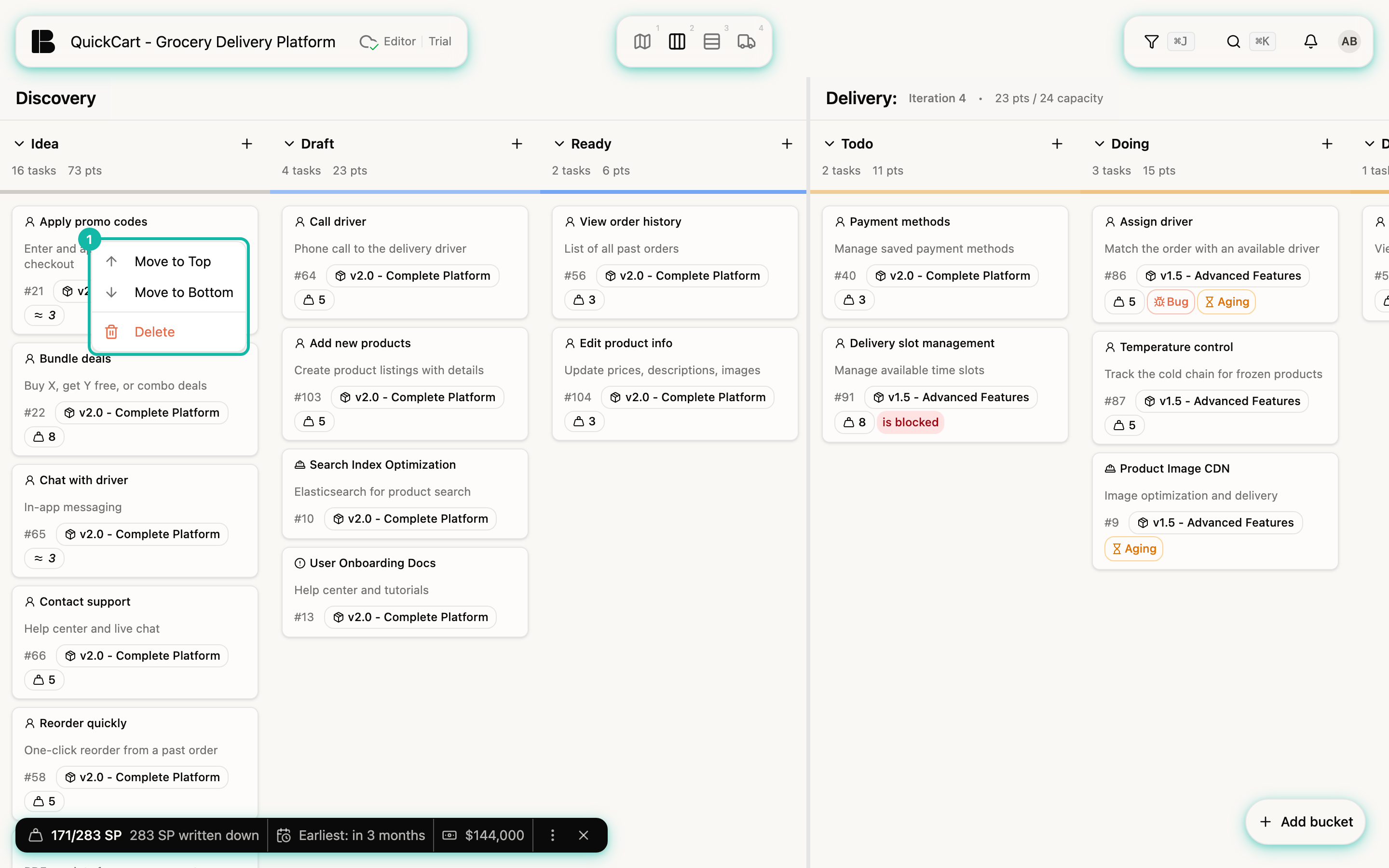
The card shows what you need while preparing: title, description, Release and the estimate. How to assign Story Points is described in Estimating.
Order = priority within a stage
In the Kanban the global priority applies: the further right a Story stands, the higher its priority. A card in Doing comes before every card in Todo, and that before every card in Ready, Draft and Idea. That may feel unusual at first, but it is intentional: Stop starting, start finishing. Finish first, then start something new.
The top-to-bottom order therefore decides only within a column. The top card in Ready is the next Story that should go into implementation. If you want to build a Story sooner, you don't only drag it up, you also bring it further right, if it is mature enough. The order of swimlanes on the Iteration Board and the forecast of the Delivery Timeline rest on this ranking.
The order in the Storyboard has nothing to do with it. It arranges the story of your undertaking and helps with the first prioritization, but never changes the priority.
Buckets
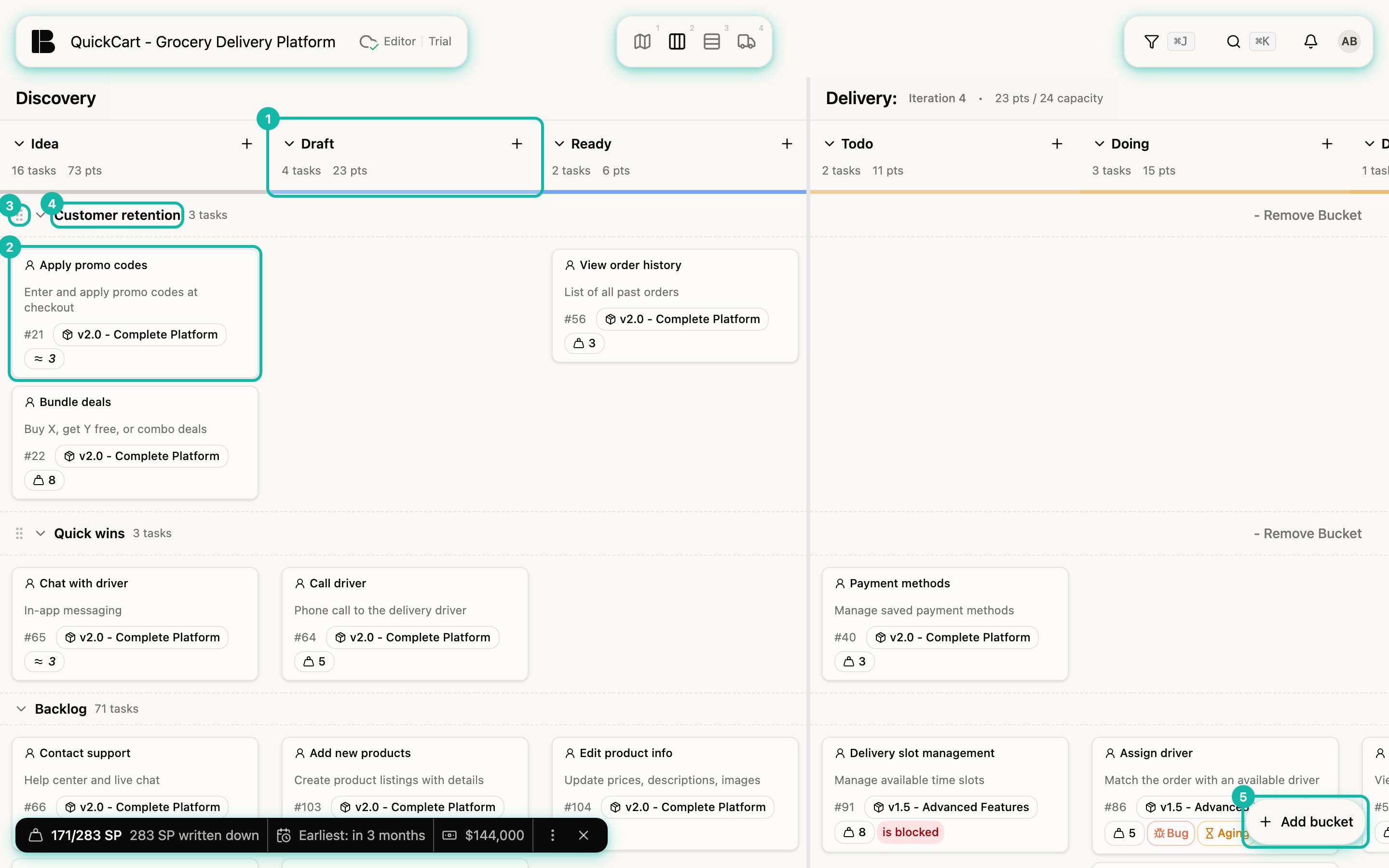
A Bucket groups Stories into a themed batch that you want to plan together. It consists of a name only, with no date and no status. A Bucket is therefore different from a Release (a goal with a date), an Iteration or a tag. A Story belongs to at most one Bucket.
As soon as at least one Bucket exists, the board splits into horizontal rows: one per Bucket and below them the fixed Backlog row for everything without a Bucket. The columns and their headers stay shared and appear only once at the top.
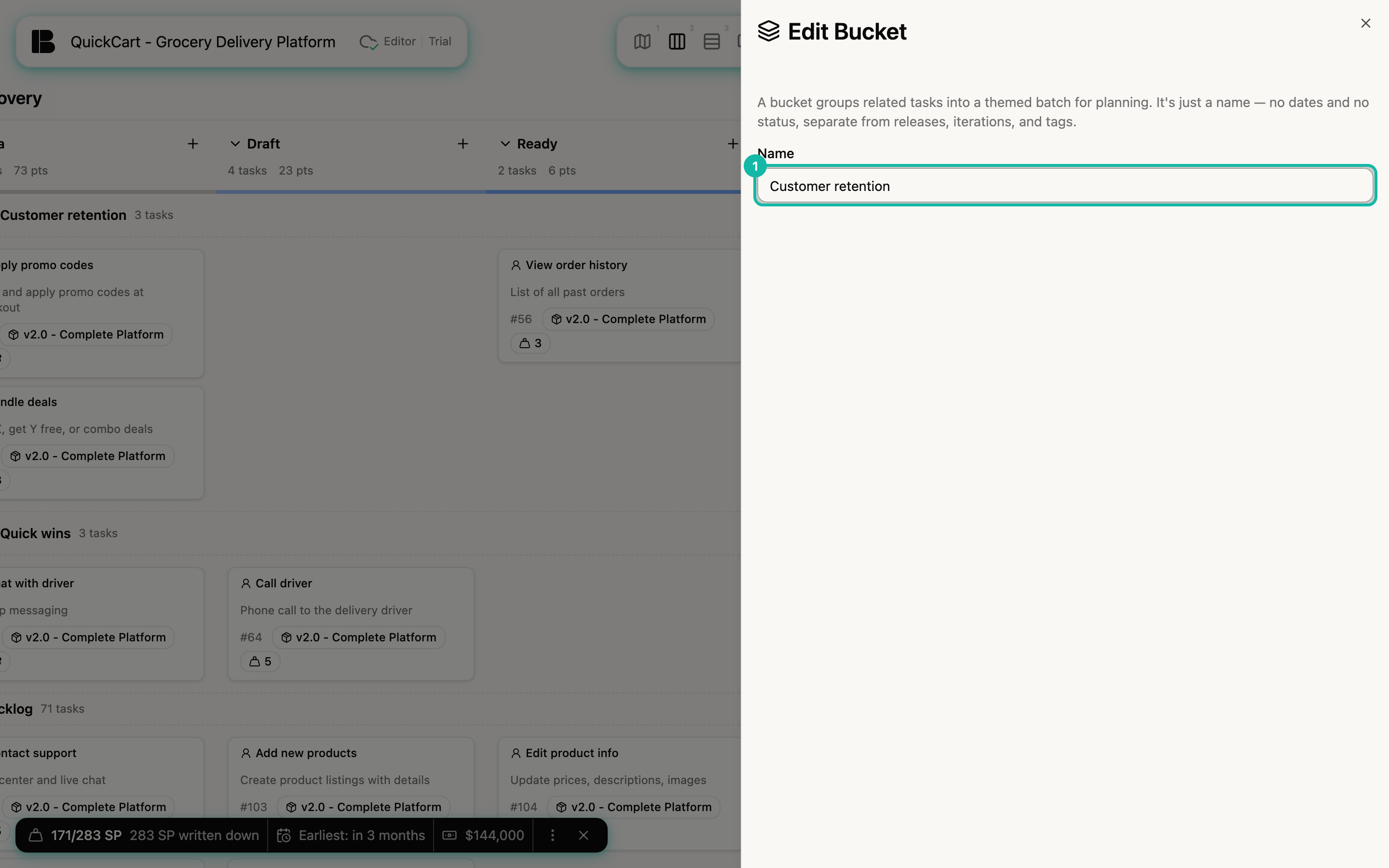
- Create a Bucket. Click Add bucket at the bottom right. A side panel New Bucket opens where you enter the Name.
- Assign Stories. Drag a card into the Bucket's row. It is the same gesture as changing the state: drag it to another row and the Bucket changes, drag it to another column and the state changes. Both at once works in a single move. You can also choose a Story's Bucket in its details, next to the Release, and set it for many Stories at once in the List.
- Rename. Click the Bucket's name. The side panel Edit Bucket opens with the current name.
- Reorder. Drag the row by the handle to the left of the name up or down. The order of the rows affects priority: given the same state, Stories in upper Buckets come before those in lower ones, and only then does the position in the column count. The Backlog row always stays at the bottom.
- Collapse. The arrow in front of the name collapses a row. Betterplan remembers this per project in your browser.
- Remove. - Remove Bucket at the right edge of the row deletes the Bucket after a confirmation. The Stories stay and show up in the Backlog row again.